

01
Getting started
Install the app, take the one-minute welcome tour and find your way around the start page.
Install Felion Terminal#
Felion Terminal runs on Windows 10 and 11 (x64), macOS on Apple Silicon and Intel, and Linux (x64). Get the file for your system from the download section; it always points at the newest release.
| System | File | How to install |
|---|---|---|
| macOS (Apple Silicon) | FelionTerminal-<version>-mac-arm64.dmg | Open the disk image and drag Felion Terminal into Applications. |
| macOS (Intel) | FelionTerminal-<version>-mac-x64.dmg | The same, from the Intel disk image. |
| Windows (installer) | FelionTerminal-Setup-<version>.exe | Run it; you can choose the install folder. |
| Windows (portable) | FelionTerminal-Portable-<version>.exe | Nothing to install: run the file from any folder. |
| Linux (AppImage) | FelionTerminal-<version>-linux-x86_64.AppImage | Make it executable with chmod +x, then run it. |
| Linux (Debian, Ubuntu) | FelionTerminal-<version>-linux-amd64.deb | sudo apt install ./FelionTerminal-<version>-linux-amd64.deb |
Every release also lists SHA256SUMS.txt, the checksum of each file, so you can confirm a download arrived intact.
The startup lion and the welcome tour#
While the app loads, the Felion lion assembles over the window for about a second and a half. Any key or click skips it. You can turn it off in Settings → General → Show the lion on startup. If your system asks apps to reduce motion, the lion appears already finished.
The first time you open Felion Terminal, a short tour sets it up. It has five screens, and every choice in it is an ordinary setting you can change later.
- Welcome. Choose Get started, or Skip (top right, or Esc) to go straight to the app.
- Make it yours. Pick one of the four colour schemes and a text size between 11 and 20 px, with a live preview.
- Copy and paste your way. Choose what a right click does in a terminal, and whether selecting text copies it.
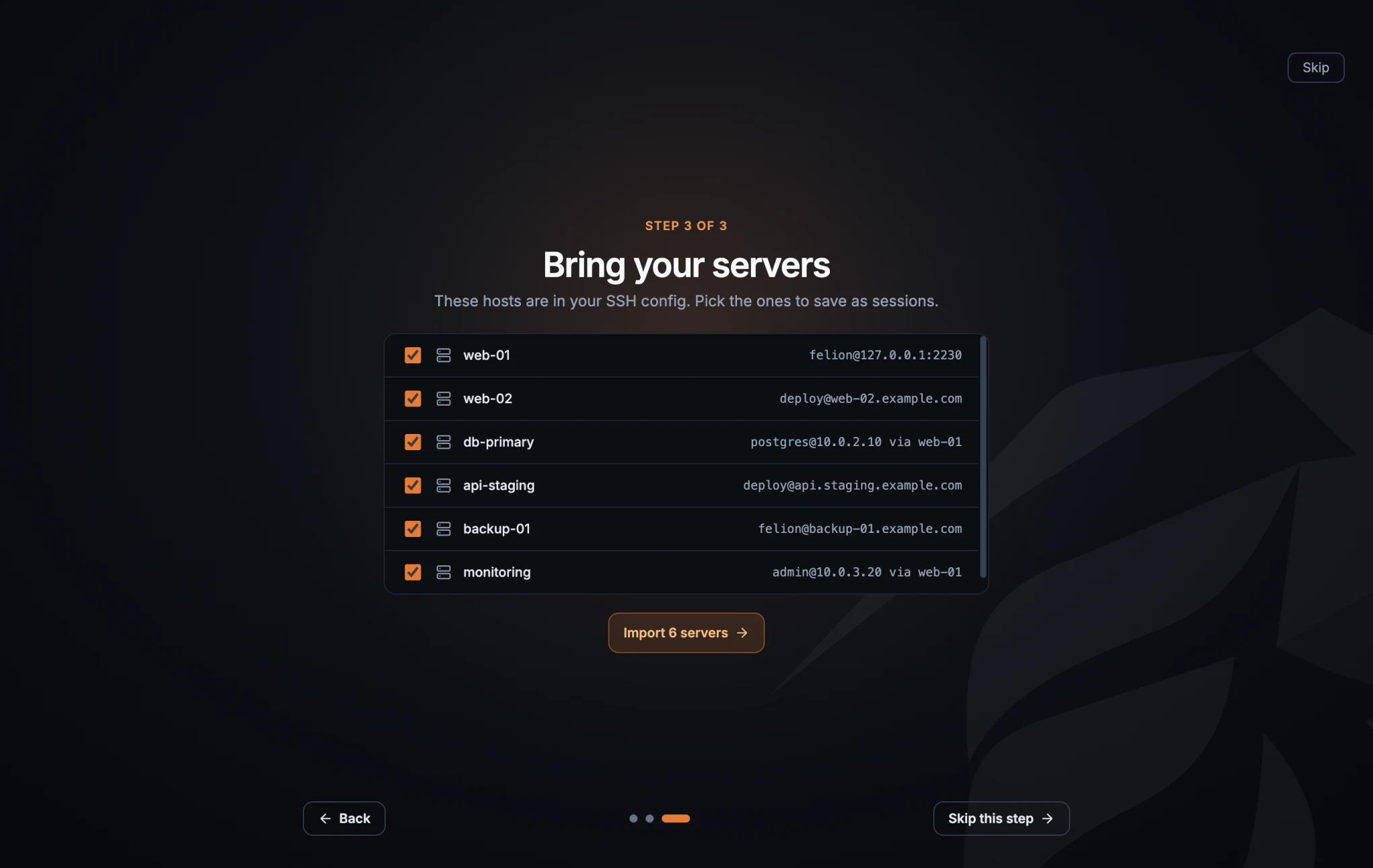
- Bring your servers. Save hosts from your SSH config as sessions (see Import servers from your SSH config). Skip this step moves on without importing.
- You're all set. Three shortcuts worth remembering, then Open a terminal or Explore on my own.
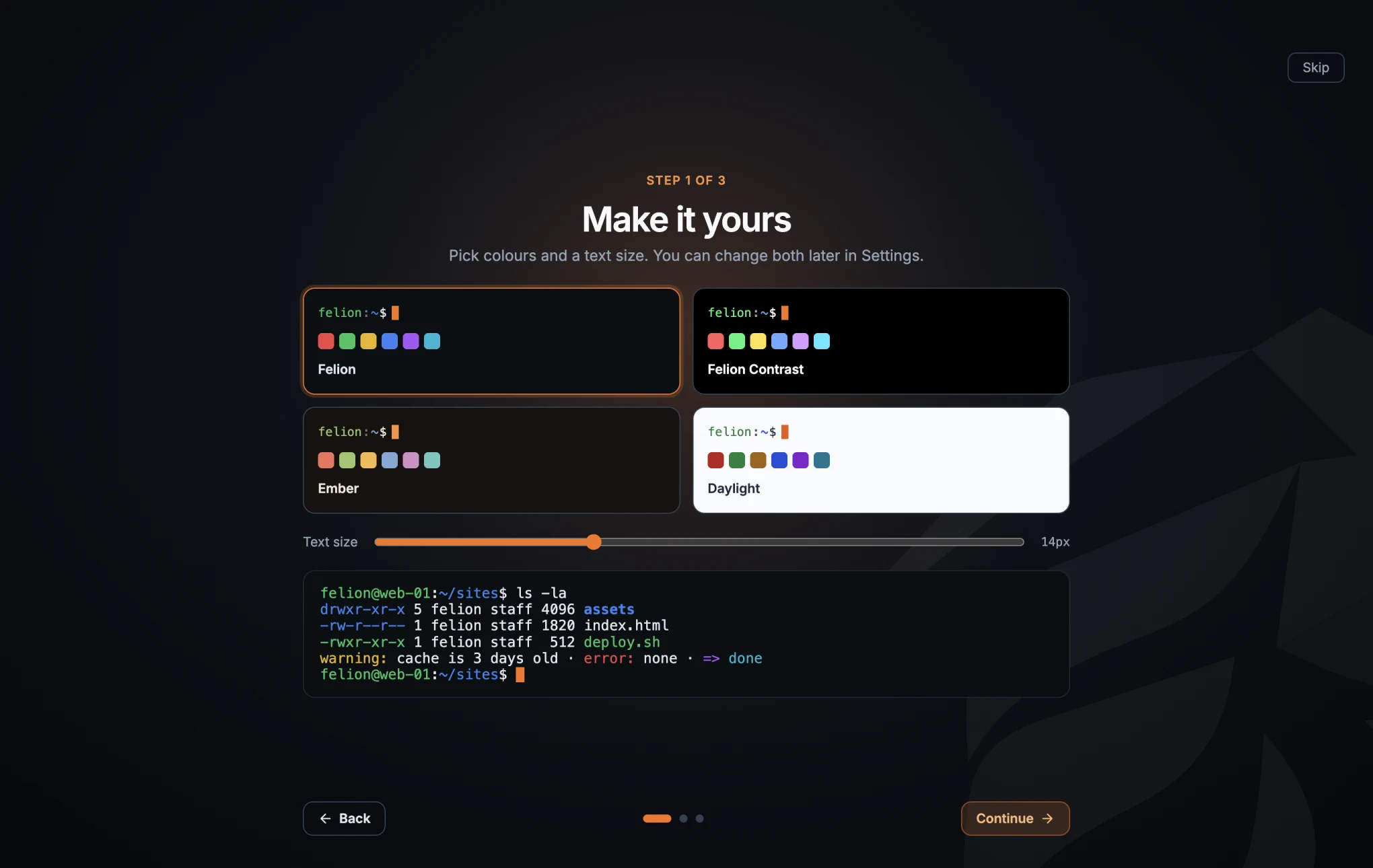
To see the tour again, open Settings → General → Welcome tour → Show it again, or run Show the welcome tour from the command palette.
Import servers from your SSH config#
Step 3 of the welcome tour reads ~/.ssh/config and lists every concrete host in it, with its user, address and port, and “via” the jump host when it has one. They all start ticked; untick the ones you don't want, then choose Import N servers. They are saved as SSH sessions in a folder called Imported.
| In ~/.ssh/config | In the session |
|---|---|
Host alias | The session's name |
HostName, Port, User | Host, port and username |
The first IdentityFile | Authentication set to Private key with that file; without one, Password |
ProxyJump | The jump host, when that host is imported too (the first hop only) |
- Wildcard hosts (
*,?,!) andMatchblocks are skipped, andIncludelines are not followed. - A host you already saved (same host, user and port) is not offered again.
- The import lives in the tour: run the tour again to import hosts you added later.
The start page#
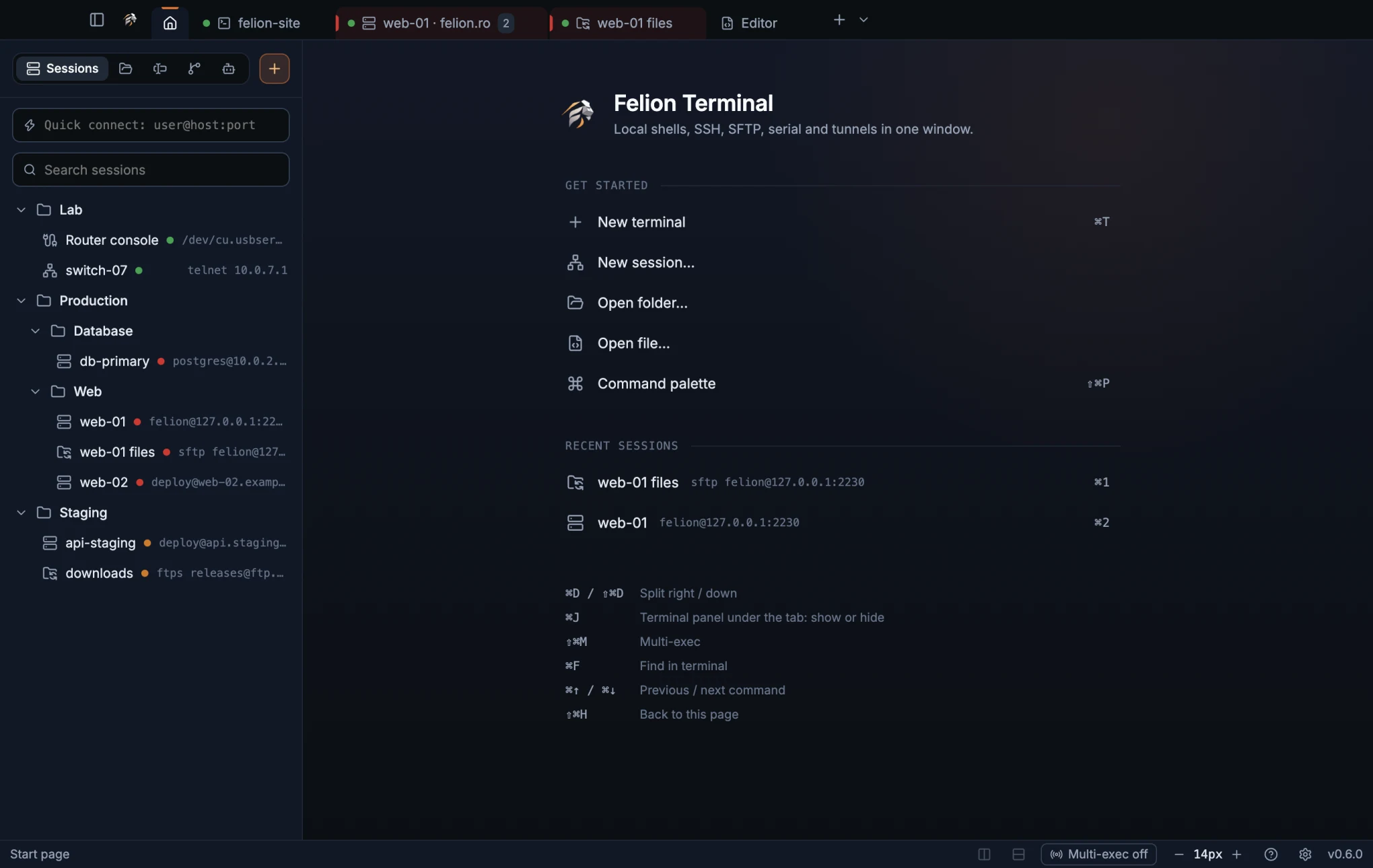
The start page is a tab of its own. It always sits first in the tab bar, as a house icon, and the window shows it when you start the app with no tabs to reopen or close your last tab. The status bar then says Start page.
| Part | What it does |
|---|---|
| Get started | New terminal opens your default shell, New session… opens the session form, Open folder… opens a terminal in a folder you pick, Open file… opens a file in the editor and Command palette opens the palette. |
| Recent sessions | The five saved sessions you opened most recently, with the keys that open them. |
| Shortcuts | The keys you will use most: split, the terminal panel, multi-exec, find, jump between commands and back to this page. |
Your tabs keep running behind the start page, so you can come back to it at any time without closing anything. Click the house icon, choose Go to the start page in the command palette, or use the keys below.
| Action | macOS | Windows and Linux |
|---|---|---|
| Go to the start page | ⇧⌘H | Ctrl+Shift+H |
| Open recent session 1 to 5, on the start page | ⌘1 to ⌘5 | Ctrl+Shift+1 to Ctrl+Shift+5 |
- The number keys work only while the start page is in front, and not while a dialog or the palette is open.
- While the start page is in front, what you type never reaches a terminal behind it.
- From the start page, Ctrl+Tab goes to your first tab and Ctrl+Shift+Tab to your last.
Where your data lives#
Your settings, sessions, snippets, trusted host keys and open tabs are kept in the app's data folder, with the recorded server graphs and the list of chats you started in the Agents tab. Settings → Advanced → Data folder → Open (or the same button under About) shows it on any system.
| System | Folder |
|---|---|
| macOS | ~/Library/Application Support/Felion Terminal |
| Windows | %APPDATA%\Felion Terminal |
| File | Holds |
|---|---|
sessions.json | Saved sessions and their folders |
secrets.json | Passwords, key passphrases and a GitHub token, encrypted with your system keychain |
known_hosts.json | Trusted SSH host keys and pinned FTPS certificates |
settings.json | Every setting |
snippets.json | Your snippets |
git.json | The Git panel's recent repositories, and the ones it may fetch in the background |
github.json | How you connected GitHub and the account name. A token you paste is kept in secrets.json |
workspace.json | The tabs, splits, terminal panels and tab groups to reopen next time |
shell-integration/ | The small startup files that let shells report their folder (see Shell integration) |
graphs/ | Recorded server graphs, one .jsonl file per server, a point a minute, kept as long as Settings → SSH → Server graphs → Keep for says. Not encrypted |
agent-sessions.json | The ids of conversations you started in an Agents chat, so they are listed with yours. Ids only, no messages |
If one of these files can't be read, Felion Terminal keeps it as <file>.corrupt-<time> and starts from the defaults instead of overwriting it. Only the 3 newest of these copies are kept for each file. To move everything to another computer, use Export.
The Agents tab also reads your Claude Code and Codex conversations from ~/.claude/projects and ~/.codex/sessions. Those stay where they are, and Felion Terminal never writes to them.
02
The window
Learn the tab bar, split panes, sidebar and status bar, and how the window behaves when a connection drops, you step away or you close the app.
Tabs and the title bar#
The title bar holds your tabs. From left to right it has the sidebar button, the Felion mark, the house icon of the start page, your tabs, a + button that opens a new terminal, and a ⌄ button that opens a menu of the shells Felion Terminal found on your computer.
Each tab shows a dot for its connection (connecting, connected or closed; tabs that aren't connections, such as the Editor, a chat or server graphs, have none), an icon for its kind and its label. It also shows a bell when a program in the tab wants your attention (see Notifications from programs), the number of panes when the tab is split, and a × to close it.
A local tab shows the name of the folder your shell is in, or ~ for your home folder. A remote tab shows the session name and the folder, for example web-01 · felion.ro. Until the shell reports its folder, the tab shows the session name. A shell in the terminal panel never renames the tab, even when it has the focus. Hover over a tab to see the full connection, the path and any title the program has set.
- Click a tab to switch to it.
- Double-click a tab to rename it. Press Enter to save or Esc to cancel. An empty name goes back to the automatic one.
- Middle-click a tab to close it, or use its ×.
- Drag a tab to move it. A line marks where it will land. Dropped between two tabs of a group, it joins that group.
- Right-click a tab for Rename tab, Add to new group…, Add to or Move to an existing group, Remove from group and Close tab.
- A name you gave a tab, and the order of your tabs, stay after a restart.
On macOS the window buttons sit at the left of the title bar. On Windows and Linux the tabs share the bar with the system's own window buttons.
Tab groups#
Put tabs that belong together in a group, for example the servers of one customer. Right-click a tab and choose Add to new group…, then type a name. The group's name shows as a chip before its first tab, and its tabs are tinted in the group's colour.
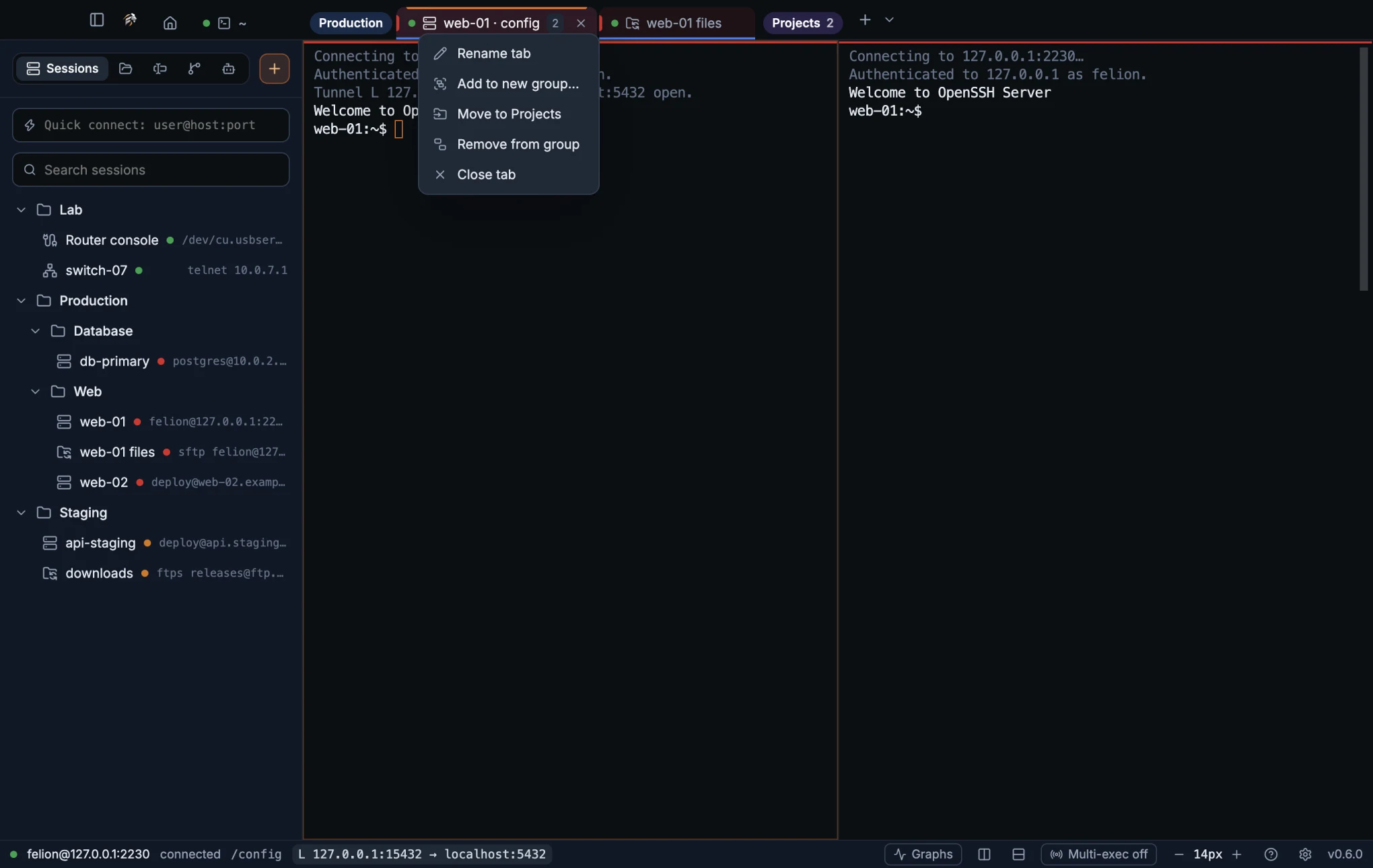
- Click the chip to fold the group away. Only the tab in front stays visible, and the chip shows how many tabs the group has. Click again to unfold it.
- Right-click the chip for Collapse or Expand, Rename group…, a colour (Blue, Violet or Grey), Ungroup and Close its tabs.
- Add more tabs from their right-click menu with Add to <group>, or drag a tab between two tabs of the group. Move to takes a tab from one group to another, and Remove from group takes it out.
- A group goes away with its last tab. Ungroup keeps the tabs and removes the group.
- Groups, their colours and whether they are folded are kept with your tabs at start.
- Groups use blue, violet and grey only, because red, amber and green mark the environments of your sessions.
- Only tabs can be dragged. A whole group can't be moved by its chip yet.
Split panes#
Split the focused pane to the right or down to see two or more terminals side by side in one tab. A split opens a second connection to the same session.
| Action | macOS | Windows and Linux |
|---|---|---|
| Split right | ⌘D | Ctrl+Shift+D |
| Split down | ⇧⌘D | Ctrl+Shift+E |
| Close the focused pane | ⌘W | Ctrl+Shift+W |
You can also split from the status bar, from the command palette with Split right or Split down, or from the terminal's right-click menu when it is set to show a menu.
A pane split beside another shows a × in its top-right corner while the pointer is over it. Click it to close that pane. The terminal's right-click menu, when it is set to show a menu, has Close pane, and so has the palette. All of them close the pane the way ⌘W (Ctrl+Shift+W) does. Shells in the terminal panel have their × in the panel strip instead, and the Editor and a chat have headers of their own.
Drag the divider between two panes to resize them. Each pane can take from 10 % to 90 % of the space. The focused pane gets an accent outline when its tab has more than one pane.
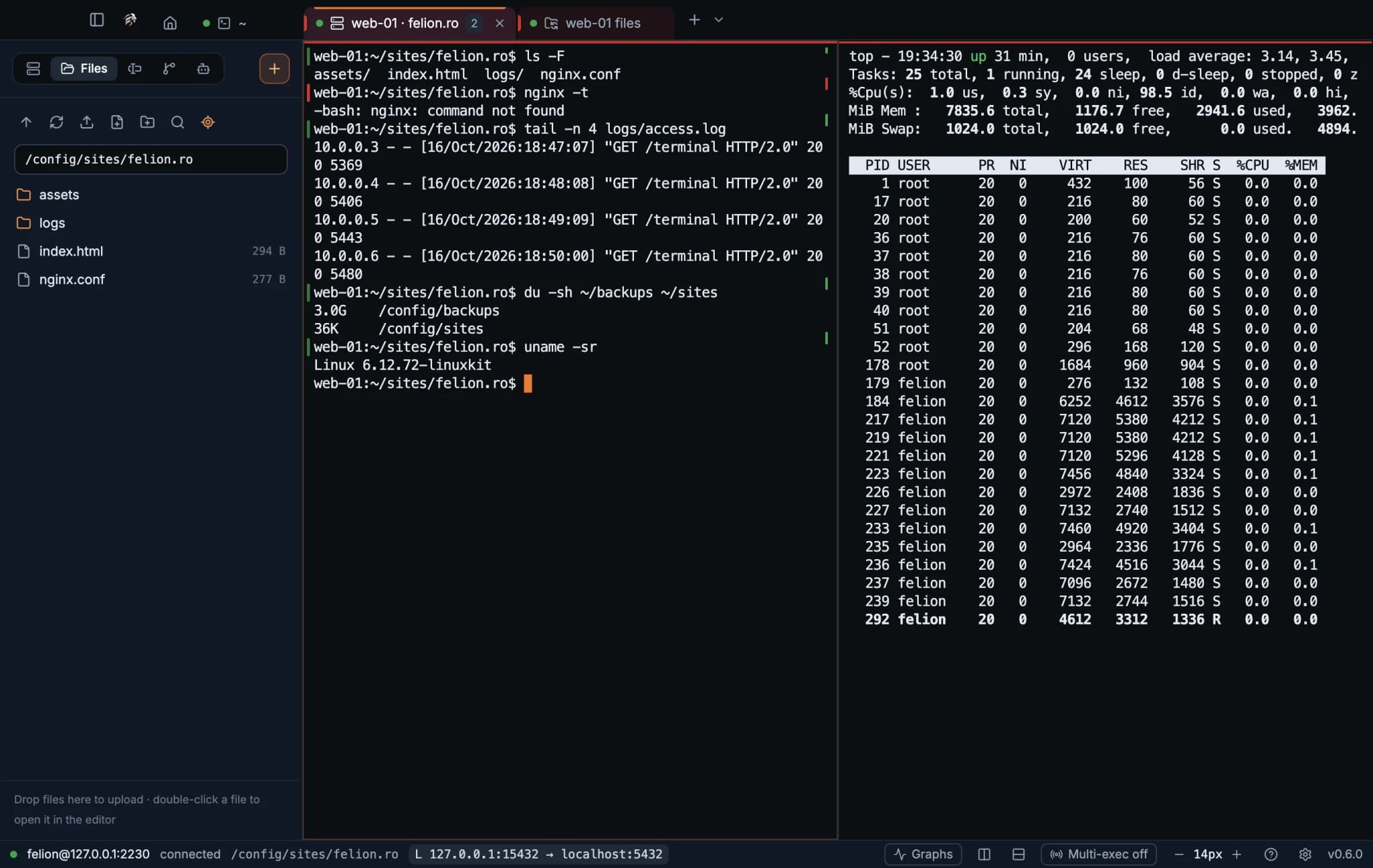
- A new pane does not carry the session's tunnels. The first pane keeps the ports, so see Tunnel types to plan them.
- On a chat, Split right opens a local shell beside it in the conversation's folder. Split down on a chat or on the Editor opens a shell in the terminal panel instead.
- The Editor, server graphs and the Problems and Debug tabs can't be split side by side.
- Closing the last pane in a tab closes the tab, unless the tab has a terminal panel: the panel then fills the tab.
The terminal panel#
Every tab can have a panel of shells under its panes, so a terminal for builds, tests or git sits right under the editor, a chat or a server. The panel's shells show as small tabs in a strip along its top.
| Action | macOS | Windows and Linux |
|---|---|---|
| Show, fold or hide the terminal panel | ⌘J | Ctrl+Shift+J |
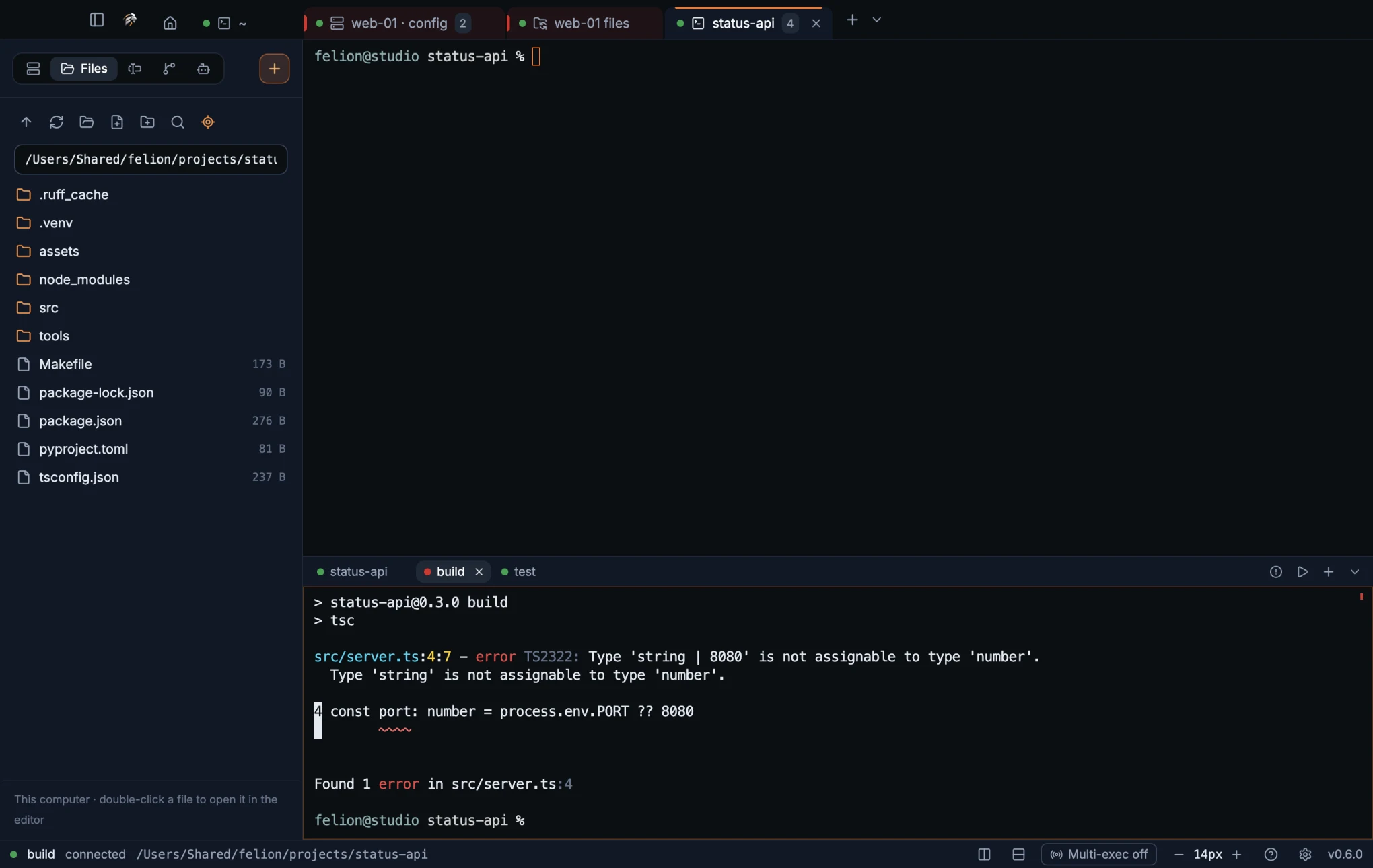
- In a tab without a panel, ⌘J (Ctrl+Shift+J) opens one with a shell. On an open panel it folds the panel down to its strip, and the next press opens it again at the same height.
- Show or hide the terminal panel in the command palette does the same. The editor and a chat also have a button for a shell in the panel.
- The panel opens at about a third of the tab's height. Drag the divider above it to resize it, or double-click the empty part of its strip to fold or open it.
- Click a panel tab to show it. Middle-click it or use its × to close it.
- The strip's buttons on the right open Problems, run a task, start a new shell (+) and fold the panel.
A new panel shell starts in the folder of the panel shell in front. Without one it uses the chat's folder, then the folder of a local terminal in the tab, then your home folder.
- Panel shells are local shells, also in an SSH tab.
- Folding or switching panel tabs never restarts a shell: it keeps running out of sight.
- The panel, its shells and whether it is folded come back after a restart. A chat's panel comes back as a tab of its own.
Status bar#
The status bar along the bottom describes the focused pane. On the left it shows the pane's dot, the connection (for example felion@127.0.0.1:2230), the state word (such as connected or closed), the current folder and one chip for each open tunnel, such as L 127.0.0.1:15432 → localhost:5432. Panes that aren't connections, such as the editor or a chat, show no dot or state word.
On the right are the Graphs button when an SSH terminal is in front (see Server graphs), the Split right and Split down buttons, the Multi-exec on/off switch of the tab in front (see Multi-exec), the text size buttons − and + with the current size, the ? button, the Settings gear (see Settings overview) and the version number.
The ? button opens this manual at felion.ro in your browser. So do Open the manual in the command palette and, on macOS, Help → Felion Terminal Manual.
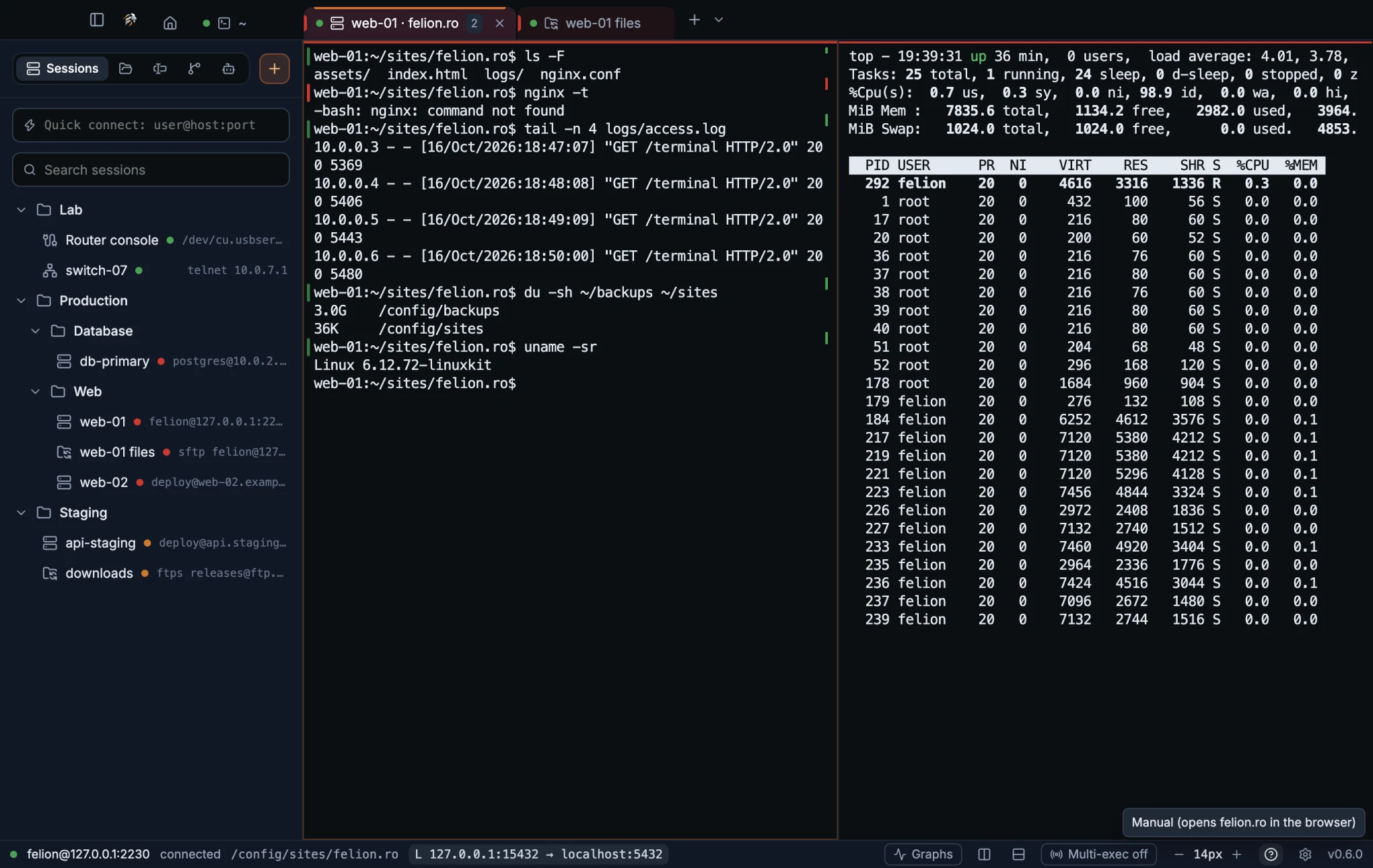
- The − and + buttons change the size between 9 px and 28 px. The size field in Settings → Terminal accepts 8 px to 32 px.
- The state word and the dot follow the focused pane, so the status bar changes when you click into another pane.
Connecting and disconnected panes#
A remote pane shows the looping lion and the words “Connecting to” followed by the host until the connection is ready. While it connects, the terminal also writes grey lines such as “Connecting to host:22…” and “Authenticated to … as …”. Red lines show errors.
When a connection ends, the pane shows a banner with two buttons. The banner says what happened, and its buttons depend on the kind of pane.
| Pane | Banner | Buttons |
|---|---|---|
| Remote session (SSH, Telnet, Serial) | Disconnected | Reconnect, Close |
| Local shell | Shell exited | Restart, Close |
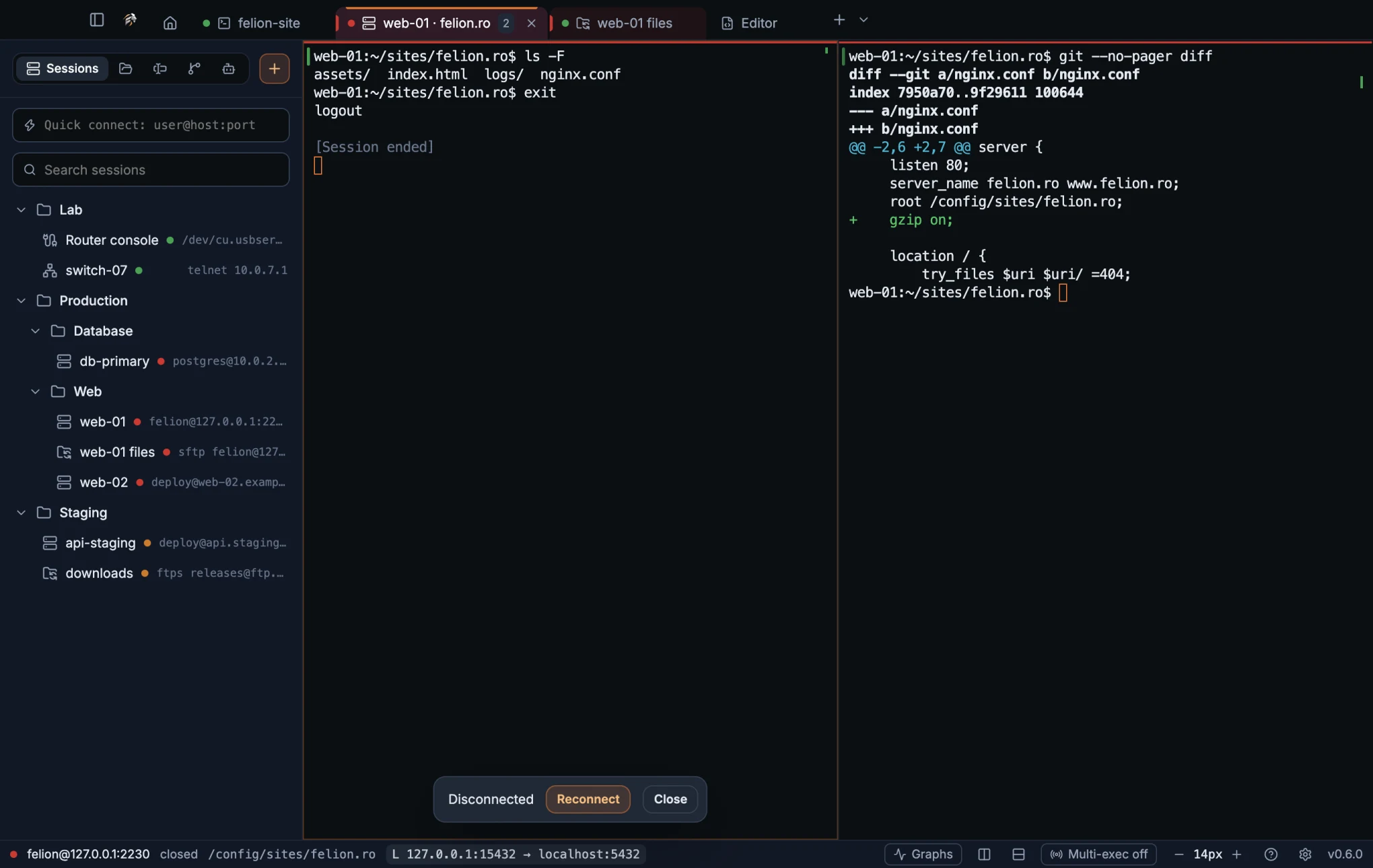
Reconnect opens a fresh connection in the same place in the layout. Restart starts a new local shell in the pane. Both are also in the command palette when the focused pane is closed.
Reopen your tabs at start#
Felion Terminal saves your open tabs in their order, splits, split sizes, tab names, tab groups, terminal panels and the active tab. At the next start it opens them again, and the remote sessions in them reconnect.
To turn this off, open Settings → General and switch off Reopen my tabs. It is on by default.
- The Editor tab is not restored, because its files may sit behind a connection that is gone. See Editor basics. Server graphs, chats and the Problems and Debug tabs are not restored either.
- A task in a terminal panel comes back as a plain shell in its folder.
- The layout is saved half a second after each change, and again when you close the app.
Quick terminal#
The quick terminal is a local shell that drops down from the top of the screen over any app, with one key press. Press the key again, or click somewhere else, to put it away. The shell keeps running while it is hidden.
| Action | macOS | Windows and Linux |
|---|---|---|
| Show or hide the quick terminal | ⌃` | Ctrl+` |
| Hide it from inside | ⌘W | Ctrl+Shift+W |
The window fills the full width of the screen's work area, takes 45 % of its height, stays on top of other windows and has no frame. It opens on the screen the mouse is on, including over full-screen apps and on every desktop Space.
To change or turn it off, open Settings → General → Quick terminal. Switch Drop down a terminal from any app on or off, and set the Hotkey by clicking the field and pressing the keys you want. Press Esc to cancel the recording.
- A hotkey must include Ctrl or ⌘ (or Alt on Windows and Linux), or be a single F-key.
- If another app already uses the combination, Settings says “Another app already uses …”.
- On macOS a combination the system reserves, such as ⌘Space, can be saved but never fire. Felion shows no warning for this.
- The quick terminal runs one local shell with the Shell for new tabs setting. If that shell exits, the next drop starts a new one.
- It has no splits and no sidebar.
- A clicked file path opens in the quick terminal only when Open clicked file paths in is set to VS Code, Cursor or Zed. With the Felion editor, a click does nothing there.
On Windows, putting the quick terminal away with the hotkey hands the keyboard back. If you opened it from the main Felion window, that window gets the focus again.
On Windows and Linux, closing the main window quits the app, and the quick terminal with it. On macOS the quick terminal keeps running after the main window closes.
Idle screen#
After a while without keyboard or mouse input, the window is covered by the looping lion, a large clock, the date and the words “Press any key to continue”. Your sessions keep running underneath. Output in a terminal you can see puts the idle screen off, so it doesn't cover an answer an AI tool is still writing. Once it is up, output doesn't take it away.
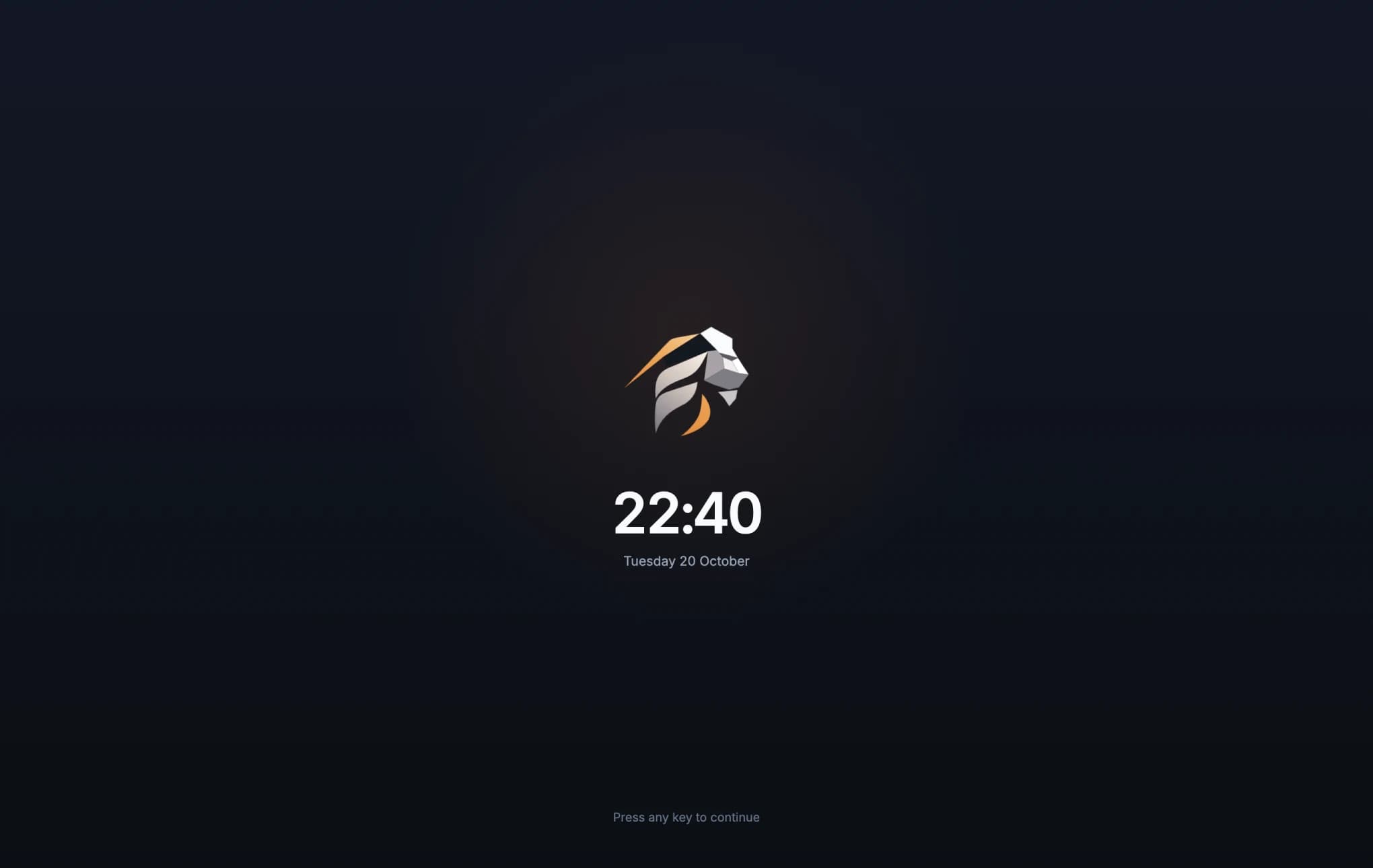
The key press or click that wakes the screen is not sent to the terminal. Mouse movements of less than 12 px are ignored, so a bump of the mouse does not wake the screen.
Choose the delay in Settings → General → Show the idle screen: Never, After 2 minutes, After 5 minutes, After 10 minutes (the default), After 15 minutes, After 30 minutes or After 60 minutes. To see it now, press Show it now under Preview in the same section.
To cover the window at once, run Lock screen from the command palette.
Tooltips, dialogs and messages#
Hover over any button to see what it does. The tooltip appears after about half a second. If you move from one button to the next, the tooltip appears at once. Where a button has a shortcut, the tooltip shows it. If there is no room below the button, the tooltip appears above it.
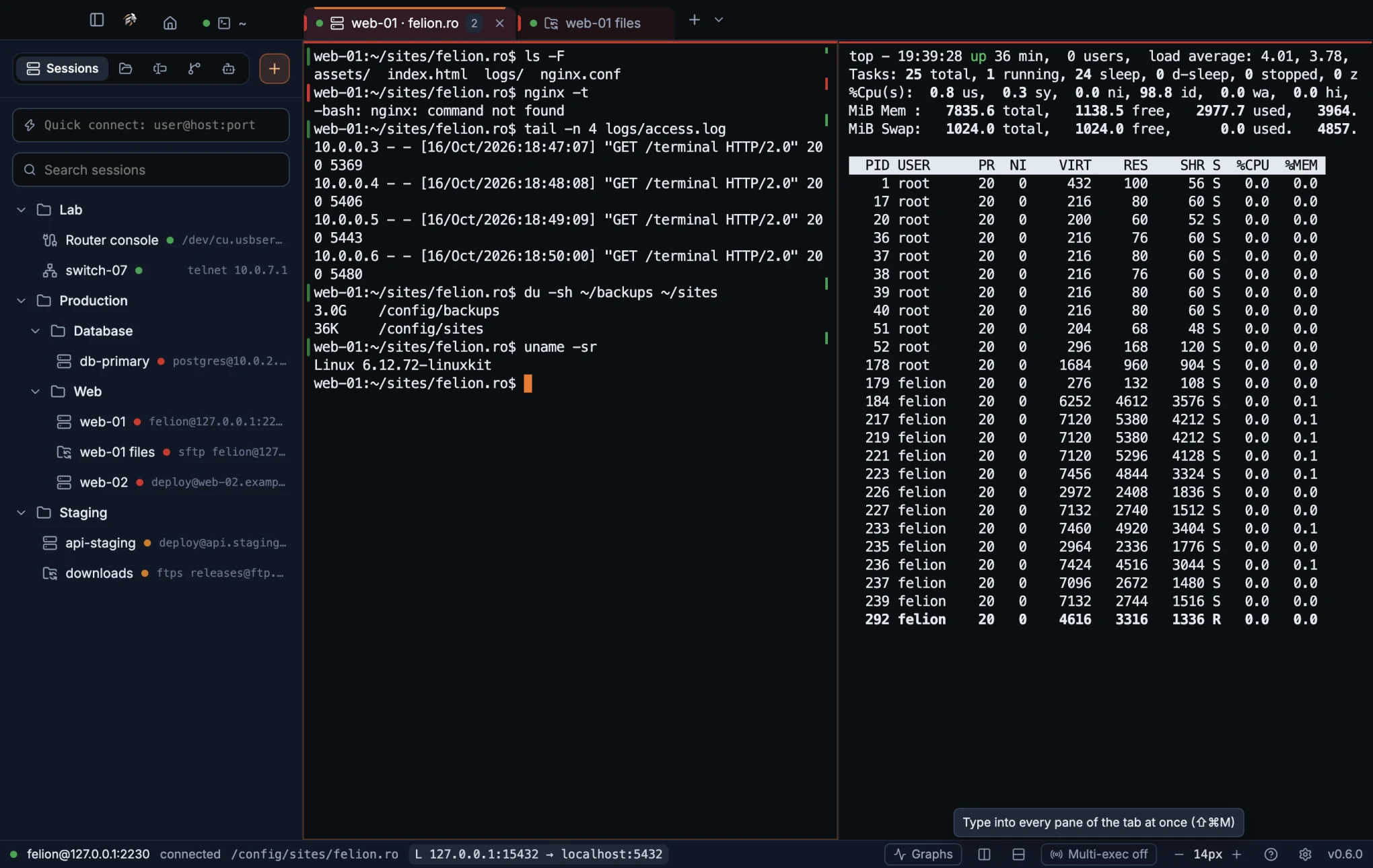
A file name that is cut off in the window shows in full in its tooltip. A name that is fully visible has no tooltip.
Dialogs take the keyboard while they are open. Press Esc to close the topmost one. Focus returns to the terminal afterwards, so you can keep typing.
Dropdowns in the session form and in Settings open a list in the app's own style, with a check mark on the current choice. The list opens upwards when there is more room above.
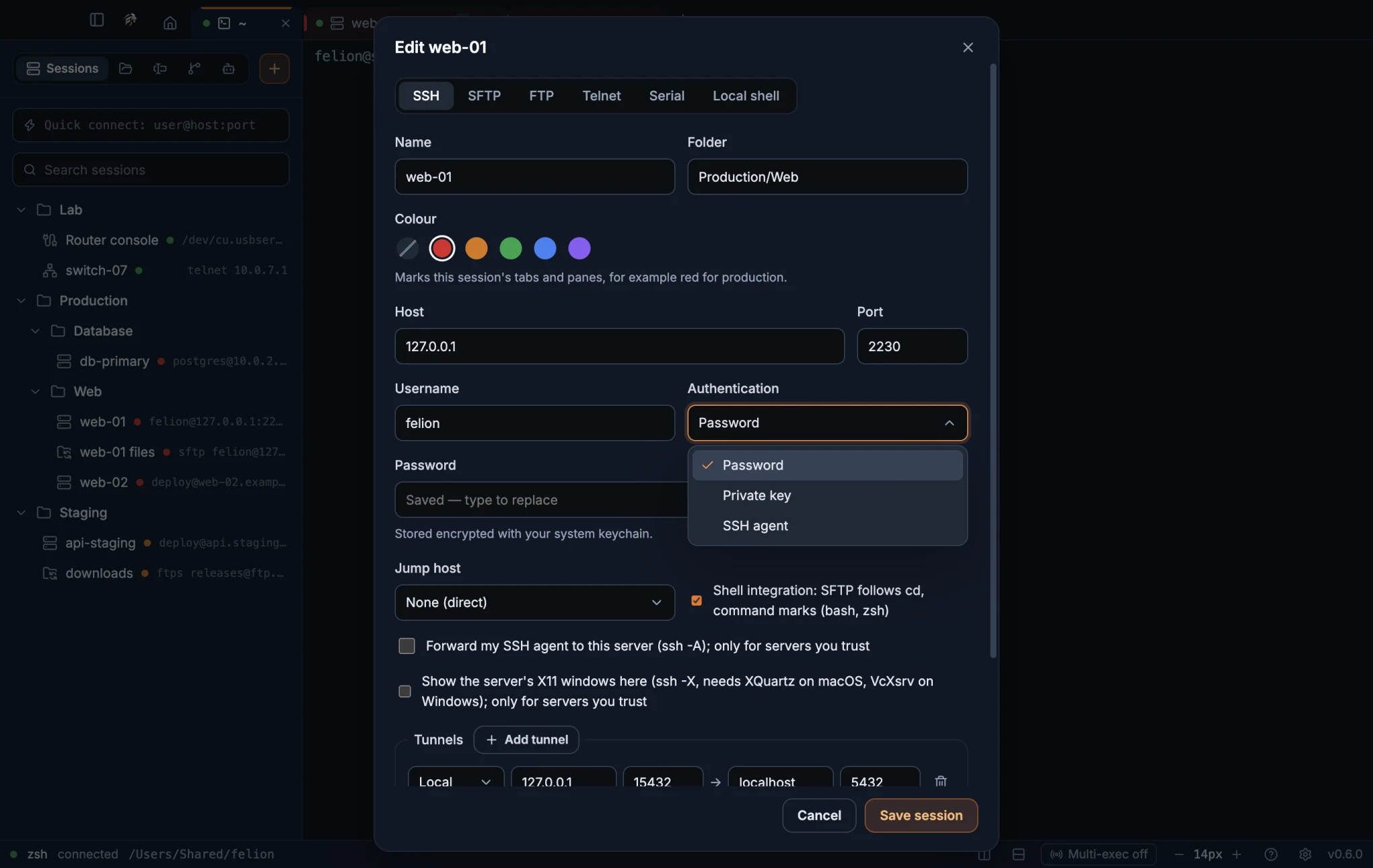
- ↑ and ↓ open the list and move through it. Enter or Space picks the highlighted choice.
- Home and End jump to the first and the last choice while the list is open.
- Typing jumps to the first choice that starts with those letters, also while the list is closed.
- Esc closes only the list, not the dialog around it. Tab, a click outside, scrolling or switching to another app also close it without a change.
Short messages appear in the corner of the window. Success messages stay for 4 seconds, error messages for 8 seconds, and no more than four show at a time.
Closing the app#
If you close Felion Terminal while a connection is open, the app asks first. The question is Close Felion Terminal?, with the answers Close Felion Terminal and Keep it open. The text says: “Open connections will be disconnected, and unsaved files in the editor will be lost.”
- The question appears when a connection is open and Settings → General → Confirm before disconnecting is on.
- It always appears when the editor has unsaved files, even when that setting is off.
On macOS, the menu bar has the standard app menu (About, Hide, Quit and the rest), an Edit menu, a Window menu with Minimize, Zoom and Bring All to Front, and a Help menu whose Felion Terminal Manual opens this manual. ⌘W closes the focused pane rather than the window.
03
Sessions
Save the servers, shells and file connections you use, organise them in folders and connect with one double-click.
The kinds of session#
A session is a saved connection. Each one has a kind, which decides what it opens and which fields the form asks for.
| Kind | Opens | Default port | Notes |
|---|---|---|---|
| SSH | A terminal | 22 | Password, key or SSH agent; keyboard-interactive prompts; jump hosts; tunnels; agent and X11 forwarding. |
| SFTP | A two-pane file manager, no terminal | 22 | Same connection and sign-in as SSH. |
| FTP | A two-pane file manager | 21, or 990 for implicit FTPS | Explicit FTPS (the default), implicit FTPS, or plain FTP. |
| Telnet | A terminal | 23 | Not encrypted. |
| Serial | A terminal | Not used | Serial port; 115200 8N1 by default. |
| Local shell | A terminal | Not used | Any shell Felion Terminal detected on your computer. |
Read more about each kind in Connecting and Files.
Create a session#
Open the form from the + button in the sidebar, New session… on the start page, the New session… item in the command palette, or the New session here… item when you right-click a folder. To change a saved session, right-click it and choose Edit….
At the top of the form, the kind switcher shows SSH, SFTP, FTP, Telnet, Serial and Local shell. Switching kind clears the fields that belong to the previous kind.
| Field | What it does |
|---|---|
| Name | The name in the list and on the tab. Leave it empty to use the automatic name: user@host, the serial port, the Telnet host or the shell name. |
| Folder | A path with slashes, such as Clients/Acme. Folders nest in the session list. |
| Colour | None, Red, Amber, Green, Blue or Violet. The colour marks the session's tabs and panes. See Host colours. |
| Session log | Off by default. Choose a folder with Browse to save the output of each connection as a text file. See Session logs. |
Press Create session to save a new session, or Save session when you edit one. The button stays dimmed until the form is valid. An SSH or SFTP session needs a host, and a key file when the authentication is Private key. A Serial session needs a port. Telnet and FTP sessions need a host.
SSH session fields#
The SSH form asks where the server is, who you are and how you prove it. Fields that depend on the authentication method appear under it.
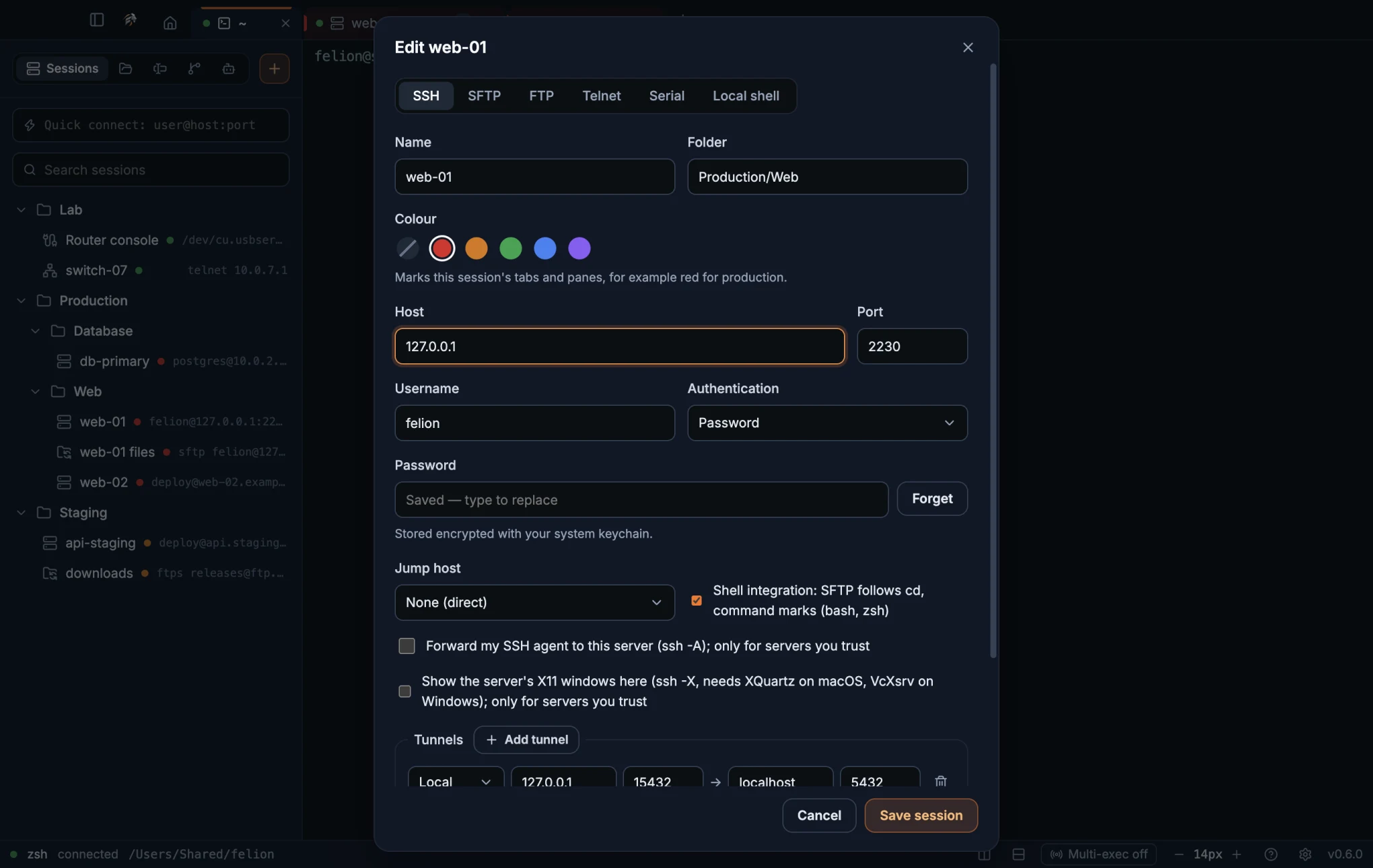
| Field | What to enter |
|---|---|
| Host | The server's name or address. The placeholder is server.example.com. |
| Port | A number from 1 to 65535. The default is 22. |
| Username | Your user name on the server. Leave it empty to be asked when you connect (the placeholder reads “Asked when connecting”). |
| Authentication | Password, Private key or SSH agent. The default is Password. |
| Password | Shown for Password. Leave it empty to be asked each time. A stored password is encrypted, and Forget removes it. See Saved passwords. |
| Private key file | Shown for Private key. Enter the path, such as ~/.ssh/id_ed25519, or choose Browse, which opens ~/.ssh. Hidden files are shown. |
| Key passphrase | Shown for Private key, for an encrypted key. It is saved the same way as a password. |
| Jump host | None (direct), or another saved SSH session to connect through. See Jump hosts. |
| Shell integration: SFTP follows cd, command marks (bash, zsh) | On by default, following the global setting. See Shell integration. |
| Forward my SSH agent | Off by default. Turn it on only for servers you trust. See Agent forwarding. |
| Show the server's X11 windows here | Off by default. Turn it on only for servers you trust. See X11 forwarding. |
| Tunnels | A list with Add tunnel. See Tunnel types. |
SFTP and FTP session fields#
An SFTP session opens the two-pane file manager, with this computer on one side and the server on the other. It has no terminal. Its form has the same fields as an SSH session, except that it has no tunnels, no forwarding and no shell integration checkbox. Its hint reads that it opens the file manager, with no terminal.
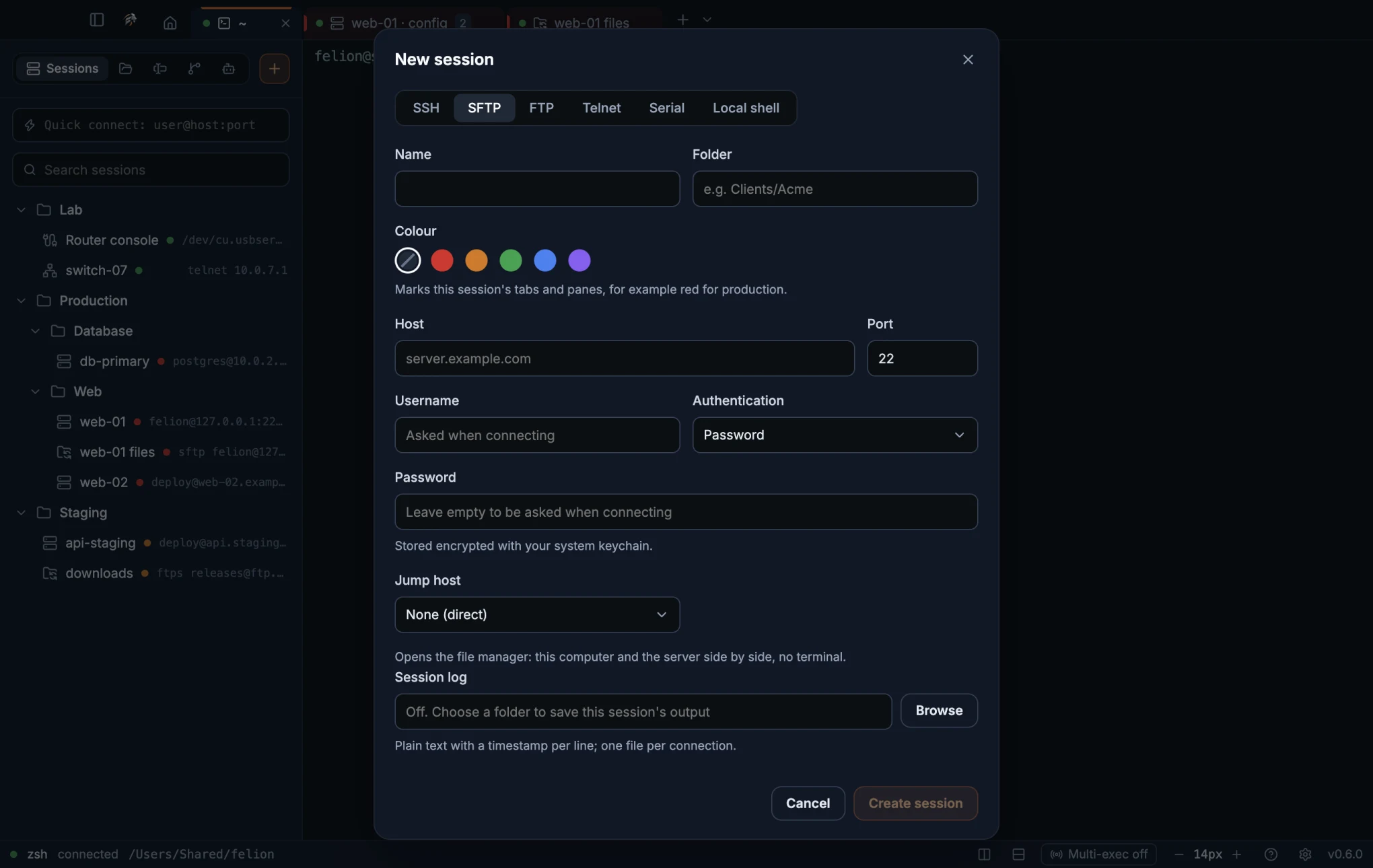
An FTP session also opens the file manager. Its form has these fields in place of the SSH ones.
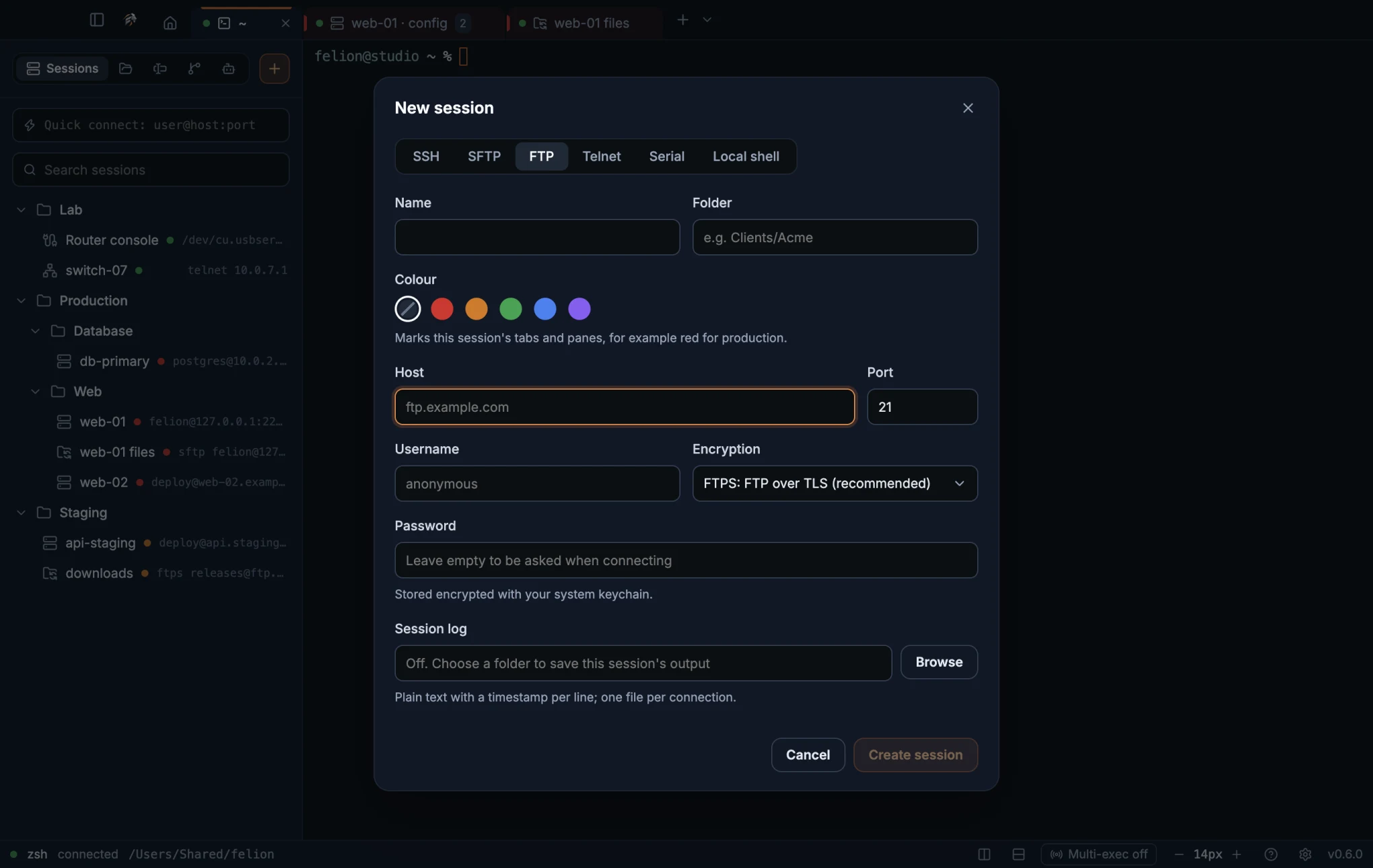
| Field | What to enter |
|---|---|
| Host | The server's name or address. The placeholder is ftp.example.com. |
| Port | Follows the encryption: 21, or 990 for implicit FTPS. Type another number to override it. |
| Username | Leave it empty to sign in as anonymous. |
| Encryption | FTPS: FTP over TLS (recommended) (the default), FTPS: implicit TLS (port 990), or None: plain FTP. |
| Password | Saved the same way as an SSH password. |
For the certificate check that FTPS performs, see FTPS certificates.
Telnet session fields#
A Telnet session has a name, a folder, a colour, a Host and a Port. The host placeholder is switch.example.lan, and the port is 23 by default.
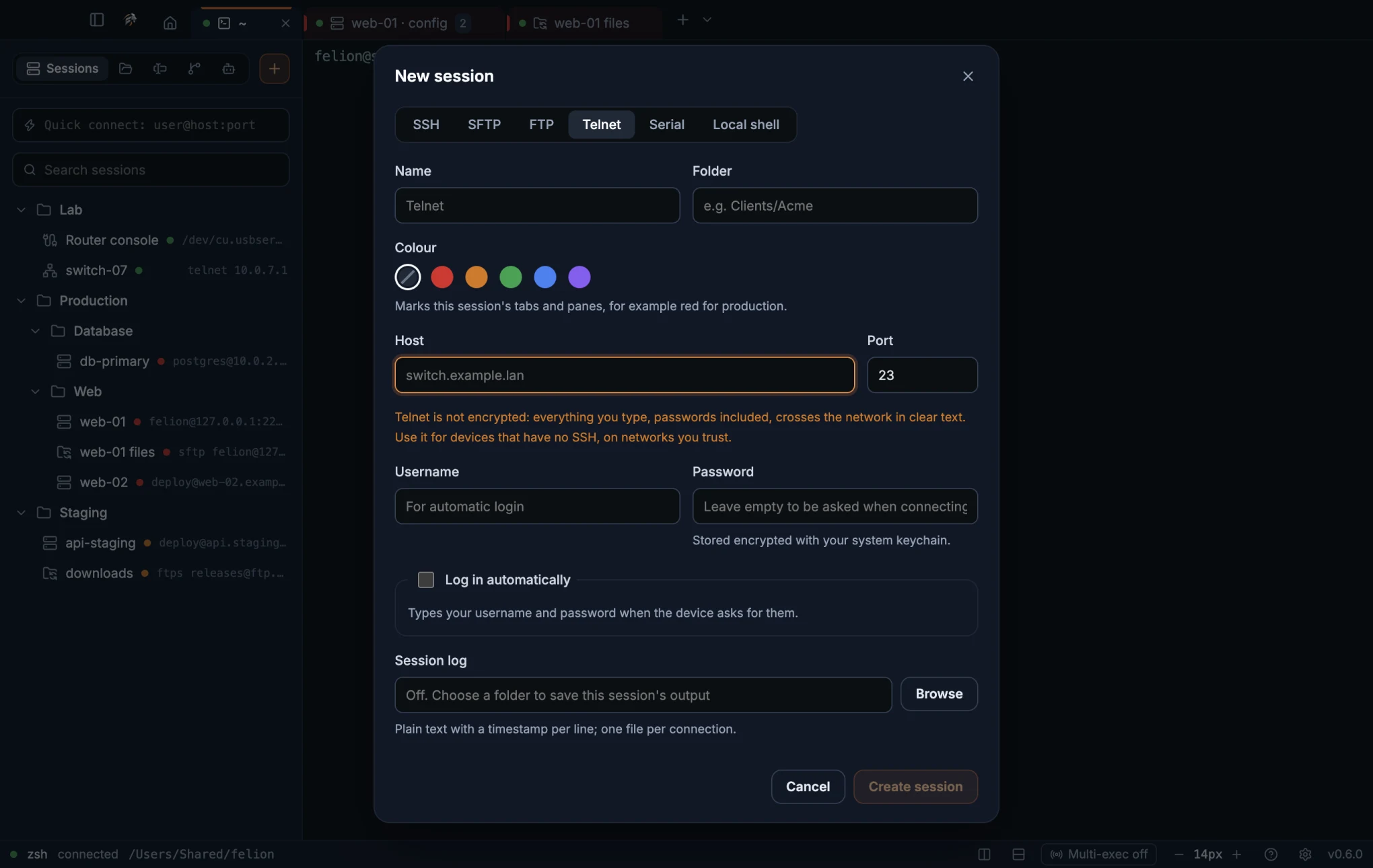
As soon as the form shows a Telnet host, it warns in amber: “Telnet is not encrypted: everything you type, passwords included, crosses the network in clear text.” Use Telnet only for devices that have no SSH, and only on networks you trust.
Below the host, a Telnet session has a Username and a Password, and a Log in automatically box. They are used only to log in for you. See Log in automatically on Telnet and serial.
Serial session fields#
A Serial session connects a terminal to a device through a serial port, such as a router console cable. Choose the port, then match the speed and framing that the device expects.
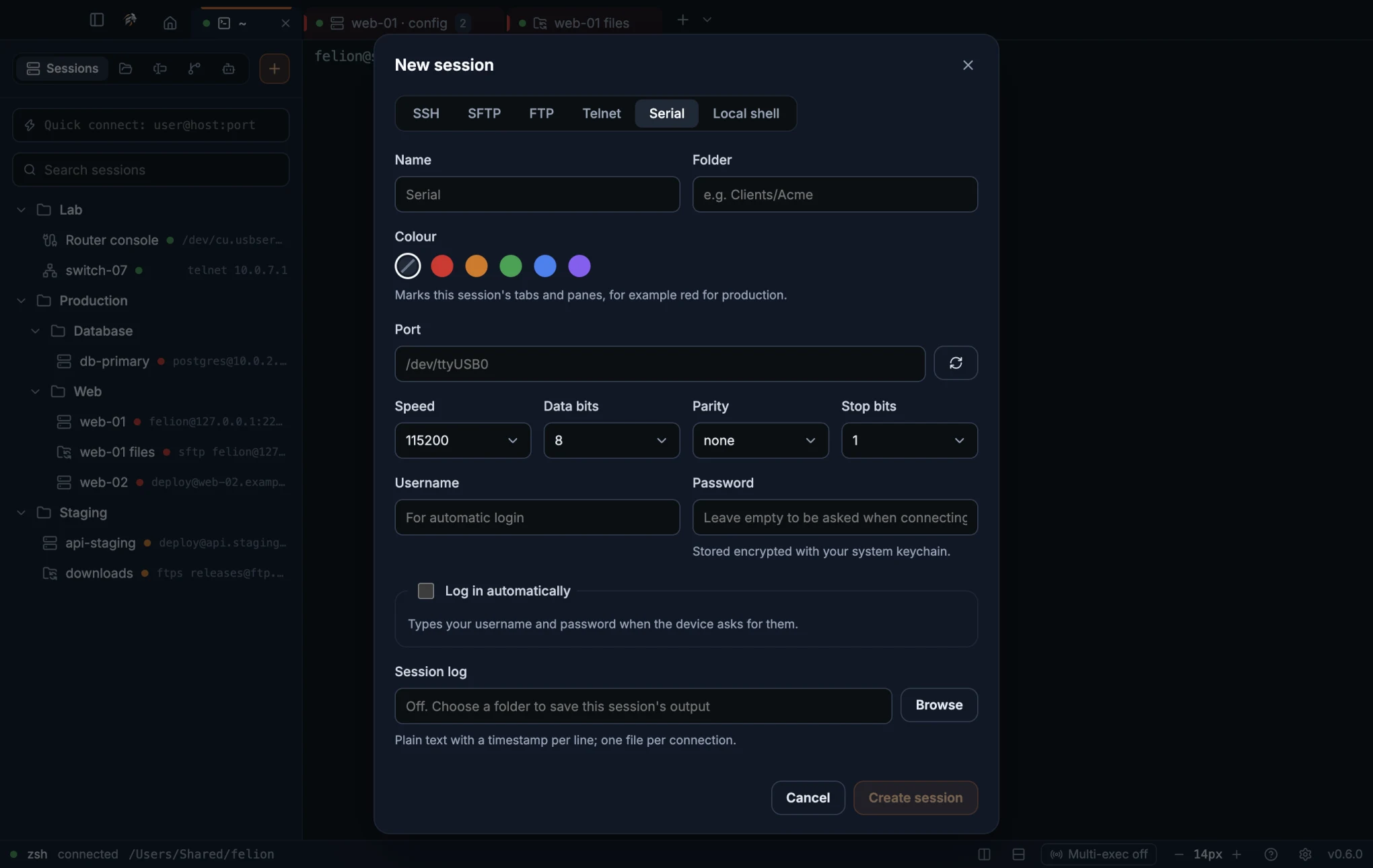
| Field | Options | Default |
|---|---|---|
| Port | A free-text path, with a list of the ports that are plugged in and their names. The placeholder is COM3 on Windows and /dev/ttyUSB0 elsewhere. | None |
| Speed | 1200, 2400, 4800, 9600, 19200, 38400, 57600, 115200, 230400, 460800, 921600 | 115200 |
| Data bits | 8, 7, 6, 5 | 8 |
| Parity | none, even, odd, mark, space | none |
| Stop bits | 1, 2 | 1 |
Press the refresh button next to Port after you plug in a device. If none is found, the form says: “No serial ports detected. Plug the device in and refresh.”
A Serial session also has a Username, a Password and a Log in automatically box, the same as Telnet. See Log in automatically on Telnet and serial.
Log in automatically on Telnet and serial#
Switches, routers and serial consoles ask for a username and a password as plain text prompts. Felion Terminal can answer those prompts for you, one step at a time: when the device shows a prompt, it types your answer and presses Enter.
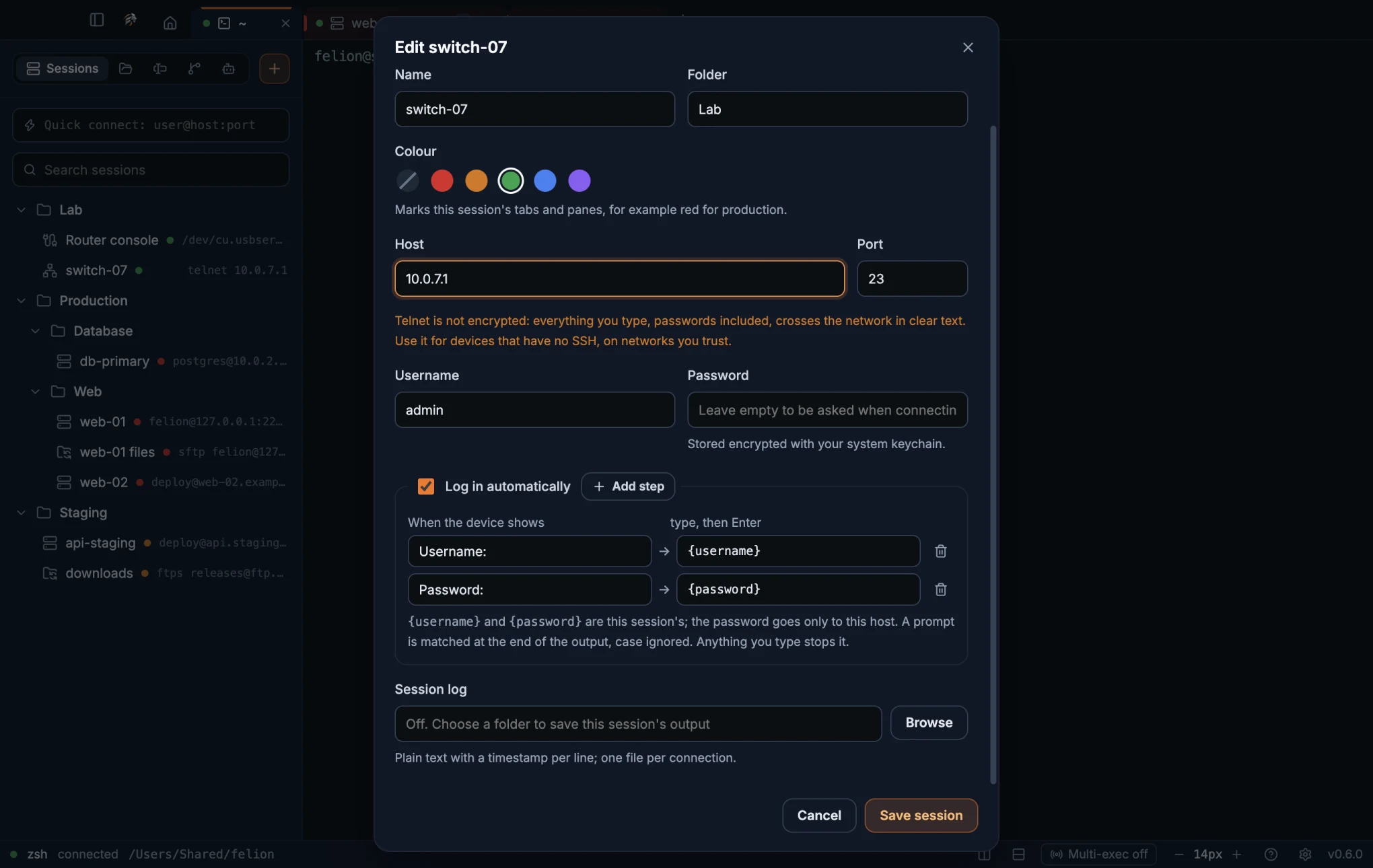
- Right-click the Telnet or Serial session and choose Edit…, or create a new one.
- Fill in Username and Password. The password is stored encrypted with your system keychain.
- Tick Log in automatically. Felion Terminal adds the usual steps:
Username:types{username}, thenPassword:types{password}. A Serial session also gets a first step with no prompt, which presses Enter to wake the console. - Change the steps to match your device, or press Add step for more (up to 20). The bin button removes a step.
- Press Save session and connect.
| Field | What it does |
|---|---|
| When the device shows | The prompt to wait for, such as Username: or login:. It is matched at the end of the output, with case ignored. Leave it empty to type straight away. |
| type, then Enter | What to type when the prompt appears. {username} and {password} are replaced with the session's own. Leave it empty to press only Enter. |
- Anything you type yourself stops the automatic login, so you can always take over.
- If a prompt doesn't appear within 30 seconds, the login stops and the terminal shows a grey note, such as “Auto-login stopped: no “Password:” within 30 s.”
- A step that uses
{password}needs a saved password, and one that uses{username}needs a username. Without them, the terminal says that auto-login is off and why. - The username and password go only to the host and port (or the serial port) saved in the session. See Saved passwords and passphrases.
- Importing sessions leaves their login steps out, so you set them up again on the new computer.
Local shell session fields#
A Local shell session opens a shell on this computer. It has a name, a folder, a colour and a session log. The Shell menu lists the shells that Felion Terminal found, so you can save one as a session. The name placeholder is the shell's name, such as zsh.
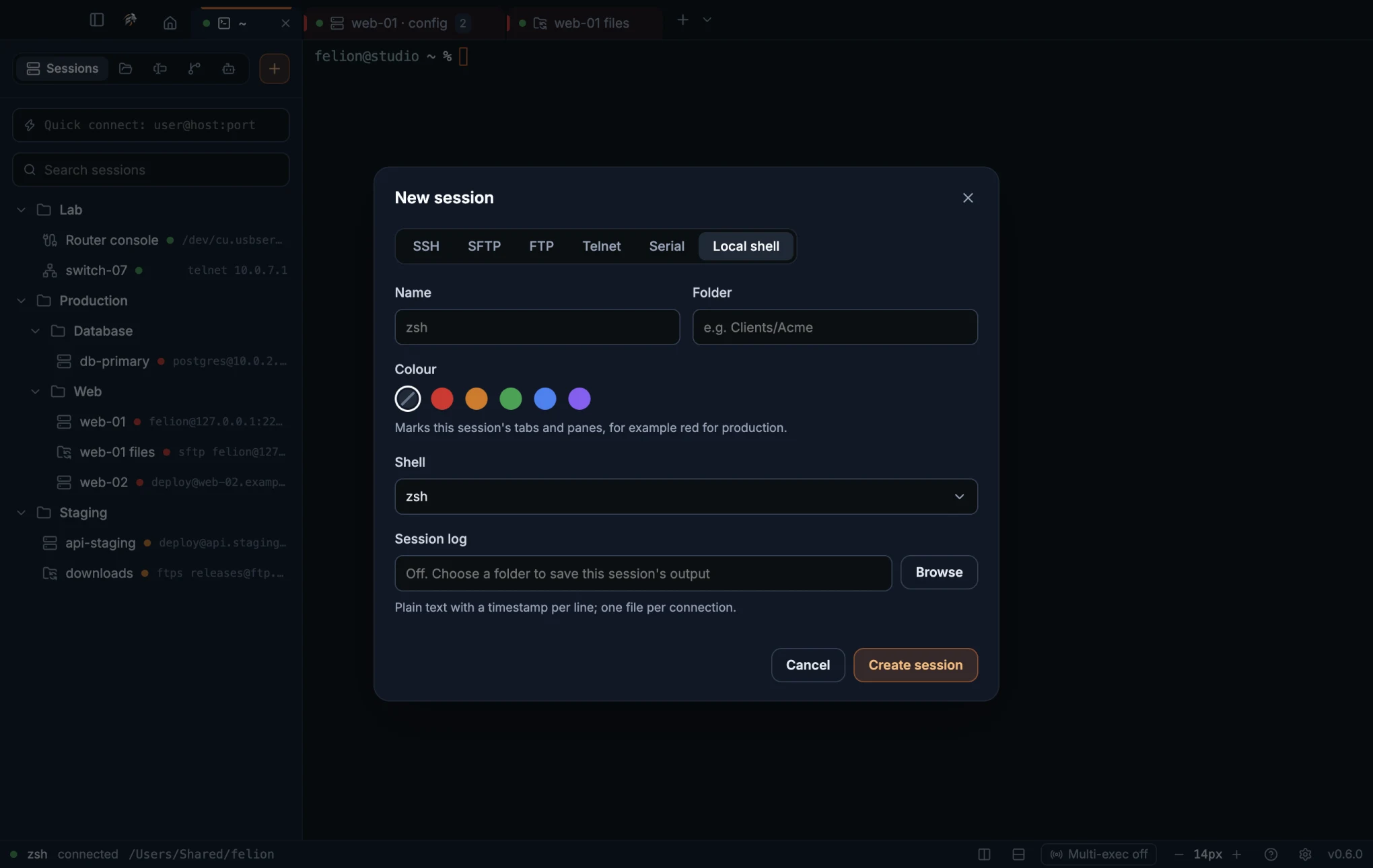
The shells that appear are described in Local shells.
The session list#
The Sessions tab of the sidebar lists your saved sessions in folders, sorted alphabetically. Each row shows the kind icon, the name, a dot in the session's colour and a short description of the connection.
- Double-click a session, or select it and press Enter, to connect.
- Click a folder to open or close it.
- Right-click a session to choose Connect, Edit…, Duplicate or Delete. For an SSH session the menu also has Server graphs, right after Connect. It opens the server's graphs, with or without a connection. Duplicate opens the form with the name “<name> copy”.
- Right-click a folder to open all its sessions at once, or to choose New session here…. See Open a whole folder.
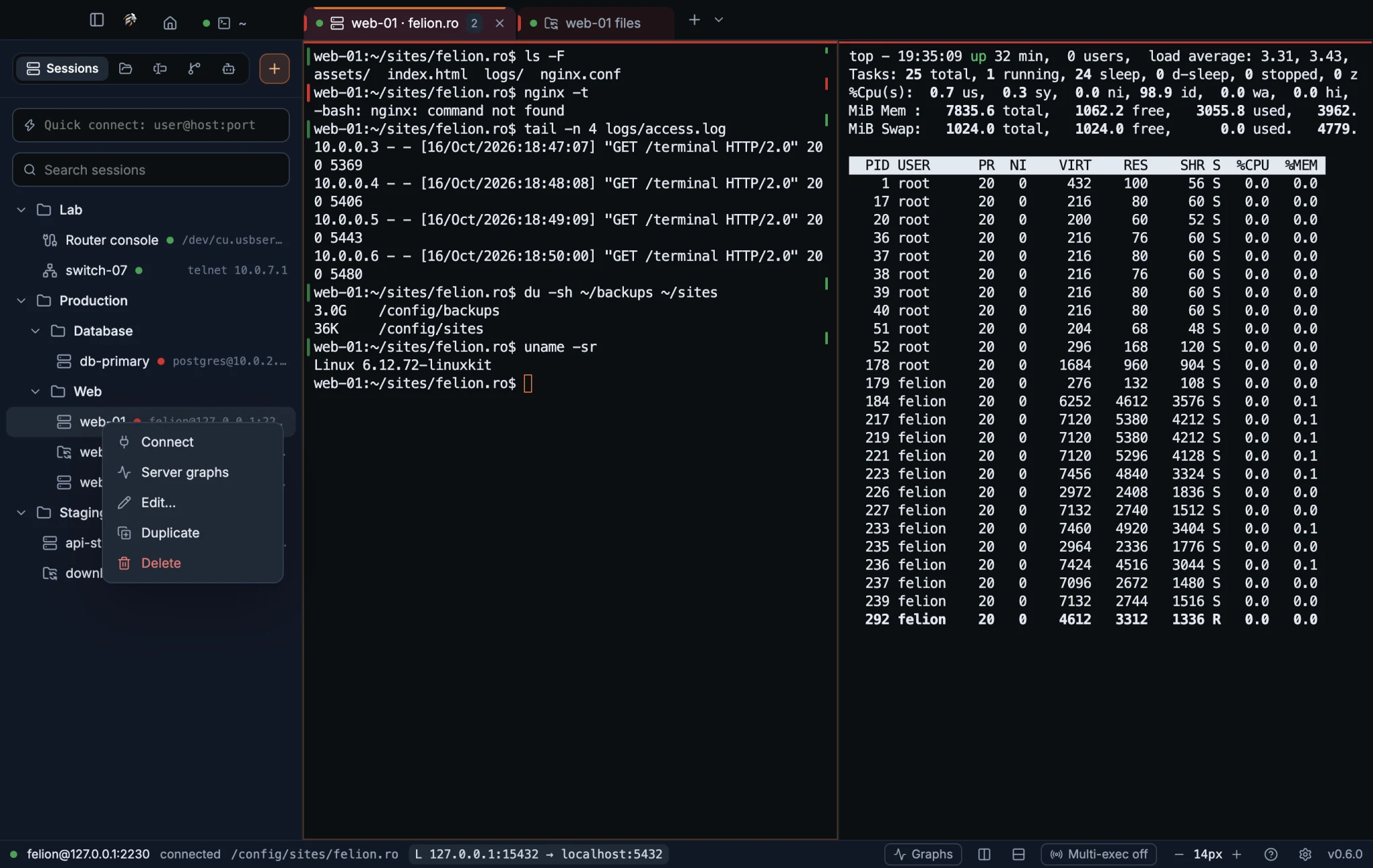
Delete asks before it removes a session. The question is “Delete “<name>” and its saved password? Open connections stay open.” Deleting a session also deletes its saved password.
The Search sessions box filters the list by name, host, user name, folder and serial port. While you search, every matching folder opens.
If you have no sessions yet, the list says: “No saved sessions yet. Create one with “New session”, or quick-connect above.”
Open a whole folder#
Right-click a folder in the session list to connect to every session in it at once. Sessions in its subfolders are included.
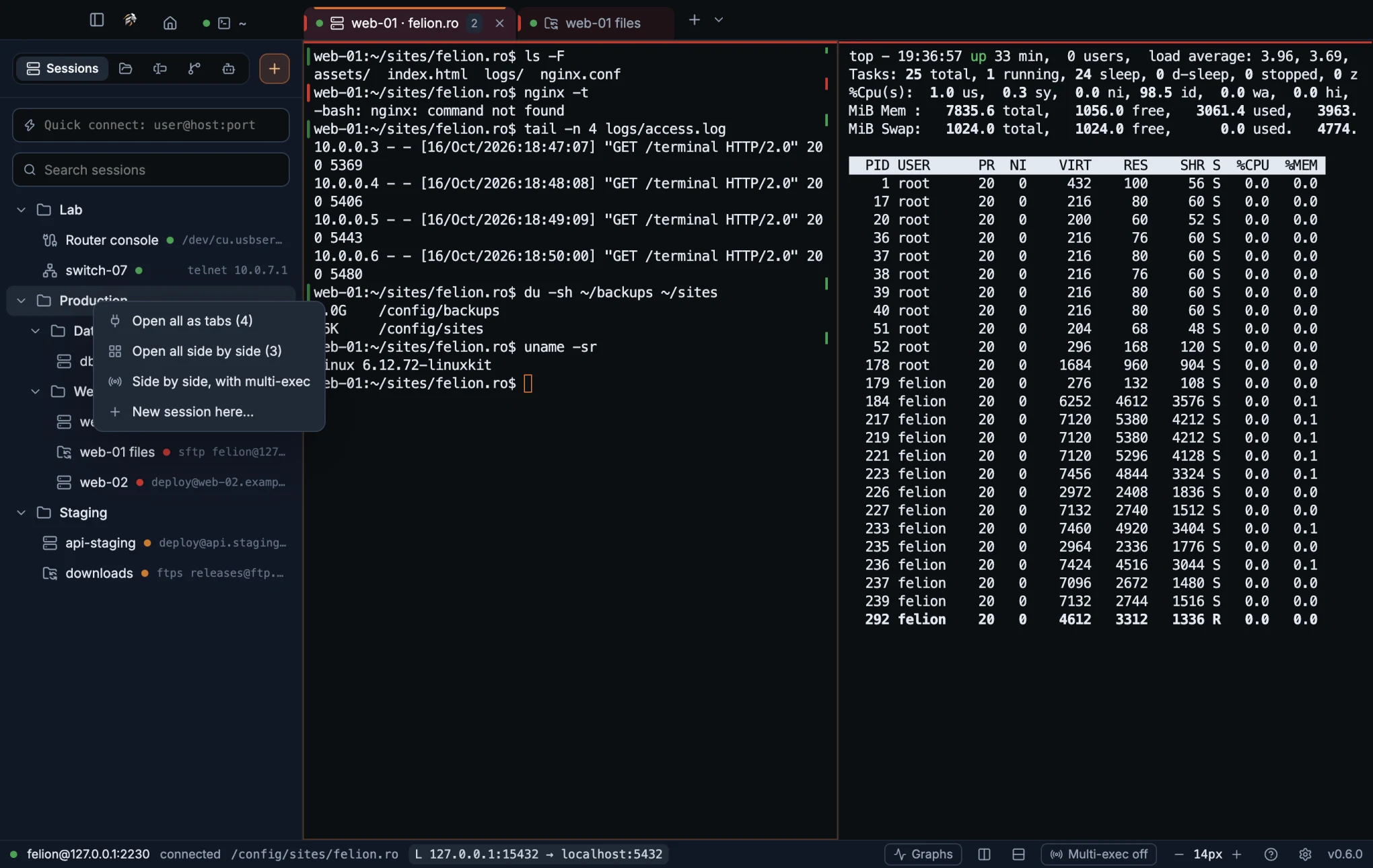
| Item | What it does |
|---|---|
| Open all as tabs | Opens a tab for each session in the folder, SFTP and FTP included. The number shows how many. |
| Open all side by side | Opens the folder's terminal sessions in one tab, as a grid of equal panes. SFTP and FTP sessions are left out. The number shows how many. |
| Side by side, with multi-exec | The same grid, with multi-exec turned on for that tab, so what you type goes to every pane. Other tabs keep their own setting. |
| New session here… | Opens the session form with this folder filled in. |
The side-by-side items appear when the folder holds at least two terminal sessions. Two open next to each other, three or four in two rows of two, and five to nine in three rows of three. If you open more than eight sessions at once, Felion Terminal asks “Open <n> sessions?” first. Press Open all to go on, or Esc to open nothing.
Quick connect#
To connect without saving a session, type user@host:port into the Quick connect box above the session list and press Enter. The user name and port are optional. Felion Terminal opens an unsaved SSH session with password sign-in and shell integration on.
- Quick connect uses only a password (and keyboard-interactive prompts). It never tries a key or the SSH agent. For those, save a session.
- The session is not saved and does not appear in the start page's recent list.
- There is no Remember password option, because the session is not saved.
Host colours#
Give a session a colour so you can tell its tabs apart at a glance. The colour tints the session's tab and draws a coloured line along its panes. It also shows as a dot in the session list. Red for production is a common choice.
Choose one of Red, Amber, Green, Blue or Violet, or None, in the Colour row of the session form. See Create a session.
Saved passwords and passphrases#
Passwords and key passphrases are encrypted with your computer's keychain, which is the Windows credential store (DPAPI), the macOS Keychain or libsecret on Linux. They are kept in secrets.json in the data folder. They are never stored as plain text.
A password is saved in one of two places. You can type it into the session form, or tick Remember password (or Remember passphrase for a key) in the sign-in prompt. The tick box appears only for saved sessions. Forget in the form removes a stored password.
- Deleting a session also deletes its saved password.
- A saved password, passphrase or set of login steps is used only for the connection it was saved with: the same kind, host, port and user, and for SSH the same jump host and key file, for FTP the same FTPS mode, for serial the same port. If any of these no longer match, Felion Terminal asks instead of sending it.
- A tab you reconnect or reopen after a restart uses the session as it is saved now, so editing a session doesn't make its open tabs ask again.
- If the computer has no keychain, nothing is saved, and Felion Terminal asks for the secret every time you connect.
04
Connecting
Sign in to SSH servers, check host keys, reach servers through jump hosts, and open local shells, Telnet and serial consoles.
Signing in over SSH#
When you connect, Felion Terminal tries the ways of signing in that the session allows, one after another. It skips any method the server refuses. A session set to Private key can therefore still fall back to a password prompt.
- Key or agent first, as the session's Authentication setting says.
- Password next. A saved password is used first.
- Keyboard-interactive last. Servers use it for two-factor codes and similar prompts.
The user name comes from the session. If the session has none, Felion Terminal uses Settings → SSH → Default username. If that is empty too, it asks: “Log in to <host>”.
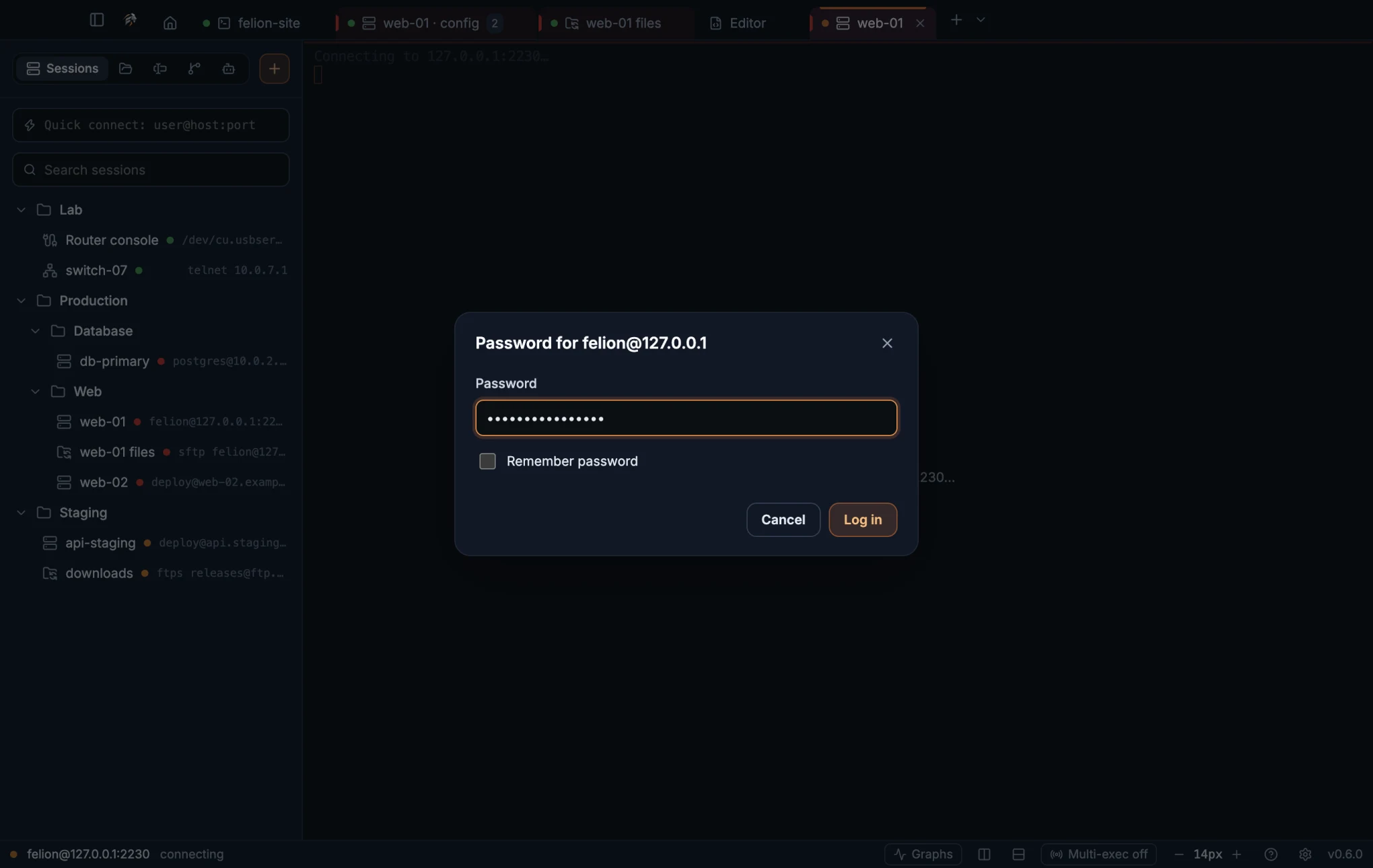
When the server asks for a password, a prompt opens with the title “Password for user@host”. Tick Remember password to save it, which is possible for saved sessions only. A wrong password shows “Wrong password, try again.” You get three tries.
Some servers ask questions of their own, for example for a one-time code. Felion Terminal shows these as a form. Hidden answers stay hidden. If the server asks for a single hidden password, Felion Terminal answers it with the known password. You get up to three rounds of questions.
For a key, Felion Terminal reads the file from disk and accepts the usual OpenSSH and PEM formats. If the key is encrypted, it asks for the passphrase, and Remember passphrase saves it for a saved session.
For the SSH agent method, Felion Terminal uses the agent named by SSH_AUTH_SOCK. On Windows it uses the built-in OpenSSH agent pipe. If no agent is found, the error says: “No SSH agent found (SSH_AUTH_SOCK is not set).”
Host keys and trust#
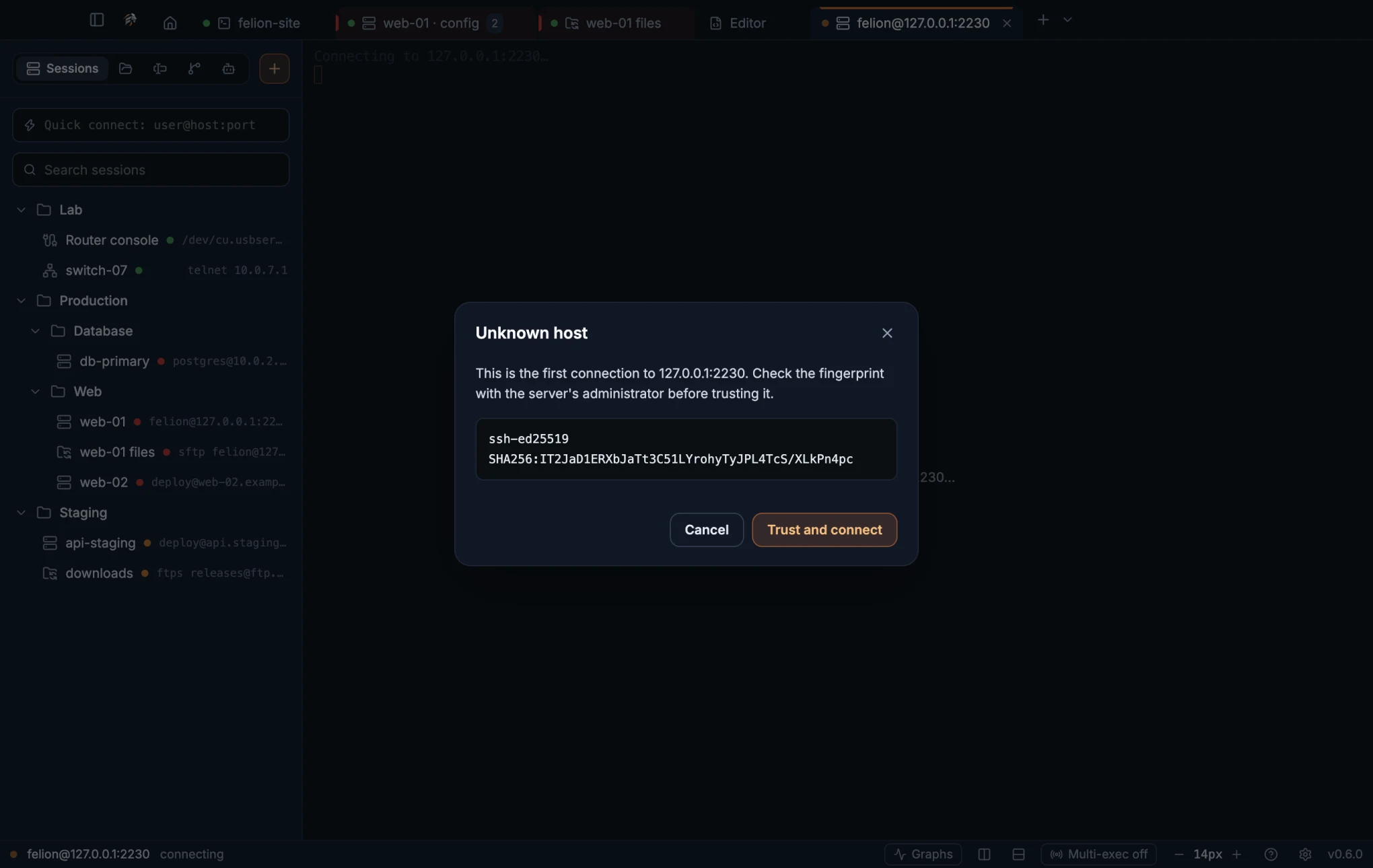
The first time you connect to a server, Felion Terminal shows the server's key before it continues. The message is “Unknown host”. It shows the key type, for example ssh-ed25519, and its SHA256: fingerprint. Check the fingerprint with the server's administrator, then choose Trust and connect.
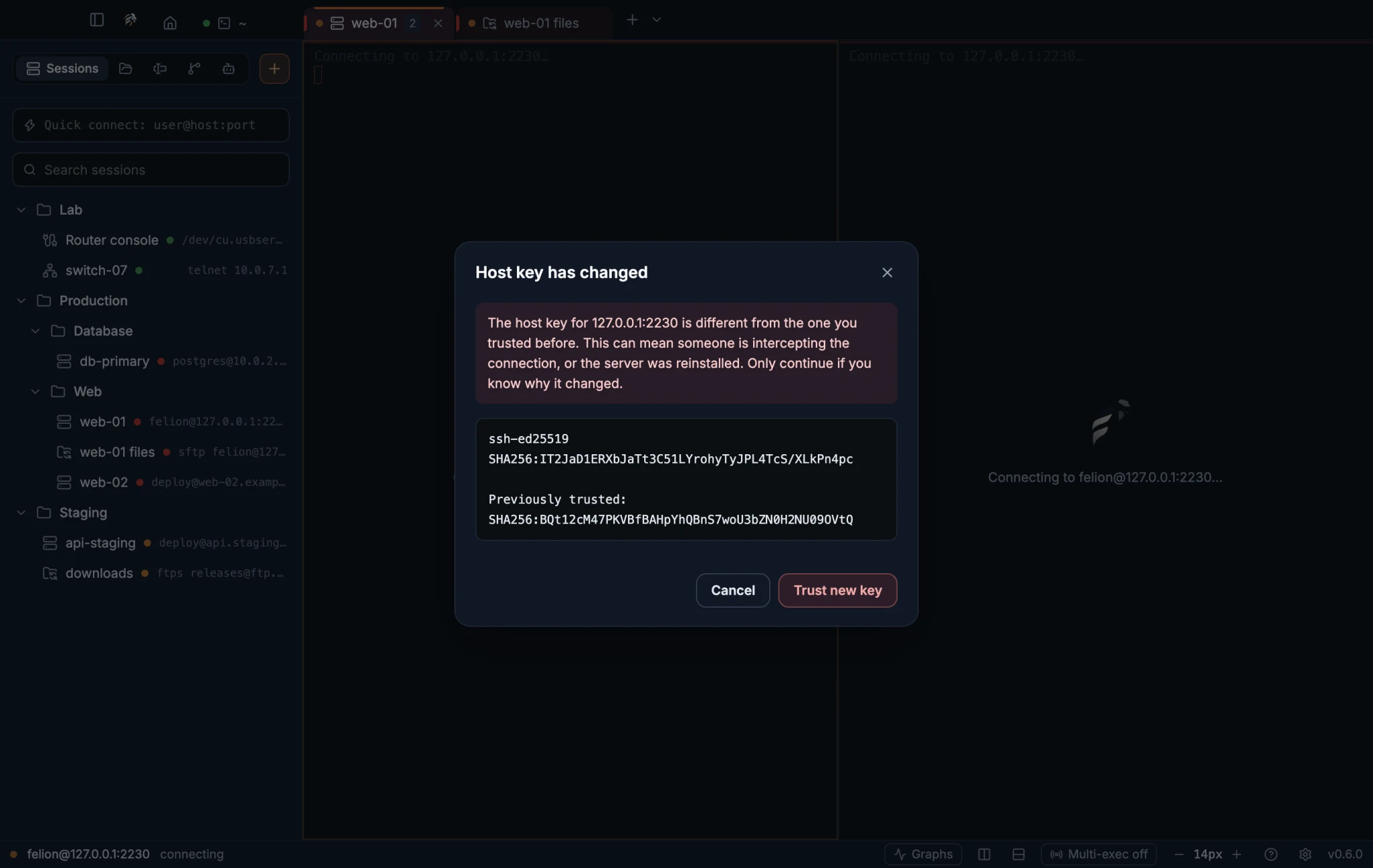
Felion Terminal remembers each trusted key for its host and port. If a later connection presents a different key, it shows a red “Host key has changed” warning with the old and the new fingerprint. Do not trust the new key unless you know why the server's key changed. If you do, choose Trust new key.
To review or remove trusted keys, open Settings → SSH and look at Trusted host keys. Choose Forget on an entry to make Felion Terminal ask again next time. FTPS certificates you trusted are listed there too, as ftps://host:port.
Jump hosts#
A jump host is a server you pass through to reach another one, such as a bastion in front of a private network. Set the Jump host of the target session to another saved SSH session. The jump session is listed as folder/name.
A jump host can have a jump host of its own, so chains work. Felion Terminal allows up to 5 hops. A longer chain, or a loop, stops with the message “Too many jump hosts (is there a loop?)”.
- The jump session must still exist. If you delete it, the target session cannot connect.
- Agent forwarding applies only to the final hop.
- When you import sessions from your SSH config, a
ProxyJumpbecomes a jump host only if that host was imported too. See Import servers from your SSH config.
Keepalive and connection timeout#
Two settings in Settings → SSH control how long Felion Terminal waits and how it keeps idle connections open.
| Setting | Range | Default | What it does |
|---|---|---|---|
| Connection timeout | 3 to 300 seconds | 20 seconds | How long to wait for the server to answer. Typing a password does not count, and neither does checking a fingerprint. The whole sign-in may take up to 300 seconds. |
| Keepalive | 5 to 600 seconds | 15 seconds | Sends a small message on idle connections, which keeps them open through firewalls and NAT devices, and notices a connection that died (after sleep, say). It can't be turned off: an older setting below 5 seconds counts as 5. |
| Default username | Text | Empty | The user name for sessions that have none. Leave it empty to be asked. |
If connections drop when you walk away, lower Keepalive so the messages go more often. If a slow server times out before it answers, raise Connection timeout.
Local shells#
A local shell runs on this computer. Felion Terminal finds the shells you have installed when it starts, and lists only those.
| System | What is listed |
|---|---|
| Windows | PowerShell 7 (pwsh.exe -NoLogo), Windows PowerShell, Command Prompt, Git Bash (--login -i) and WSL. |
| macOS and Linux | Your login shell ($SHELL, or /bin/zsh on macOS and /bin/bash on Linux) first, then every shell listed in /etc/shells. They start as login shells. |
The exception is bash with shell integration on (the default). Felion Terminal starts it without the login flag and loads your profile files itself, so bash behaves as a login shell would.
Each new local shell starts in your home folder, unless the way you open it gives it a folder, as the table below says. It runs with TERM=xterm-256color, COLORTERM=truecolor and TERM_PROGRAM=FelionTerminal.
| Where | How |
|---|---|
| The + button | Opens a shell chosen in Shell for new tabs. Mac ⌘T, Windows and Linux Ctrl+Shift+T. |
| The ⌄ button | Opens a menu of all the shells found, so you can choose one. |
| Command palette | New <shell> for each shell found. See the command palette. |
| Saved session | A Local shell session. See Local shell session fields. |
| Open folder… | Opens a shell in a folder you pick. See Open a folder in a terminal. |
| The terminal panel | In a tab without a panel, Mac ⌘J, Windows and Linux Ctrl+Shift+J, opens one with a shell. + in the panel's strip adds another. A panel shell starts in the folder of the panel shell in front, else the chat's folder, else the folder of a local terminal in the tab. See The terminal panel. |
| Files panel | Right-click a folder on this computer and choose Open in new terminal. The new tab starts in that folder and is named after it. See The Files panel. |
| A chat | Split right on a chat opens a shell beside it, in the conversation's folder. See Chat with Claude Code. |
| Agents tab | The + menu's Claude in… and Codex in… items open a tab in that folder and start the tool. Resume in a terminal opens a tab in the conversation's folder. See Open, resume and stop conversations. |
| A task | Runs a project script in a panel shell, in the project's folder. See Run a task. |
On Windows, each new tab starts with the current system and user Path, as a terminal opened from the Start menu would. A tool you install while Felion Terminal is open, with winget or from the Tools page, works in the next tab you open, without restarting the app.
Open a folder in a terminal#
Open a terminal straight in a project folder, such as a repository you work on. The tab is named after the folder, and the Files panel and the Git panel start there.
- Choose Open folder… on the start page, or Open folder in terminal… in the command palette.
- Pick the folder in the window titled “Open a folder in a terminal”.
The terminal runs the shell set in Shell for new tabs. The folder stays with the tab: Restart, a split of that pane and the tab reopened after a restart of the app all start in the folder you picked, not in the one you last moved to with cd. If the folder no longer exists, the shell starts in your home folder.
Shell integration#
Shell integration lets the shell tell Felion Terminal three things: when each command starts and ends, how it exited, and which folder it is in. Felion Terminal uses this for the folder in the status bar and tab name, for command marks, for jumping between commands, for long-command notifications, and for the Files panel following cd.
- Local shells: zsh, bash, Git Bash and PowerShell report all three. Felion Terminal uses small startup files kept in the
shell-integration/folder of your data folder. Your own profile files load first and are never changed. Nothing is typed into the shell, and nothing is added to its history. - PowerShell gets its part on the command line instead of from a script file, so it starts without the “running scripts is disabled on this system” error, whatever the script policy.
- WSL: when the default distribution's login shell is bash or zsh, it reports all three as well. Linux folders show as
\\wsl.localhost\<distribution>\…, and/mnt/c/…asC:\…. Git Bash shows/c/Users/…asC:\Users\…the same way. - Command Prompt reports only its folder, so the Files and Git panels follow
cd, but there are no command marks. - bash older than 4.4: macOS ships bash 3.2, which uses a different mechanism (a DEBUG trap). You do not need to set anything up for it.
- Other shells, such as fish, run without shell integration.
- SSH with bash: a setup line is typed once after the login banner. It is hidden from the screen and removed from the bash history.
- SSH with zsh: nothing is typed. The session starts with the integration already loaded, from a temporary folder on the server that removes itself. Your own startup files load as usual, and the message of the day still shows (unless
~/.hushloginexists). If the shell doesn't report back within 8 seconds, for example because the server has no writable/tmp, a grey line says “Shell integration did not load on this server; the shell works without it.” - SSH with other shells runs without shell integration.
- Programs that send the same markers themselves (OSC 7 and OSC 133) work without any setup.
To turn integration off for local shells and the default for new SSH sessions, open Settings → Terminal and switch off Shells report their folder and command results. The change applies to terminals you open afterwards. Each SSH session also has a checkbox in its form, described in SSH session fields.
Telnet#
Telnet is an older way to reach a terminal on network gear that has no SSH, such as some switches and routers. Felion Terminal negotiates the terminal type (XTERM-256COLOR) and the window size with the server. It sends the new size again each time the window changes.
- Pressing Enter sends a carriage return and a line feed.
- ZMODEM file transfers, clickable file paths, image paste and server graphs are not available over Telnet.
Serial consoles#
A serial console connects a terminal to a device's serial port. Set the port, speed, data bits, parity and stop bits in the session form, as described in Serial session fields. Felion Terminal lists the serial ports that are plugged in.
- Serial sessions do not report the window size to the device.
- On macOS, choose the
/dev/cu.*port for a console. - File transfers with
rzandszwork over serial too. See ZMODEM.
X11 forwarding#
X11 forwarding lets programs on the server open their windows on your screen. It is off by default. Turn it on for a session with Show the server's X11 windows here in the session form, and only for servers you trust.
You need an X server on this computer. Use XQuartz on macOS, VcXsrv or Xming on Windows, and the X server of your desktop on Linux. Felion Terminal finds the display from the DISPLAY variable. On macOS it also checks the display that launchd sets, and then :0. On Windows it uses localhost:0.
Felion Terminal gives the server a random stand-in cookie. Your real X cookie stays on this computer.
- If the server refuses X11 forwarding, the shell opens without it and says: “The server refused X11 forwarding; this shell runs without it.”
- If no X server is running, a note tells you to start XQuartz or VcXsrv.
SSH agent forwarding#
Agent forwarding lets programs on the server use the keys in your local SSH agent, without the keys ever leaving your computer. It is off by default. Turn it on for a session with Forward my SSH agent to this server (ssh -A), and only for servers you trust.
Agent forwarding applies to the final server in a jump host chain only.
05
Working in the terminal
Copy and paste, search the scrollback, jump between commands, type into several panes at once, and get told when a long command or a program needs you.
Rendering and text quality#
Terminal panes draw with the graphics card (WebGL) while they are on screen. True colour, emoji and wide characters take up the right number of columns, so text stays aligned.
If the graphics context is lost, or GPU acceleration is off, a pane falls back to DOM rendering and keeps working. Output keeps arriving while the window is minimised, so a long job keeps running in the background.
A terminal that goes out of sight, in another tab or a folded terminal panel, gives its graphics memory back at once and gets it again when it shows. So switching tabs quickly never leaves a pane blank.
Settings → Advanced → Performance → GPU acceleration is on by default. Turn it off if text looks wrong on your graphics driver. You can change it in Advanced settings.
Copy and paste#
| Action | macOS | Windows and Linux |
|---|---|---|
| Copy | ⌘C | Ctrl+Shift+C |
| Paste | ⌘V | Ctrl+Shift+V or Ctrl+V |
On Windows and Linux, Ctrl+C also copies when text is selected, if Settings → Keyboard → Copy → Ctrl+C copies selected text is on (the default). With nothing selected, Ctrl+C still interrupts the running program. On macOS, Ctrl+C always goes to the program, and ⌘C copies.
The mouse can copy and paste too. Copy on select copies text as soon as you select it; it is off by default. Paste with the middle button pastes on a middle click; it is on by default. Both are in Mouse & clipboard.
Some programs take the mouse for themselves, such as a full-screen program with mouse support, so a drag no longer selects text. On macOS, hold Option while you drag to select text anyway.
Where each line break in pasted text runs a command, as in a shell without bracketed paste or in cat, pasting several lines is checked first. With Confirm multi-line paste on (the default), Felion Terminal shows “Paste N lines?” with the first 8 lines and how many more follow. Choose Paste to send them, or cancel. A line break at the very end of the text does not count.
A program that takes a paste as a whole (bracketed paste), such as Claude Code, Codex, zsh or fish, runs nothing by itself, so there is no question: the text goes straight in.
Escape characters are removed from pasted text before it is sent. A crafted clipboard can't end a paste early and run the rest as commands.
Programs on the server can write to your clipboard, but they can never read it.
Right-click#
Choose what a right click does in a terminal under Settings → Mouse & clipboard → Right click. The welcome tour asks the same question in step 2.
| Option | What it does |
|---|---|
| Paste | Right click always pastes the clipboard. |
| Copy or paste | Copies the selection if there is one, otherwise pastes. This is the default. |
| Show a menu | Opens a menu with Copy and Explain (when text is selected), Paste, Select all, Find…, Clear scrollback, Server graphs (in an SSH terminal), Split right, Split down and Close pane. |
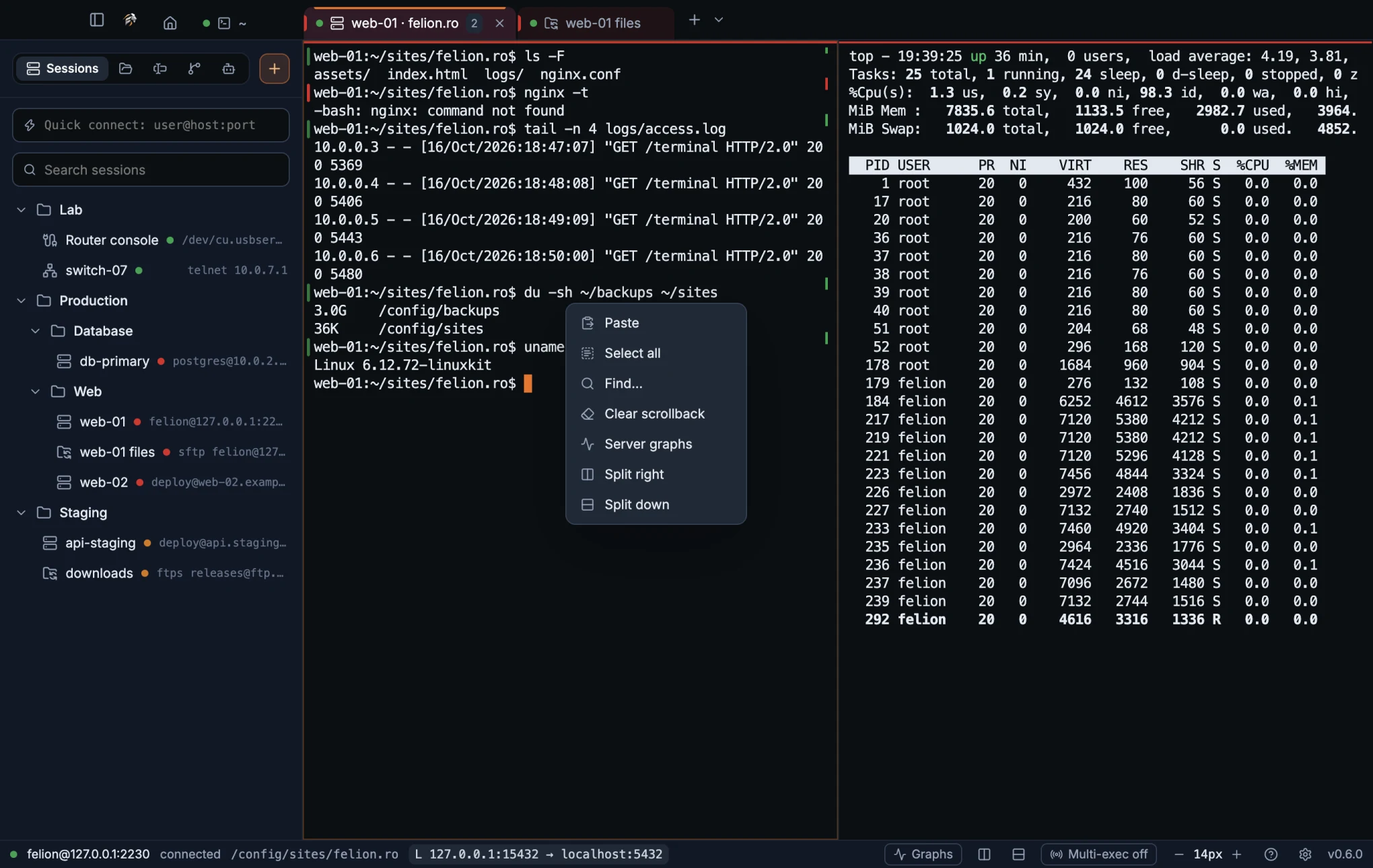
Clear scrollback is only in this menu. There is no keyboard shortcut for it. Find… opens the find bar, Explain opens Explain for the selected text, Server graphs opens Server graphs for that server, the split items work like split panes, and Close pane closes this pane as ⌘W (Ctrl+Shift+W) does.
Find in scrollback#
Find searches the scrollback of the focused pane, so you can look for an error from a command that ran earlier. Open the find bar with the keys below, with Find in terminal in the command palette, or with Find… in the right-click menu.
| Action | macOS | Windows and Linux |
|---|---|---|
| Find in scrollback | ⌘F | Ctrl+Shift+F |
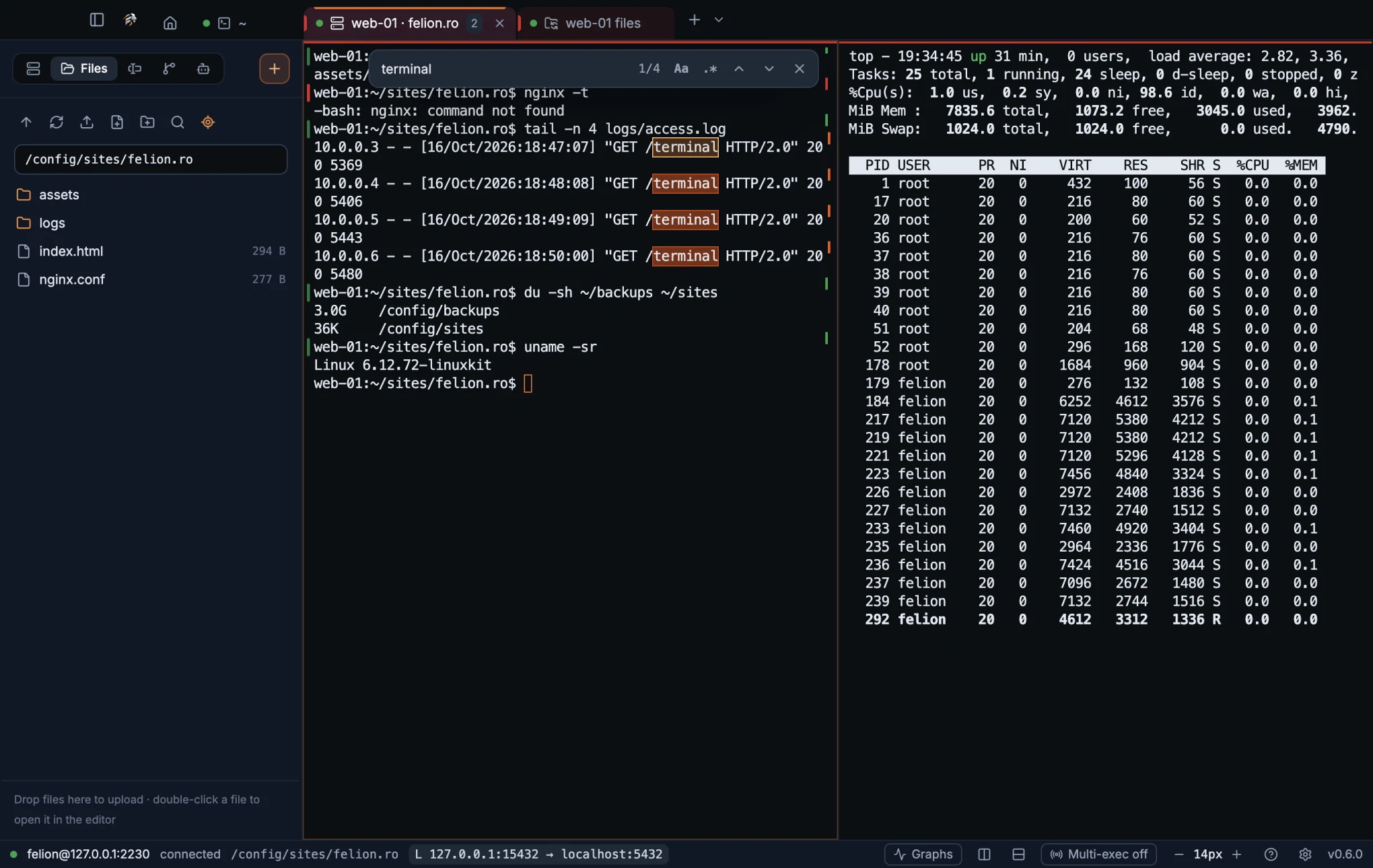
| Control | What it does |
|---|---|
| Find in scrollback box | Type to search. Matches are highlighted in the pane and on the scrollbar. |
| Counter | Shows the current match and the total, such as 3/12, or “No results”. |
| Aa | Matches upper and lower case exactly. |
.* | Treats the search as a regular expression. |
| Previous match | Shift+Enter |
| Next match | Enter |
| Close | Esc |
Search only covers the lines the pane still keeps. The number of lines is set under Scrollback; the default is 10 000 lines, and the most is 100 000.
Coloured keywords in the output#
Felion Terminal colours status words as they scroll past, so a port that went down stands out from the ones that are up. Words like down, err-disabled or %LINK-3-UPDOWN turn red and up turns green. It is on by default.
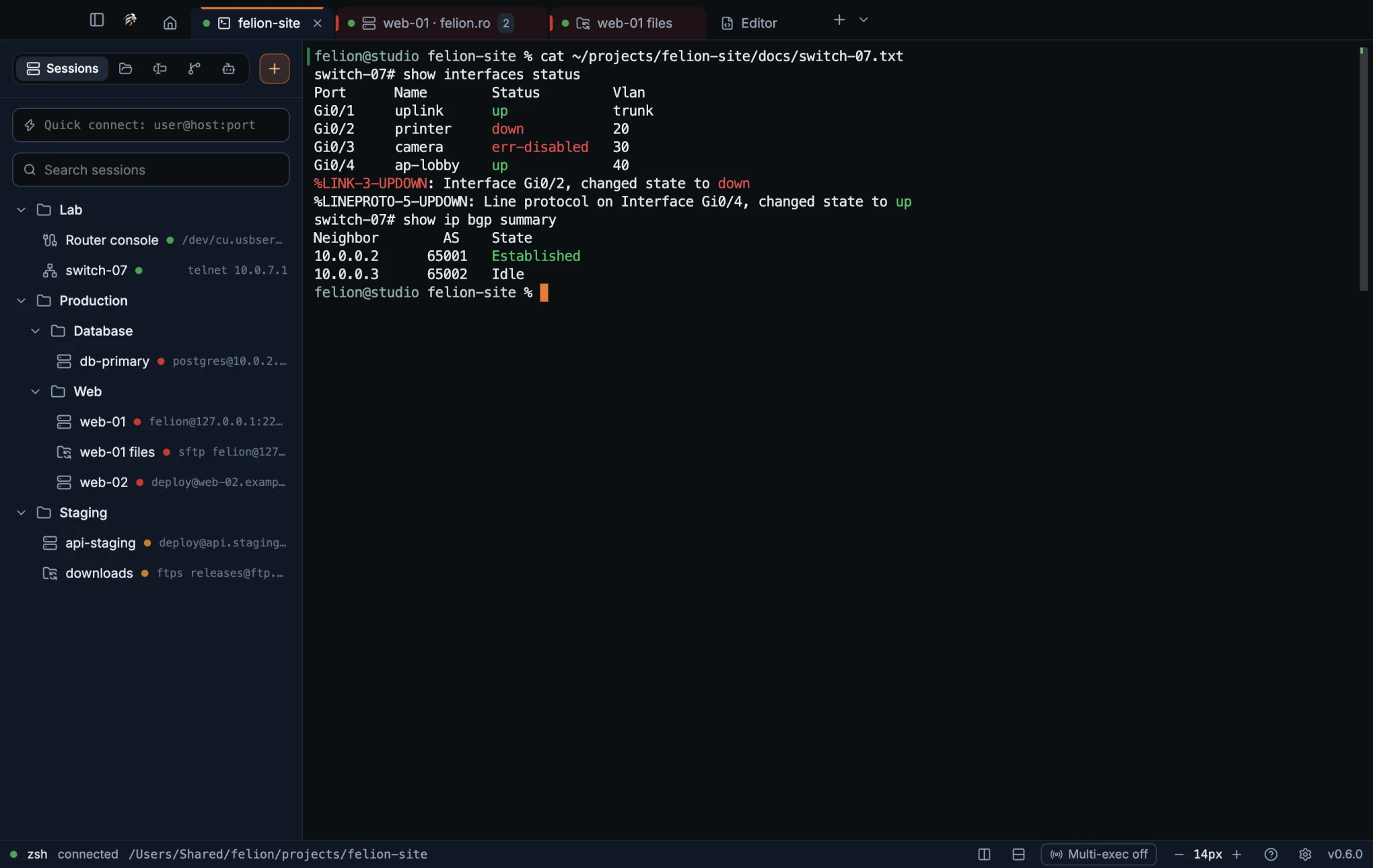
| Colour | Words |
|---|---|
| Red | down, err-disabled, failed, error, denied, and device log messages of severity 0 to 3, such as %LINK-3-UPDOWN |
| Amber | warning, and device log messages of severity 4 |
| Green | up, connected, established |
- Only the colour on screen changes. Copied text, find and session logs see the output as it was.
- Full-screen programs such as vim, less and top are left alone.
- When a program redraws its lines in place, such as Claude Code's status box, the colours are worked out again for the new text, so they stay on the right words.
- The colours come from your colour scheme, so they match the rest of the terminal.
Turn it off, or change the words, under Settings → Terminal → Highlighting. See Terminal settings.
Command marks and jumping between commands#
With shell integration on, each finished command gets a bar in the left gutter and on the scrollbar. The bar is green when the command exited with code 0 and red when it failed.
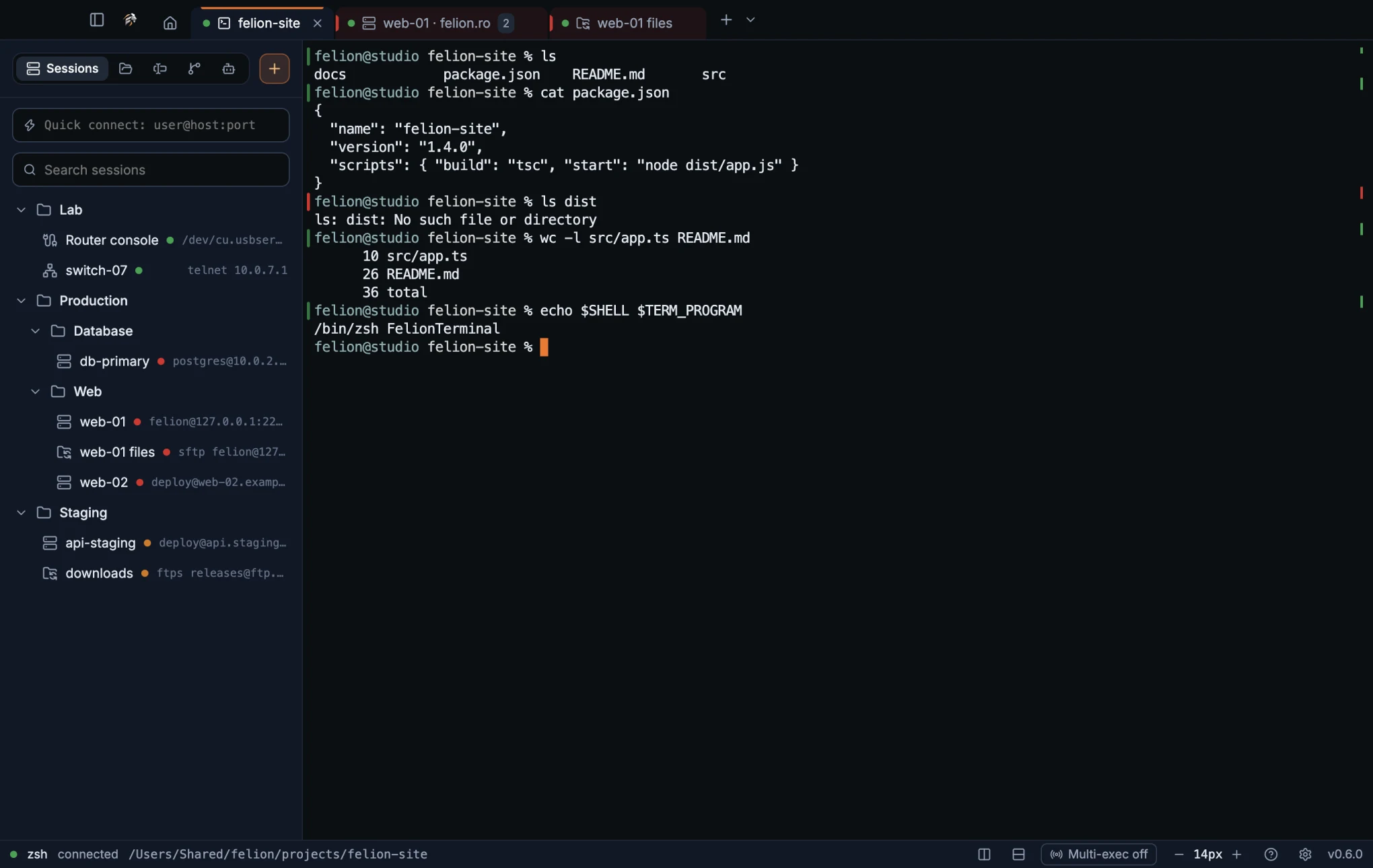
Jump from prompt to prompt to go back to an earlier command or skip ahead to the next one. Jumping past the last prompt takes you to the bottom of the pane.
| Action | macOS | Windows and Linux |
|---|---|---|
| Previous prompt | ⌘↑ | Ctrl+Shift+↑ |
| Next prompt | ⌘↓ | Ctrl+Shift+↓ |
Command marks need shell integration. Local zsh, bash, Git Bash and PowerShell report their commands, WSL does when its shell is bash or zsh, and an SSH session does when the server's login shell is bash or zsh. Command Prompt reports only its folder, so it has no marks.
The same marks drive the dot of a task in the terminal panel: running, finished or failed.
Type into several panes at once#
Multi-exec sends what you type to every pane in the current tab, so one command can run on several servers at once. While it is on, each pane that receives your input gets an outline, and the pane you type in keeps a solid border.
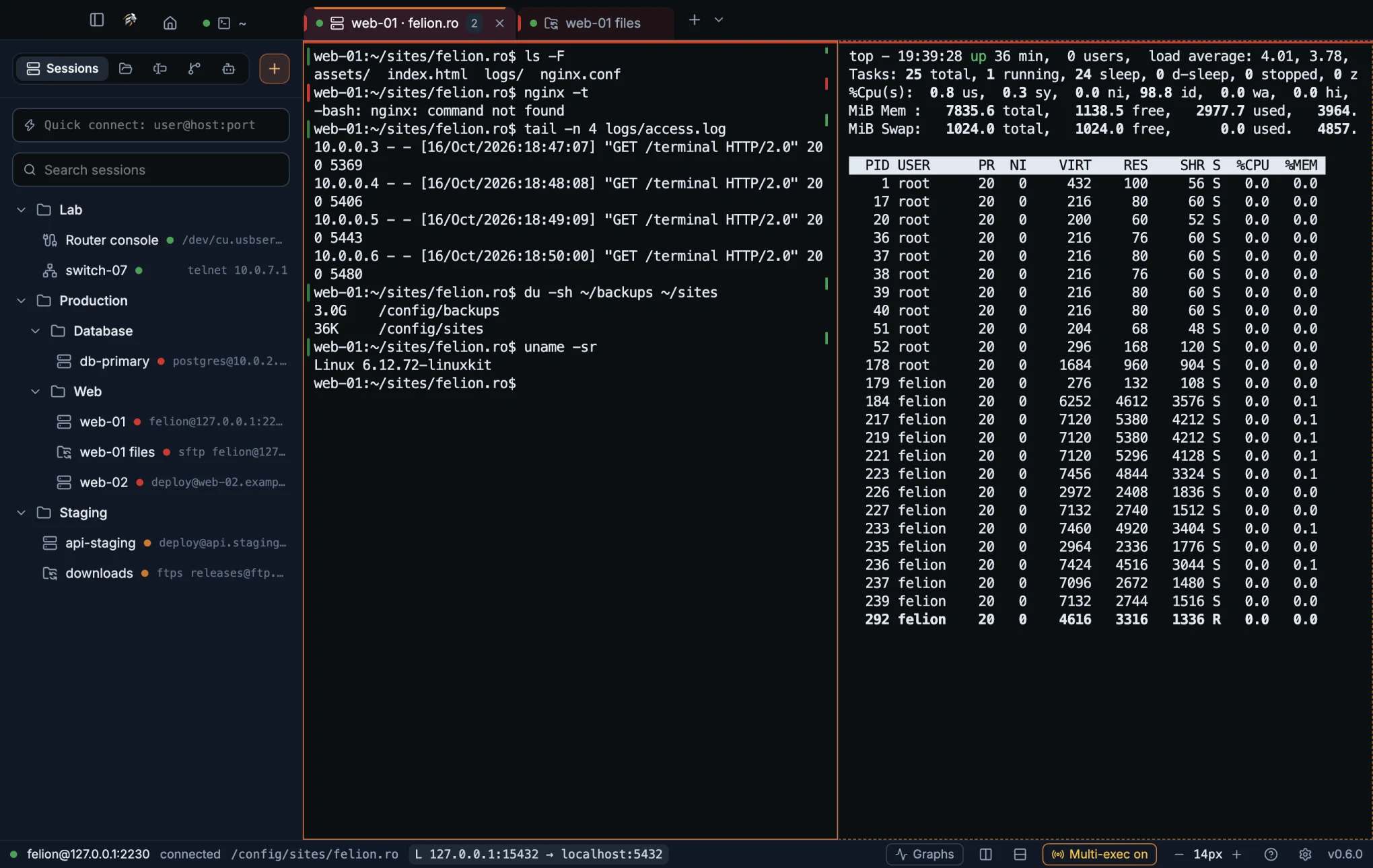
Turn it on or off with Multi-exec on/off in the status bar, with Turn multi-exec on/off in the command palette, or with the keys below. Each acts on the tab in front.
| Action | macOS | Windows and Linux |
|---|---|---|
| Multi-exec on or off | ⇧⌘M | Ctrl+Shift+M |
- It reaches the panes of the active tab only. Other tabs do not receive your input.
- Multi-exec belongs to the tab you turned it on in. Each tab keeps its own state, and the status bar shows the state of the tab in front.
- Opening a session folder with Side by side, with multi-exec (see Open a whole folder) turns it on for that new tab only.
- Snippets also go to every pane while multi-exec is on.
Text size#
Use the − and + buttons in the status bar, or Larger text and Smaller text in the command palette, to change the font size. Each change is saved to your settings.
The status bar buttons keep the size between 9 and 28 px. The font size field in Settings → Terminal → Size accepts 8 to 32 px, and the default is 14 px. See Terminal settings.
Notify me when a long command finishes#
When a command runs longer than the threshold, and you are in another window or tab, Felion Terminal sends a system notification. It says “Command finished”, or “Command failed (exit N)” when the command exited with an error, and it names the session and the run time. Click the notification to jump to the pane.
Settings → General → Notifications and safety → Notify when a long command finishes is on by default. Long means more than sets the threshold: 10 seconds by default, and any value from 3 to 3600 seconds.
Notifications from programs and the tab bell#
A program can ask for your attention by sending a notification or ringing the bell. When that happens in any pane other than the one you are typing in, its tab gets a bell icon. In a split tab, the pane also gets an amber border, so an agent waiting in the other half stands out. Both stay until that pane is the one you work in again.
A system notification comes only when you are away: in another app or window, in another tab, or while the idle screen is up. Click it to go to the pane. A pane sends at most one notification every 5 seconds.
System notifications need Settings → Terminal → For AI tools → Notifications from programs, on by default. Two tools need a line of setup first:
- Claude Code: run
/configand set Notifications to any option except auto or off. - Codex: in
~/.codex/config.toml, under[tui], setnotifications = true.
Shift+Enter for a new line#
In a prompt, Shift+Enter starts a new line instead of sending the message. It sends the sequence that tools such as Claude Code and Codex read as a new line, so you can write several lines before you send.
The setting is Settings → Terminal → For AI tools → Shift+Enter starts a new line, on by default. In vim, Shift+Enter then leaves insert mode. Turn the setting off if that gets in your way.
On macOS, the Option key acts as Meta, so ⌥B and ⌥F move by a word and ⌥⌫ deletes one, in a prompt or the shell. If your keyboard types characters such as @ { } | with Option, turn off Settings → Terminal → For AI tools → Option key as Meta. Option-drag selects text either way (see Copy and paste). The setting is not shown on Windows and Linux.
Paste images and drop files#
Paste a screenshot into a local or SSH terminal. When the clipboard holds an image and no text, Felion Terminal saves the image as a PNG and pastes its file path. Claude Code shows the path as [Image #1], and other tools receive the file.
Drag files from the Finder or Explorer onto a terminal, and their paths are pasted, quoted for the shell.
| Terminal | Where the file is saved | How long it is kept |
|---|---|---|
| Local | The system temp folder, in a felion-paste folder that only your account can read. | 24 hours |
| SSH | ~/.cache/felion/paste on the server. The folder is private (0700) and the files are private (0600). | 7 days |
Each folder is also kept under 500 MB: past that, the oldest files go first. The local folder is cleaned when the app starts, and a server's folder 10 seconds after each SSH connection.
Saved images are named image-YYYYMMDD-HHMMSS-xxxx.png, with the date and time they were saved and four random characters. When a name is already taken, the new file gets a number: name-2.ext, then name-3.ext.
- Images and dropped files work in local and SSH terminals only.
- In a local tab where you typed
sshyourself, the shell is on another computer, so they are refused with “This tab's shell is on another computer (ssh typed here), so a pasted image or dropped file can't reach it. Open the server from Sessions to paste there.” - Over SSH, a dropped folder is refused. Use the Files panel to copy folders.
- Over SSH, a file larger than 100 MB is refused.
- A file name with control characters is refused everywhere. On Windows, names with a dollar sign, a backtick, a percent sign or an exclamation mark are refused too.
Clickable file paths and web links#
A file path in the output becomes a link when the file exists where the shell runs: on this computer for a local shell, or on the server for an SSH session. Click the path to open the file at that line, and at that column if one is given.
| Form | Example |
|---|---|
| A path, with or without a line and column | src/app.ts:42, ./x.py:10:5, ~/notes.md |
| Line and column in brackets | src/app.ts(42,7) |
| Line in words | src/app.ts (line 3) |
| A Python traceback | "tools/rotate.py", line 3 |
| A Windows path | C:\src\app.ts, .\src\app.ts |
A long path that the terminal wrapped onto the next row is still one link.
What a click opens depends on the file. In a local terminal:
| The path points to | A click |
|---|---|
| Text, code or a picture | Opens it in the editor, or in the app chosen below. Scripts such as .sh or .ps1 open there as text and never run. |
| A document, video, sound or archive (PDF, Word, Excel, PowerPoint, Pages, MP4, ZIP and the like) | Opens it in its own app, such as Preview or Word. |
| A folder | Opens it in the Finder, Explorer or your file manager. |
| A program, an installer, an app, or a file of an unknown kind | Never starts it: shows it selected in the Finder or Explorer, where you decide. |
The file is checked again just before the system opens it. If it changed in between, for example into another file or a link, it is only shown in the Finder or Explorer.
Hold ⌥ and ⇧ while you click (Alt and Shift on Windows and Linux) to show any path selected in the Finder or Explorer instead. Paths in an SSH terminal always open in the editor.
Settings → Terminal → For AI tools → Open clicked file paths in chooses the app for local files: Felion editor (the default), VS Code, Cursor or Zed. Files on a server always open in the Felion editor.
- Works in local and SSH terminals only.
- A path needs a folder or a file extension, so a single word is never linked.
- A relative path is looked up from the folder the shell is in. Shell integration keeps that folder accurate.
- Network paths are refused, except WSL folders on Windows (
\\wsl.localhost\…and\\wsl$\…). Each line is checked for up to 32 candidate paths. - After
clear, a row never opens the file that was shown there before. - In a local tab where you typed
sshyourself, the shell reports a folder on another computer. File paths are not linked there until the shell is back on this computer.
Web addresses that start with http:// or https:// are clickable too. They open in your default browser. The terminal itself never navigates away from the app.
A program can also link text to an address of its own (OSC 8), so the words on screen differ from where they lead. Hover over such a link to see the real address. An http:// or https:// address opens in the browser, and a file:// address opens like a clicked path. Other addresses are ignored.
Send and receive files with ZMODEM#
ZMODEM moves files through the terminal itself, in SSH and serial sessions. No separate transfer window is needed. The other end needs the sz and rz programs, which come with the lrzsz package.
- On the other end, run
sz filewith the name of the file to send. Felion Terminal asks “Receive a file?” and says the file will be saved to your Downloads folder. - Choose Save. Tick Also accept the rest of this transfer to accept the other files of the same transfer without asking again.
- Watch the progress line in the terminal, which looks like
↓ name 1.2 MB of 3 MB 40%.
To send files from your computer, run rz on the other end. Felion Terminal opens a file picker titled “Send with ZMODEM”, where you can select several files.
- A file is written as a
.partfile until it is complete, and then renamed. If the connection closes first, the half-received file is removed. - An existing file is never overwritten. The new file gets a number, such as
name (1).ext. - Unsafe characters in file names are removed.
- The file is never allowed to grow past the size the sender announced.
- Downloaded files are marked as downloads, so macOS and Windows treat them like any other download.
Press Ctrl+C on any system to cancel a transfer in either direction. The setting is Settings → Terminal → File transfers → Send and receive files with rz and sz (ZMODEM), on by default. It applies to terminals opened after you change it.
The terminal bell#
When a program rings the terminal bell, Felion Terminal can flash the pane, play a short two-tone chime, or stay silent. Choose the behaviour under Settings → Terminal → Behaviour → Bell.
| Option | What happens |
|---|---|
| Silent | The bell makes no sound and does not flash. |
| Flash | The pane flashes. This is the default. |
| Sound | A short two-tone chime plays. |
A program that rings the bell in a loop is heard and seen at most five times a second. A bell from a pane you are not typing in also puts a bell icon on its tab. See Notifications from programs and the tab bell.
When a tool isn't installed#
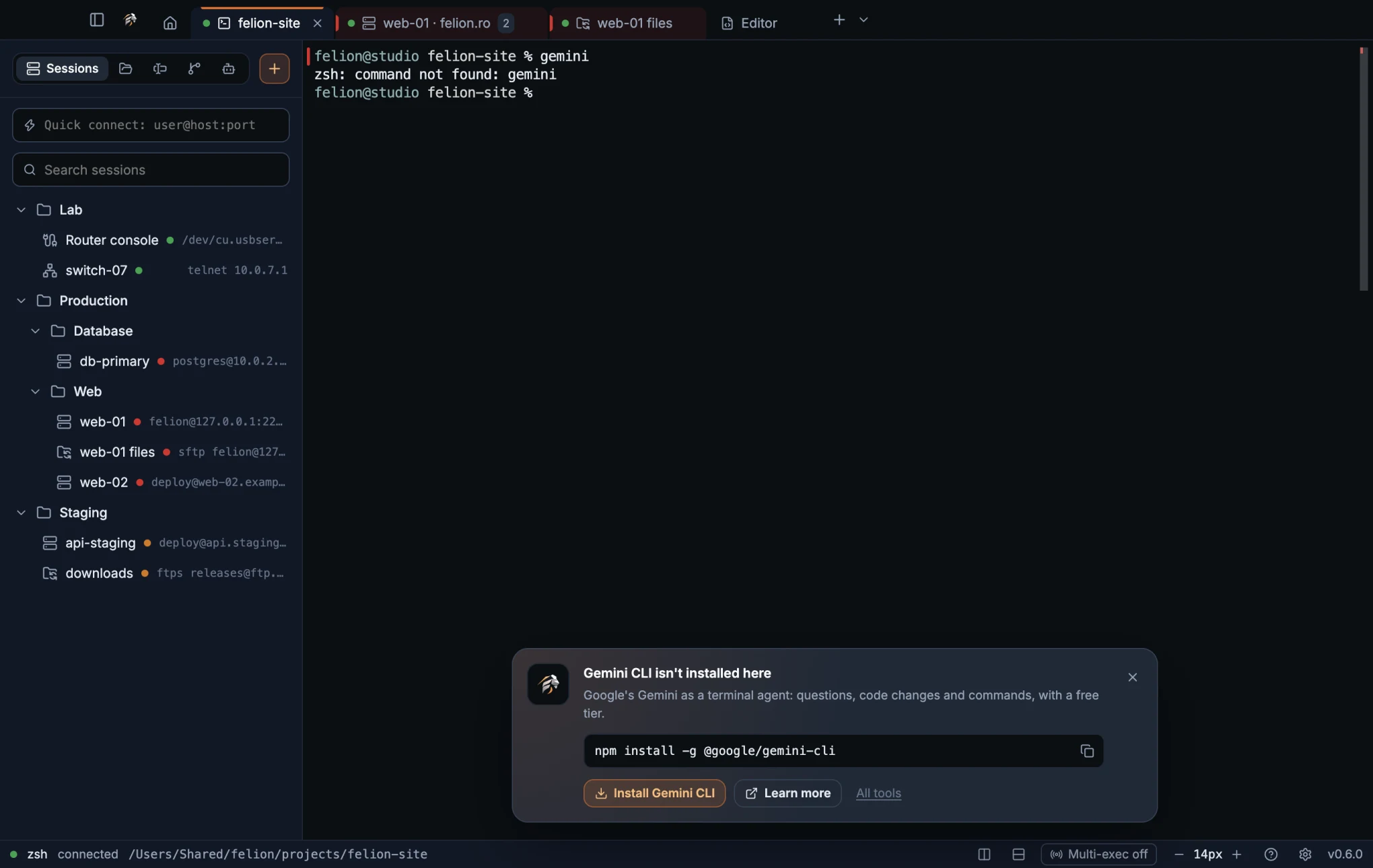
Run a known tool that isn't installed, and a card at the bottom of the terminal says what the tool is and how to install it on this system, with the right command for your shell. Commands the app doesn't know bring no card. With shell integration, only the first 3 seconds of a command count, so a “not found” that a running tool prints later, from one of its own steps, brings no card.
| Group | Tools |
|---|---|
| AI assistants | Claude Code (claude), Codex CLI (codex), Gemini CLI (gemini) |
| Developer tools | Git (git), GitHub CLI (gh), Node.js (node, npm, npx), Python (python3, python, pip, pip3) |
| Containers and cloud | Docker (docker), kubectl (kubectl) |
- Install <tool> types the install command into that same terminal. When it finishes, open a new tab so the shell finds the new command.
- The copy button next to the command copies it instead, Learn more opens the tool's website, and All tools opens the Tools page.
- When the tool needs another one first, such as Node.js for Codex CLI or Homebrew on a Mac, the card says “It needs Node.js first:” with that command and its own Install button. This check is made on this computer only.
- × hides the card for that pane while it stays open. The card comes back in other panes and after a restart.
The command fits where the terminal runs: Linux commands for an SSH server or WSL, PowerShell or Command Prompt commands on Windows, and the usual commands on macOS and Linux. A command that needs a Unix shell shows “This command needs a Unix shell:” instead of an Install button.
The card appears in local and SSH terminals. To turn it off, switch off Settings → Terminal → For AI tools → Help when a tool is missing.
The Tools page#
The Tools page lists the tools the app knows and whether each one is installed on this computer. Open it with Tools… in the command palette, or with All tools on a missing-tool card.
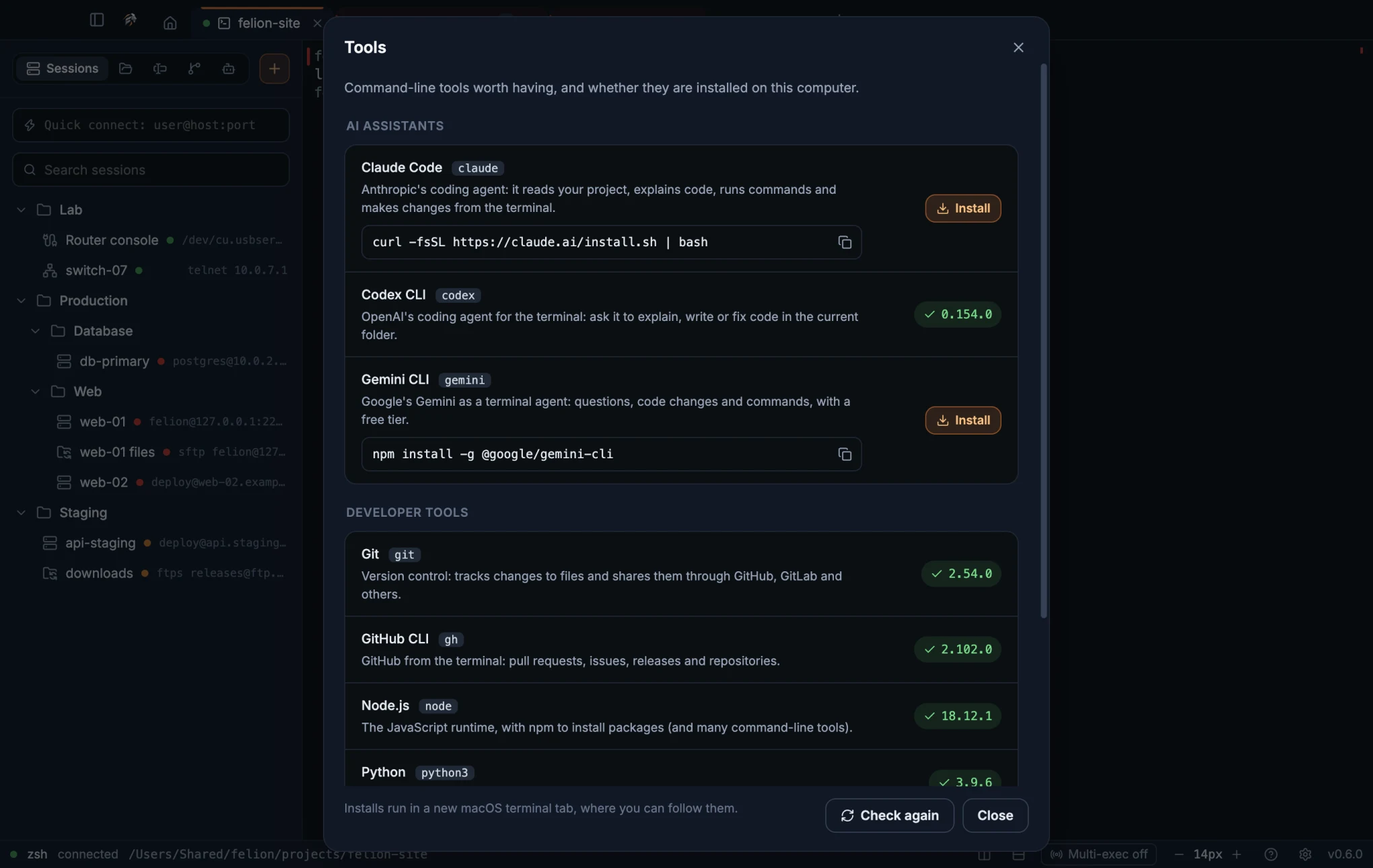
- An installed tool shows a check mark and its version. Hover over it to see where it is installed.
- A missing tool shows its install command with a copy button, and an Install button (or Install Node.js first when it needs Node.js).
- Install closes the page and opens a new tab with your Shell for new tabs, then types the command there so you can follow it.
- Check again looks once more, for example after an install finished.
The page looks where a new terminal would. On macOS and Linux, it reads your shell's startup files, so tools added to PATH in .zshrc, such as ~/.local/bin or nvm, count. On Windows, it reads the current system and user Path.
Explain a command or an error#
Explain tells you in plain words what a command does, or what an error means, for your system and shell. Select the text and open Explain in one of these ways:
- Choose Explain in the right-click menu. The menu appears when Right click is set to Show a menu.
- Choose Explain the selection in the command palette. With nothing selected, it explains the last command and its output.
With shell integration, “the last command” is the whole command with its prompt, even a long one that wrapped over several rows, and the last 30 lines of its output. Without it, Explain takes the last 12 lines of the pane.
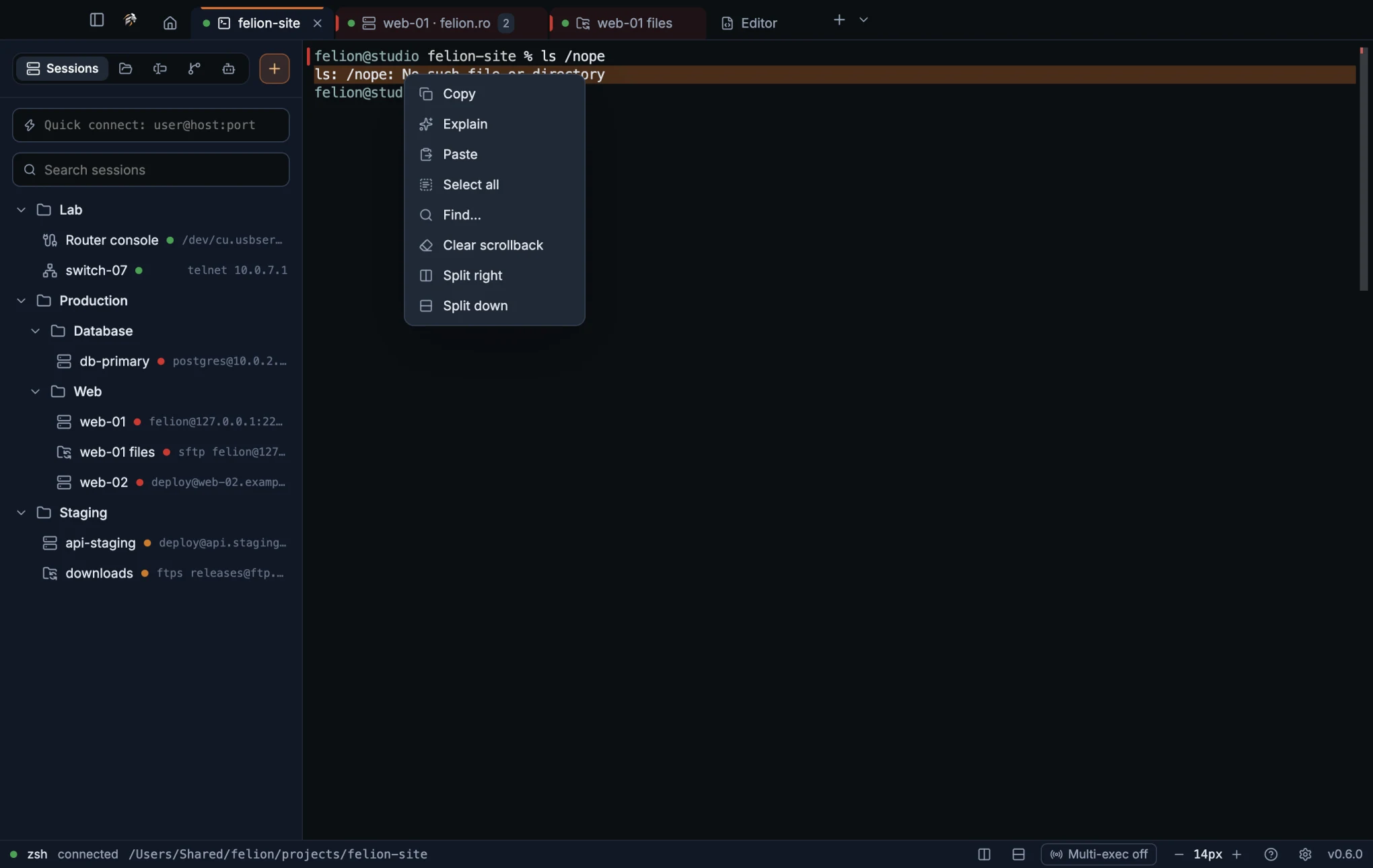
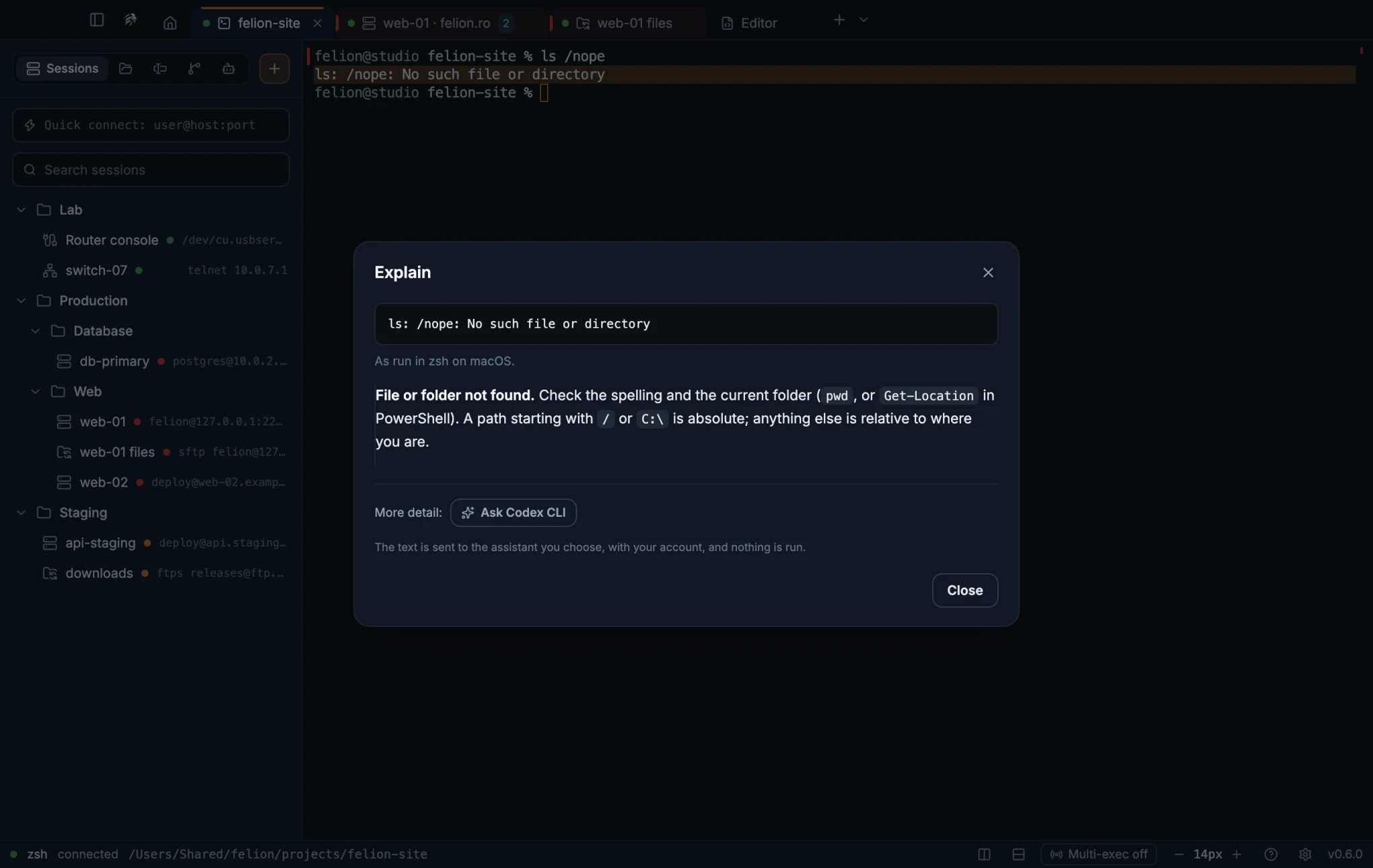
The dialog shows the text, where it ran (for example “zsh on macOS” or “a Linux server (SSH)”), and the built-in explanation. The built-in part covers about 80 common commands with their usual options, and common errors such as “permission denied”, “connection refused” or a changed host key. When it has nothing to say, it shows “No built-in explanation for this one.”
The built-in explanation runs inside the app, and nothing is sent anywhere.
If Claude Code, Codex CLI or Gemini CLI is installed on this computer, More detail: offers Ask Claude Code, Ask Codex CLI or Ask Gemini CLI. Without one, the dialog suggests installing an assistant and links to the Tools page.
- The selected text, up to 4,000 characters, goes to the assistant you choose, which answers with your own account. Nothing is run.
- The assistant starts in an empty temporary folder that is deleted afterwards, so it sees none of your files. It keeps no conversation either, and one that hangs is stopped with everything it started.
- The answer appears in the dialog. If it takes longer than two minutes, the dialog says the assistant didn't answer.
- In an SSH terminal, the text from the server is explained by the assistant on this computer.
06
Files
Browse, copy, move and delete files on a server or on your computer, next to your terminal or in a two-pane file manager.
The Files panel#
Open Files in the sidebar to see the files next to the focused pane. In an SSH pane, the panel lists the server's files over SFTP. In a local shell, it lists the files on this computer. It starts in the folder the shell is in.
With Follow the terminal folder on, the panel follows each cd you run. This needs shell integration. Open when SSH connects in SFTP settings, on by default, switches the sidebar to Files when an SSH session connects.
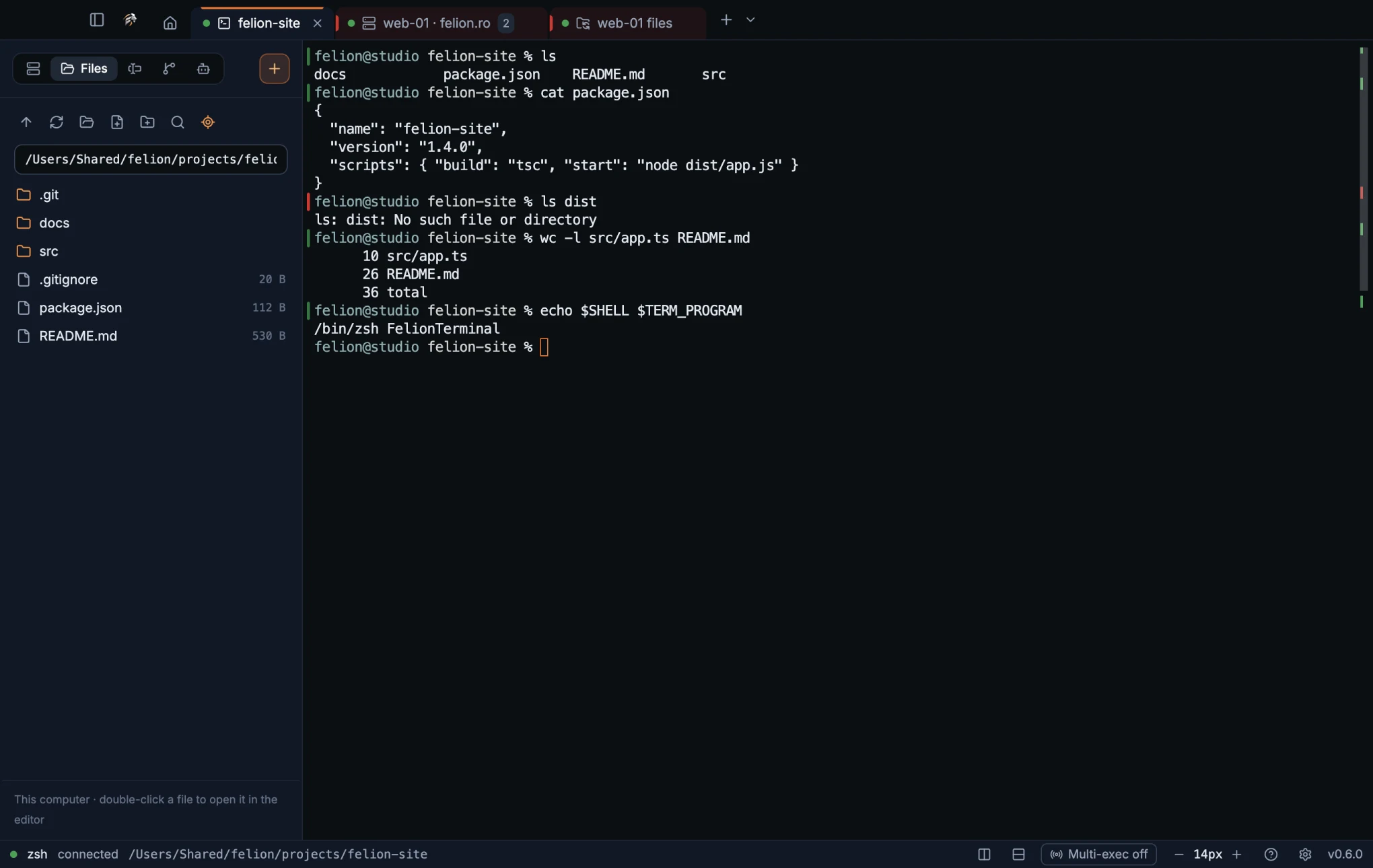
| Control | What it does |
|---|---|
| Parent folder | Goes up one folder. |
| Refresh | Reloads the list. |
| Show in Finder (macOS) or Show in Explorer (Windows) | On this computer, opens the current folder in the system's file manager. On Linux, the button names the file manager instead. |
| Upload files | On a server, in place of Show in Finder. Opens a file picker that accepts several files. The chosen files go to the current folder. |
| New file | Creates an empty file in the current folder and opens it in the editor. See New files and folders. |
| New folder | Creates a folder in the current folder. |
| Filter this folder | Shows a box that narrows the list to matching names. See Filter a long folder. |
| Follow the terminal folder | Turns following cd on or off. |
The path field at the top is editable. Type a path and press Enter to go there. A path that doesn't start with /, \, ~ or a drive letter is taken from the folder shown. Folders are listed first, then files, each with its size. A link icon marks a symbolic link. Hidden files show or hide as set in SFTP settings.
Double-click a file to open it. On a server, the action depends on Double-click a file to in SFTP settings: Open in the editor (the default), Edit in my app or Download. A local file always opens in the built-in editor, never in another app.
| Item | Menu items |
|---|---|
| Server folder | Open, New file in it…, New folder in it…, Download… |
| Server file | Open in editor, Edit in my app (uploads on save), Download… |
| Folder on this computer | Open, New file in it…, New folder in it…, Show in Finder (Show in Explorer on Windows; the file manager's name on Linux), Open in new terminal |
| File on this computer | Open in editor, Show in Finder |
| Any item | Insert path in terminal, Rename…, Move…, Duplicate, Copy path, Copy relative path (when it has one), then Delete… (a server file), Delete folder… (a server folder) or Move to Trash (on this computer; Recycle Bin on Windows and Linux) |
Right-click the empty part of the list for things to do in the folder shown.
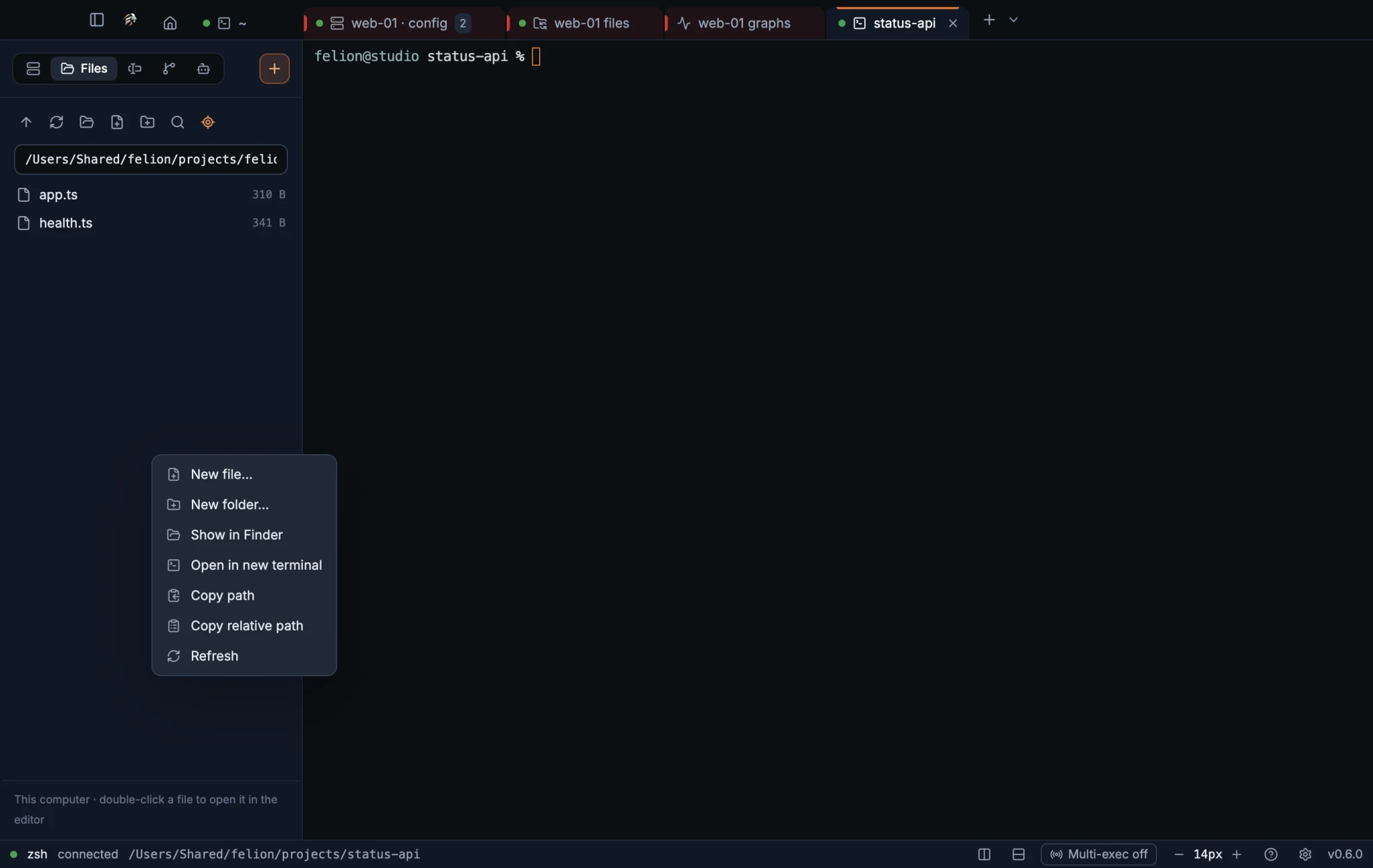
| Where | Menu items |
|---|---|
| On this computer | New file…, New folder…, Show in Finder, Open in new terminal, Copy path, Copy relative path (when it has one), Refresh |
| On a server | New file…, New folder…, Upload files…, Copy path, Copy relative path (when it has one), Refresh |
Duplicate, Insert path in terminal, Copy relative path and Open in new terminal are described in Duplicate and Paths and the terminal.
To upload on a server, drop files from the Finder or Explorer onto the panel. Dropping works on server panels only.
- With no SSH connection or local shell in focus, the panel says: “Open an SSH session or a local shell to browse its files here.” While an SSH connection starts, it says “Waiting for the SSH connection…”.
- The local panel does not open network locations, such as network shares or
/Network. It also checks every symbolic link on the way. On Windows, WSL folders (\\wsl.localhost\…and\\wsl$\…) count as this computer and open normally. - Renaming a file or folder on this computer to a name that is already taken is refused with “<name> already exists in <folder>.”, so nothing is overwritten. Changing only the case, such as
readmetoREADME, still works. - If a server closes the panel's file channel, the panel opens a new one by itself on the next action.
- The footer shows hints, the number of selected items, the number of matches while you filter, and the progress of downloads.
Filter a long folder#
In a folder with many files, narrow the list to the names you want. Click Filter this folder in the toolbar, or press the keys below while the list has the focus. A box opens under the path field.
| Action | macOS | Windows and Linux |
|---|---|---|
| Open the filter (list focused) | ⌘F | Ctrl+F |
| Open the first match | Enter | Enter |
| Close the filter | Esc | Esc |
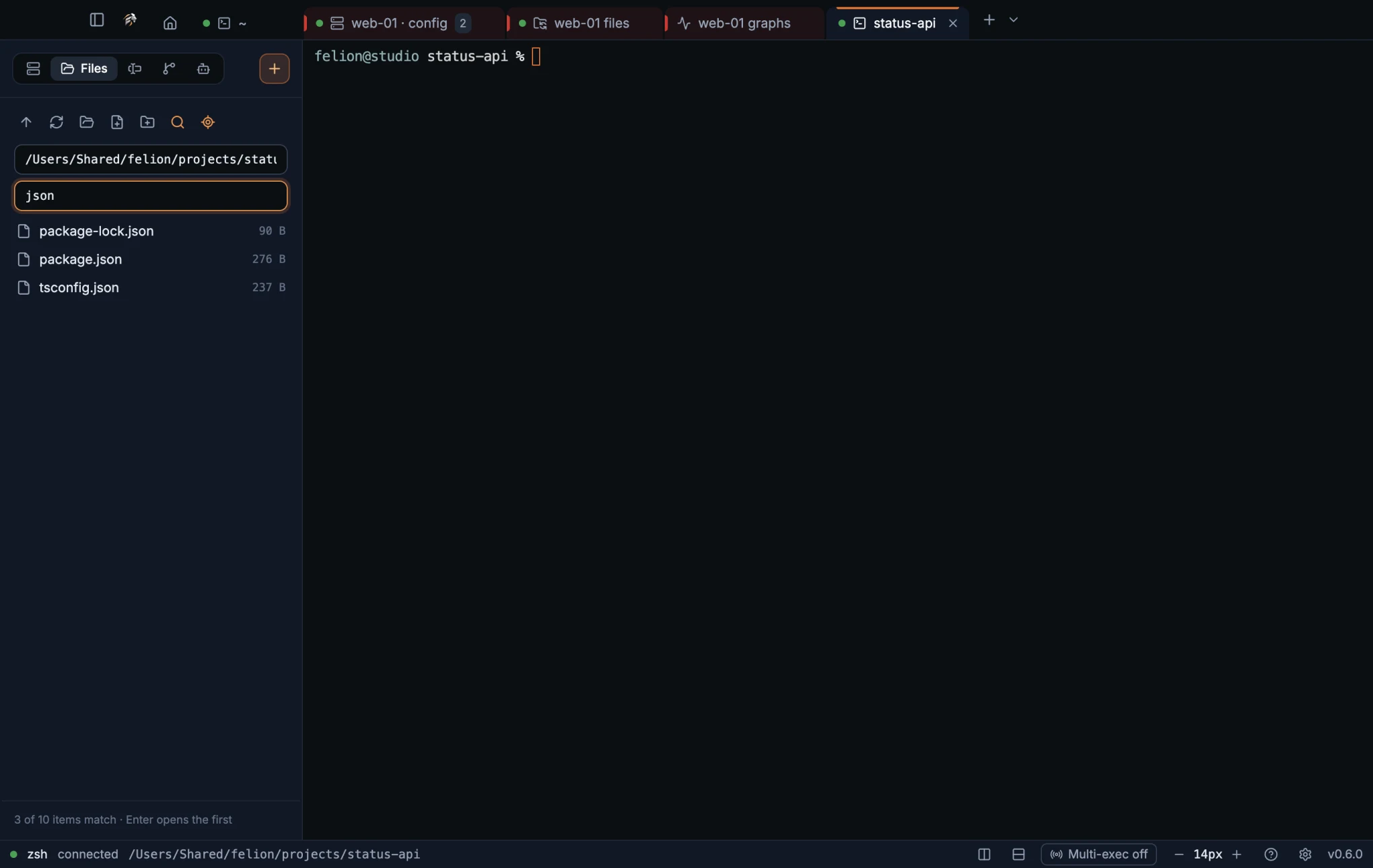
- The list keeps the names that contain what you type, in upper or lower case.
- The footer counts the matches, such as “2 of 37 items match · Enter opens the first”. With no match, the list says “Nothing here matches” and your text.
- Enter goes into the first match when it is a folder. A file opens as a double-click would.
- Going to another folder clears the filter. Filter this folder again, or Esc in the box, closes it.
Select and act on several files#
Click a file to select it. Hold Cmd (on macOS) or Ctrl (on Windows and Linux) and click to add or remove a file. Hold Shift and click to select a range. The same keys work in the Files panel and in the file manager.
| Action | macOS | Windows and Linux |
|---|---|---|
| Select all | ⌘A | Ctrl+A |
| Clear the selection | Esc | Esc |
| Delete the selection | ⌘⌫ or the Delete key | Ctrl+Backspace or the Delete key |
Right-click the selection to act on all of it at once. The menu changes with the number of items; here it shows two files on a server.
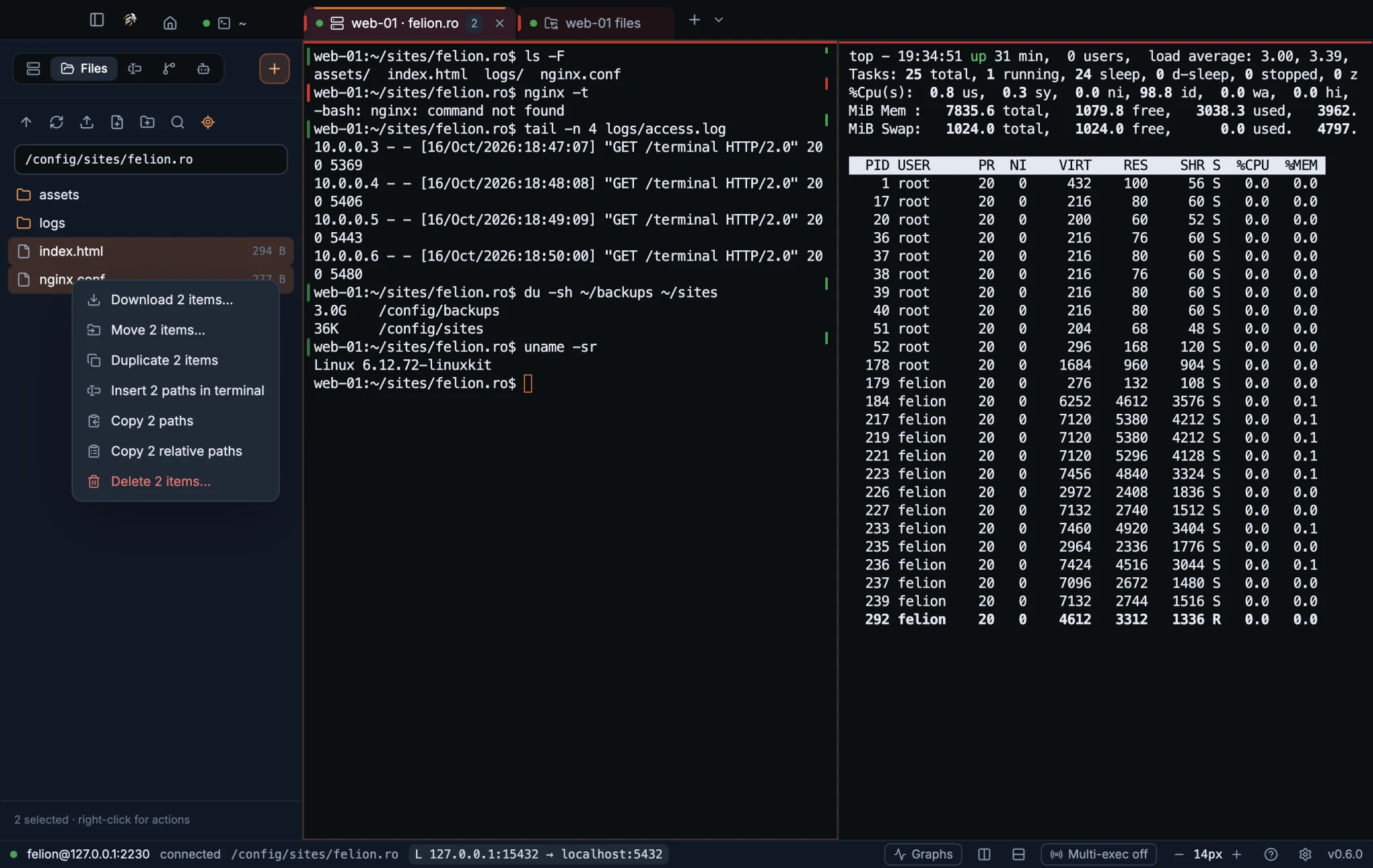
- Download N items… (on a server) sends them to a folder you choose, through the transfer queue. Folders are included.
- Move N items… asks for a destination folder, either relative or absolute. A file is never replaced: the move stops and names the file that is already there.
- Duplicate N items makes a copy of each one beside it. See Duplicate.
- Insert N paths in terminal types all the paths at the terminal's prompt. See Paths and the terminal.
- Copy N paths copies the path of each item to the clipboard, one per line.
- Copy N relative paths does the same with relative paths, when every item has one.
- Delete N items… on a server. On this computer, the label is Move N items to Trash on macOS and Move N items to Recycle Bin on Windows and Linux.
- Deleting a link to a folder removes only the link, not the folder it points to.
- A folder cannot be moved into itself.
New files and folders#
Make a new, empty file in the Files panel in one of three ways: New file in the toolbar, New file… when you right-click the empty part of the list, or New file in it… when you right-click a folder. The dialog New file asks for a File name. The file is created, then opens in the editor for you to type into.
Folders work the same way, with New folder, New folder… and New folder in it…. The dialog asks for a Folder name.
- A name that is already taken is refused with “<name> already exists in <folder>.” An existing file is never emptied, on this computer or on a server.
- The file manager has New file too, on both sides.
Duplicate#
Duplicate in the right-click menu makes a copy beside the original, in the same folder. With several items selected, Duplicate N items copies each of them. The copies are selected afterwards.
| Original | Copy | Next copy |
|---|---|---|
report.pdf | report copy.pdf | report copy 2.pdf |
backups (a folder) | backups copy | backups copy 2 |
.env | .env copy | .env copy 2 |
- A folder is copied with everything in it.
- A symbolic link stays a link in the copy. It is never followed.
- A name that is already taken is never replaced.
- On a server, the server makes the copy itself with
cpover the SSH connection, so nothing travels to this computer and back. This needs a shell on the server. An account that only allows file transfer gets “Duplicate needs a shell on the server.” A copy that takes longer than 10 minutes is stopped.
Paths and the terminal#
Copy relative path copies the path from the top folder of the git repository the item is in, such as src/main/git.ts. Outside a repository, the path starts at the terminal's folder. The item is offered only for paths inside that starting folder, so it is missing for the starting folder itself and for anything outside it. With several items, Copy N relative paths copies one per line.
Insert path in terminal types the path at the prompt of the terminal the panel belongs to, quoted for its shell and followed by a space. It is not run, so you can write the rest of the command around it. It works on servers too, and with several items selected (Insert N paths in terminal).
Open in new terminal, on a folder on this computer or on the empty part of the list, opens a new local terminal tab in that folder, named after it.
The file manager#
Connect an SFTP or FTP session to open the file manager in its own tab. It has no terminal. This computer is on the left, the server is on the right, and the transfer queue sits below them.
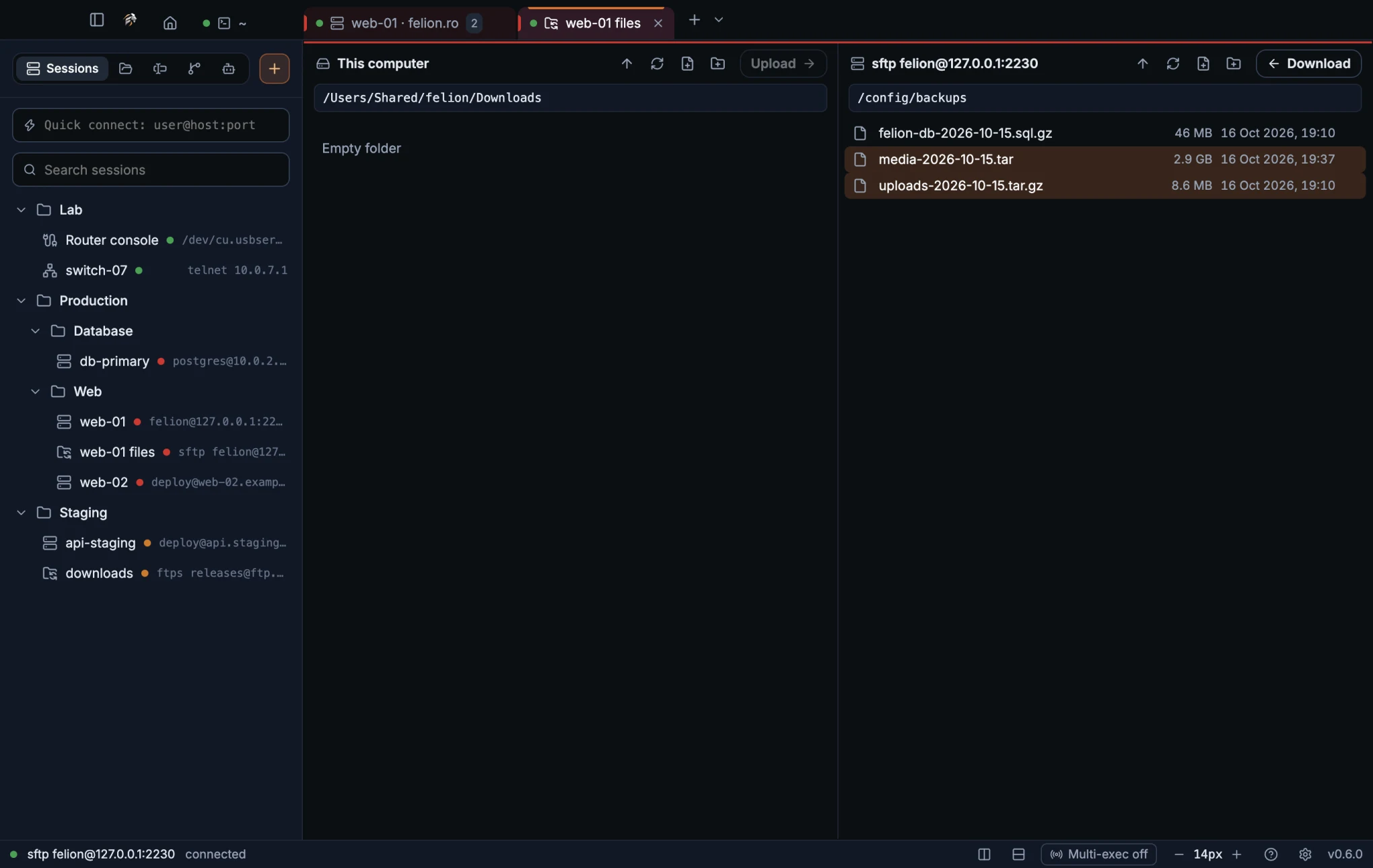
Each side has its own toolbar with Up one folder, Refresh, New file and New folder, an editable path field, and a list with each item's name, size and date. The button between the two sides sends the selection to the other side's current folder: Upload → from this computer, ← Download from the server.
- Drag files or folders from one side to the other.
- Drag files and folders from the Finder or Explorer onto the server side to upload them.
- Double-click a file on this computer to upload it. Double-click a file on the server to act on it as set in SFTP settings.
- Right-click a row for Open, Open in editor, Edit in my app, Upload or Download, Rename…, New file…, New folder…, Copy path, and Move to Trash or Delete….
- New file asks for a Name, creates an empty file in that side's current folder and opens it in the editor. A name that is already taken is refused.
- Duplicate, filtering, inserting a path and relative paths are in the Files panel only, not in the file manager.
Until the connection is ready, the server side shows a connection log: connecting, the certificate check and the login. For FTP, see FTP and FTPS.
Use the keyboard to move around: ↑ and ↓ select a row, Enter opens a folder or sends the file to the other side, and Backspace goes up one folder. Delete or ⌘⌫ (Ctrl+Backspace on Windows and Linux) deletes the selection.
The transfer queue#
Every upload and download goes through the queue below the file manager. Each row shows the direction, the name, a progress bar and the state. The header counts the transfers that are queued or running, out of all the transfers in the list.
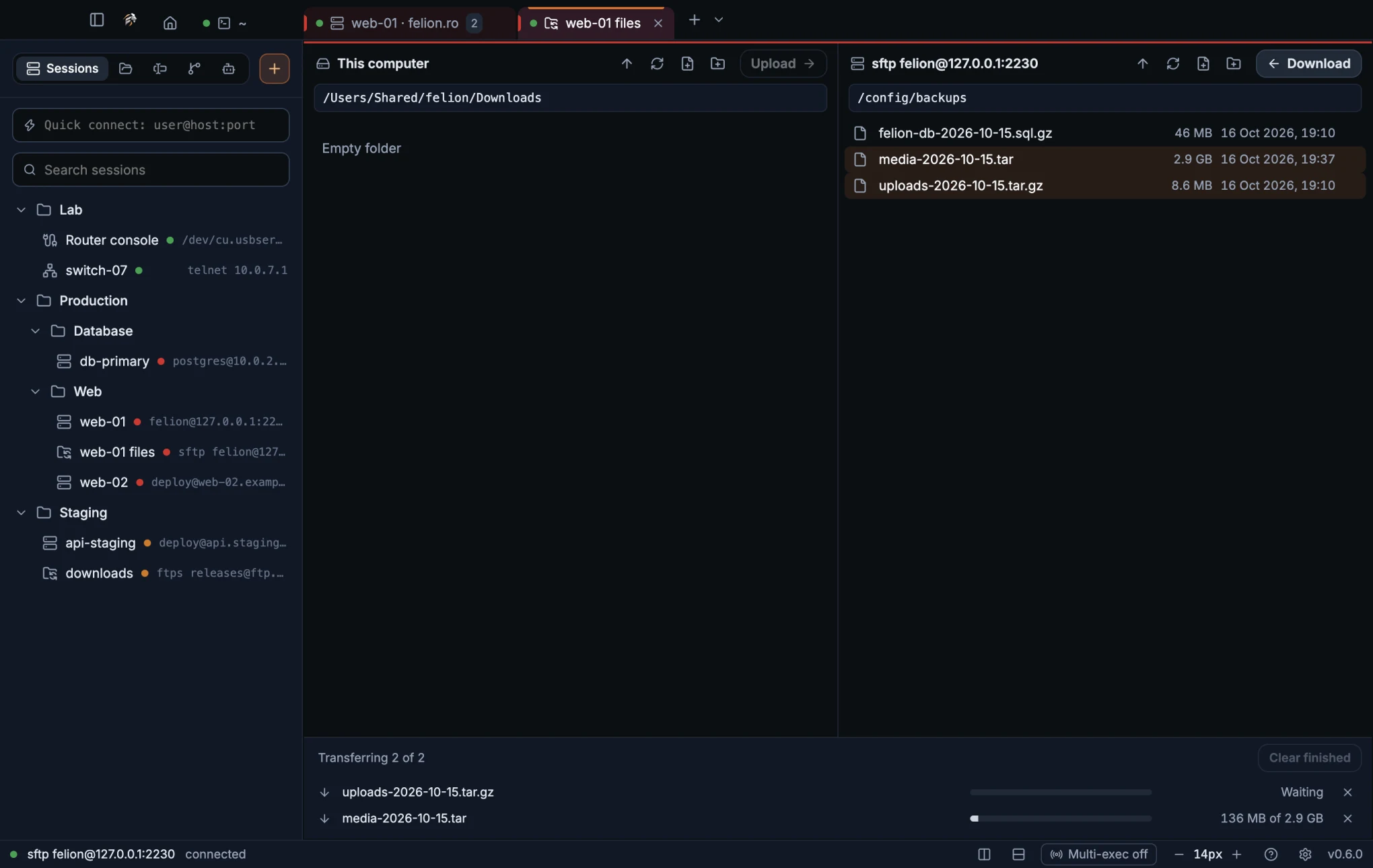
| State | Meaning |
|---|---|
| Waiting | The transfer is queued. Only one transfer runs at a time on each connection. |
| 151 MB of 2.9 GB | A transfer in progress, with the amount done and the total. |
| Canceled | You canceled the transfer. |
| Error text | Why the transfer failed. If the connection drops, it fails with “The connection closed.” |
| Size | Shown once the transfer is done. |
Click × on a row to cancel that transfer. Clear finished removes the finished rows from the list.
- A folder is one job. It is measured first, then copied file by file.
- A symbolic link is copied as the item it points to. The copy never follows a link into a folder.
- A download is written to a
.partfile, which is renamed to its final name when it is complete. - Canceling an upload removes its partial copy from the server. Canceling a download removes its partial file on this computer.
- A server file name that would leave the chosen folder, such as one with
..or a slash, is refused.
Edit a server file in your own app#
Edit in my app downloads a server file to a private temporary folder and opens it in the default app for that file type on your computer. Each time you save the file, it is uploaded back to the server.
Choose Edit in my app when you right-click a server file in the Files panel or the file manager. You can also make it the double-click action with Double-click a file to in SFTP settings.
- A message says “Uploaded” and the file name after each upload. If an upload fails, the message shows the error instead.
- The upload happens only when the file's modification time changes. Felion Terminal waits 400 ms after a change before it uploads.
- It stops when the connection closes, and the temporary copy is removed.
FTP and FTPS#
An FTP session has three encryption modes, chosen in the session form: FTPS: FTP over TLS (recommended) on port 21 (the default), FTPS: implicit TLS (port 990), and None: plain FTP. The port follows the mode, unless you type another port.
The server's certificate is checked before you log in, and the password is sent only after the certificate is verified. A certificate that is self-signed or does not match the host shows “Untrusted certificate”, with its name, its SHA256: fingerprint, its issuer and its expiry date. Choose Trust and connect to pin it.
A pinned certificate is stored with your other trusted keys, as ftps://host:port, under Settings → SSH → Trusted host keys. If the certificate later changes, Felion Terminal shows “Certificate changed”. The data connections must show the same certificate as the control connection.
- An empty username logs in as
anonymous, with the passwordanonymous@. - Remember password is offered for saved sessions, as with SSH.
- A “530 not logged in” reply asks for the password again, up to three times.
- The connection sends a keep-alive (NOOP) every 60 seconds. A command that gets no answer times out after 30 seconds.
See also Trusted host keys for how SSH host keys are trusted.
07
Editor
Open, edit and save text files on this computer or on a server in the built-in editor, with a live preview for Markdown and SVG files, pictures to look at, and buttons to debug a file or open a shell under it.
Edit and save files#
The built-in editor opens files from this computer, and from an SFTP or FTP server. It saves them back to the same place, over the same connection. It also shows pictures, here or on a server (see Pictures and SVG files). The editor loads the first time you open a file.
A file opens in the editor from any of these places:
- The Files panel or the file manager: double-click the file, or choose Open in editor.
- The command palette: Open file… shows a file picker that starts in your home folder.
- A file path in the terminal: see Clickable file paths. The file opens at the line you clicked.
- The Git panel: Open file on a changed file, or in its diff.
- New file in the Files panel or the file manager: the new, empty file opens at once.
- The Problems tab: click a finding to open the file at that line and column.
- The debugger: when the program stops, the file it stopped in opens at that line.
- A file path in a chat with Claude Code: click it to open the file.
With no file open, the Editor tab asks you to open a file from the file manager or the SFTP panel, or to use Open file… in the command palette.
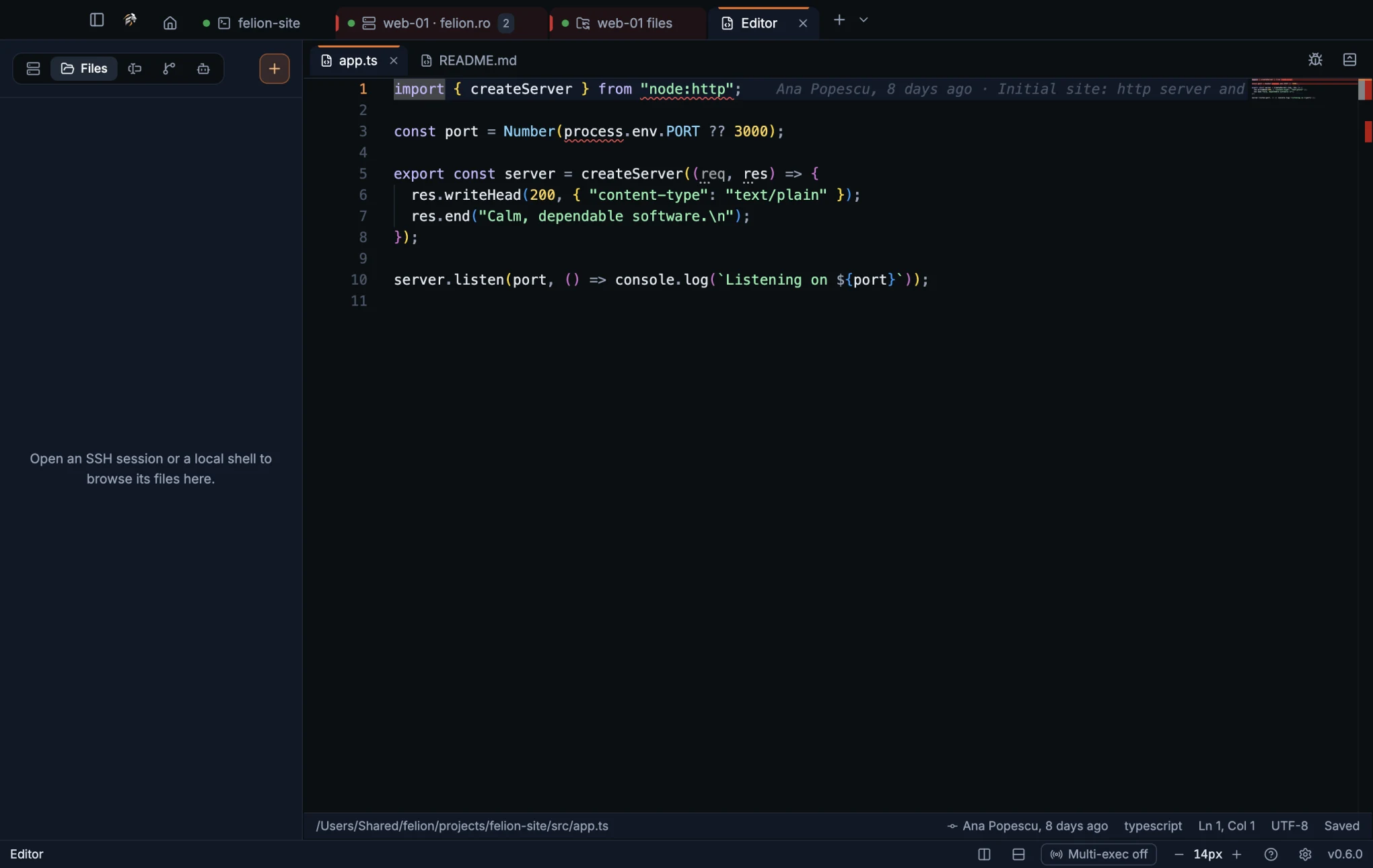
Press ⌘S on macOS, or Ctrl+S on Windows and Linux, while the editor has focus. The status line shows “Saving…”, then “Saved” and the file name. If a save fails, it shows “Couldn't save” and the file name.
Each open file has its own tab. A dot on a tab means the file has unsaved changes. Click × to close a tab, or middle-click it. Opening a file that is already open brings its tab to the front.
Buttons at the right end of the tab bar act on the file in front:
- Debug this file (a bug) shows for a Python, JavaScript or TypeScript file on this computer. It starts the debugger, like F5. Click beside a line number, or press F9, to set a breakpoint.
- Shell in the panel below opens a shell in the terminal panel under the editor, in the file's folder for a file on this computer. ⌘J (Ctrl+Shift+J on Windows and Linux) shows or hides the panel.
The status line shows the path (or the connection and the path, for a server file), the language, the cursor position as Ln and Col, the encoding UTF-8, and whether the file is saved. For a file in a git repository, it also shows who last changed the cursor's line. Click that entry for the blame card with the whole commit (see Blame in the editor).
While a Problems tab is open, the errors and warnings it found show as squiggles in the open files from this computer. Hover over one for the message, the checker and its code.
The editor always uses a dark theme, whatever colour scheme the terminal uses. It shows a minimap, and it uses the terminal's font family and size. Colours follow the file type, based on the file extension.
If you close a file with unsaved changes, the app asks “Close app.ts without saving?” (with the file's name). Closing the Editor tab, the window or the app asks the same way for each unsaved file.
Markdown preview with diagrams#
A .md file opens with its text on the left and a live preview on the right. The preview updates 200 ms after you stop typing. In side-by-side view, it follows the text as you scroll.
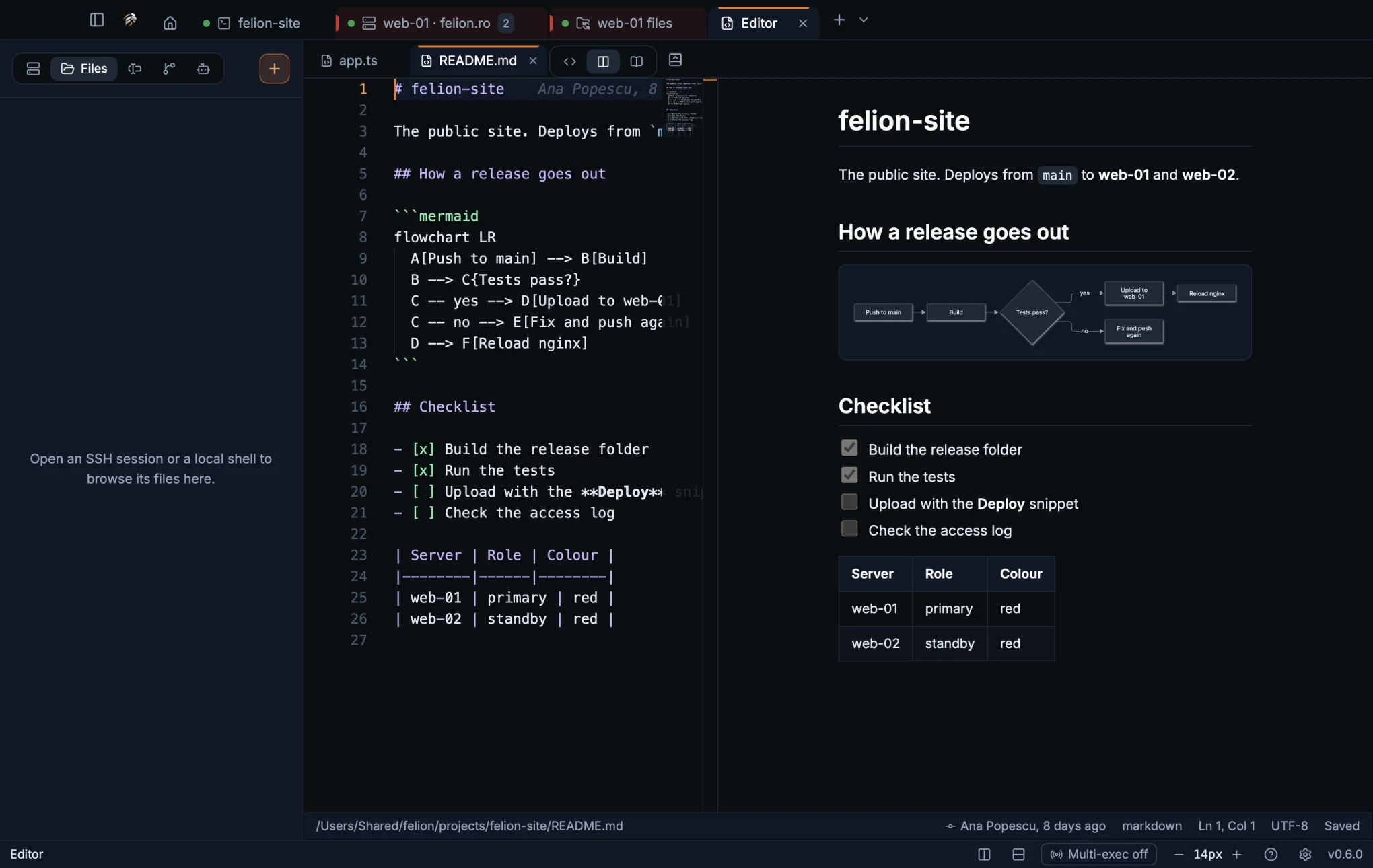
Three buttons to the right of the file tabs switch the view: Text only, Text and preview (the default) and Preview only. Each file keeps its view while it stays open.
The preview shows GitHub-flavoured Markdown: headings, tables, task lists, quotes, and code blocks coloured like the editor.
A code block marked mermaid is drawn as a diagram, such as a flowchart or a sequence diagram. A diagram with a mistake shows “This diagram has an error:” and the problem.
- A link to a heading scrolls the preview to that heading.
- A web link (
http://orhttps://) opens in your default browser. - A relative link to another file opens that file in the editor.
The preview removes scripts, event handlers, styles, forms and buttons. Diagrams are drawn as images. An image in the document shows only its alt text, and nothing is loaded from the internet.
Pictures and SVG files#
A PNG, JPEG, GIF, WebP, BMP, ICO or AVIF file opens as a picture to look at, from this computer or from a server. It opens the same ways as any file: a clicked path in the terminal, a double-click in the Files panel, Open file… or the file manager.
- The picture is fitted to the pane, never enlarged. Click it to see it at its actual size, and click again to fit it.
- A checked pattern shows through transparent parts. The picture's tab has an image icon.
- The status line shows the path, the type (such as PNG or ICO), the size in pixels and the file size.
- Pictures are for looking at. There is nothing to edit or save.
- The file's first bytes must match a picture type. Otherwise it is refused with “<name> isn't an image the editor can show; open it with another app.” A picture larger than 10 MB is refused too.
An SVG file is text, so it opens in the editor with the same three buttons as Markdown: Text only, Text and preview (the default) and Preview only. The preview is redrawn as you type. While the text is half-typed and can't be drawn, the last good drawing stays. Scripts in an SVG never run in the preview.
Limits of the editor#
The editor is for text files, and shows pictures. It refuses any file it cannot save safely, so a save never changes or corrupts a file.
- A file larger than 10 MB is refused. Open it with another app instead.
- A binary file is refused, unless it is a picture the editor can show. A file counts as binary when a zero byte appears in its first 8 KB.
- Text that is not UTF-8 is refused, so it is never converted when you save.
- A UTF-8 byte-order mark at the start of a file is kept when you save.
- Only regular files open. Devices and pipes do not.
- A download from a server stops after 10 MB, even if the server reports a smaller size.
- There is one Editor tab. It cannot be split side by side, and it is not restored after a restart. Split down, or the panel button in its tab bar, opens a shell in the terminal panel under it.
- The debugger and the Problems squiggles work on files from this computer only.
08
Tasks, problems and the debugger
Run a project's scripts, list its type and lint errors, and step through Python, JavaScript and TypeScript, in the terminal panel under a tab.
Run a task#
A task is a package.json script or a Makefile target of your project, started with one click. Click ▶ in the strip of the terminal panel, or type Run in the command palette, where each task has a Run <name> item.
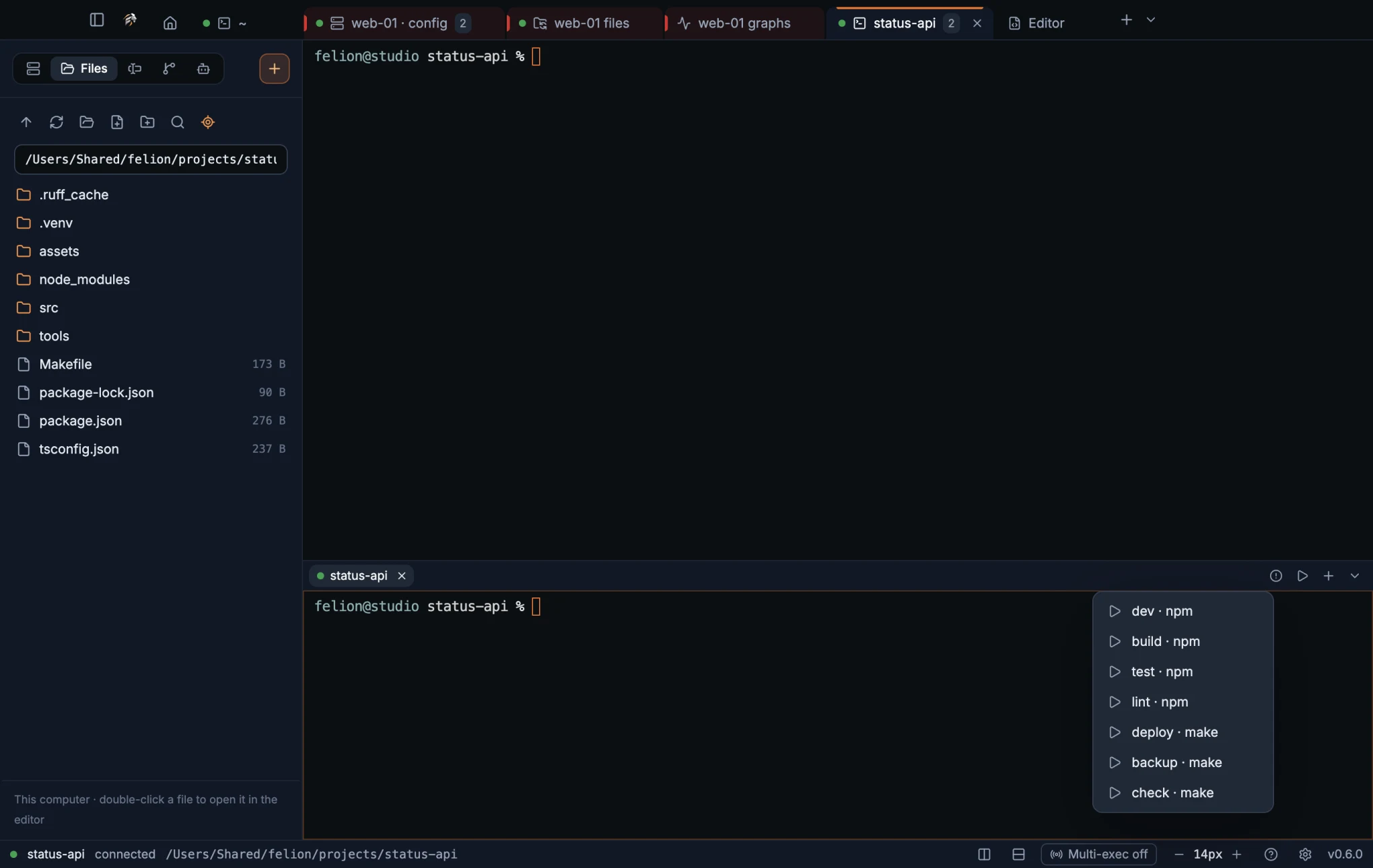
- Tasks come from the folder a new panel shell would start in, or from the nearest folder above it that has any, up to 8 folders up and never above your home folder.
package.jsonscripts run with the package manager whose lock file is in the folder:pnpm,yarnorbun, elsenpm. The menu shows it after each name, for example test · npm.- Makefile targets (
Makefile,makefileorGNUmakefile) run withmake. Variables and pattern rules are not listed. - The list is read again each time you open the menu or the palette.
A task runs in a panel shell of its own, named after it, with the command typed in. With shell integration, its dot shows how it is doing:
| Dot | Meaning |
|---|---|
| Amber, pulsing | Running. |
| Green | Finished with exit code 0. |
| Red | Finished with another exit code. |
| Grey | Stopped with Ctrl+C (exit code 130). |
Right-click a task's panel tab for Restart <name> (presses Ctrl+C, then runs the command again), Stop (presses Ctrl+C) and Close.
- Tasks come from a folder on this computer. In a tab without a local shell or chat, Felion Terminal asks you to open one first.
- Only names made of letters, digits and
_ : . / + -are offered, so a name can't carry characters a shell would act on. - Without shell integration a task still runs, but its dot doesn't change.
- After a restart of the app, a task's tab comes back as a plain shell in its folder.
- Folders are only read when they pass the ownership check. When a folder fails it, the ▶ menu says why instead of listing tasks.
Problems: the project's own checks#
The Problems tab runs the checkers your project already has and lists what they find. Open it with the Problems button in the strip of the terminal panel, or with Show problems in the command palette. Each tab has one Problems tab.
| Checker | Runs when the project has | How |
|---|---|---|
| TypeScript | tsconfig.json and TypeScript in its node_modules | The project's own tsc --noEmit. |
| ESLint | An ESLint config and ESLint in its node_modules | The project's own ESLint. |
| Ruff | A pyproject.toml, ruff.toml, setup.py, requirements.txt or a .py file at the top | Ruff from the project's .venv, else from your PATH. |
| go vet | go.mod | go vet ./..., never fetching another Go version. |
The project is the nearest folder, from the panel's folder up, with a tsconfig.json, package.json, pyproject.toml, go.mod, ruff.toml or .ruff.toml. The checkers it has run side by side.
The first time you check a project, the tab shows its folder and the checkers, and waits: “Check … with TypeScript, Ruff? They run this folder's own code (its TypeScript, its ESLint config), as they would in a terminal there.” Click Check if you trust the folder. After that, for as long as the app runs, the project is checked when the tab opens and again each time you save a file of it in the editor.
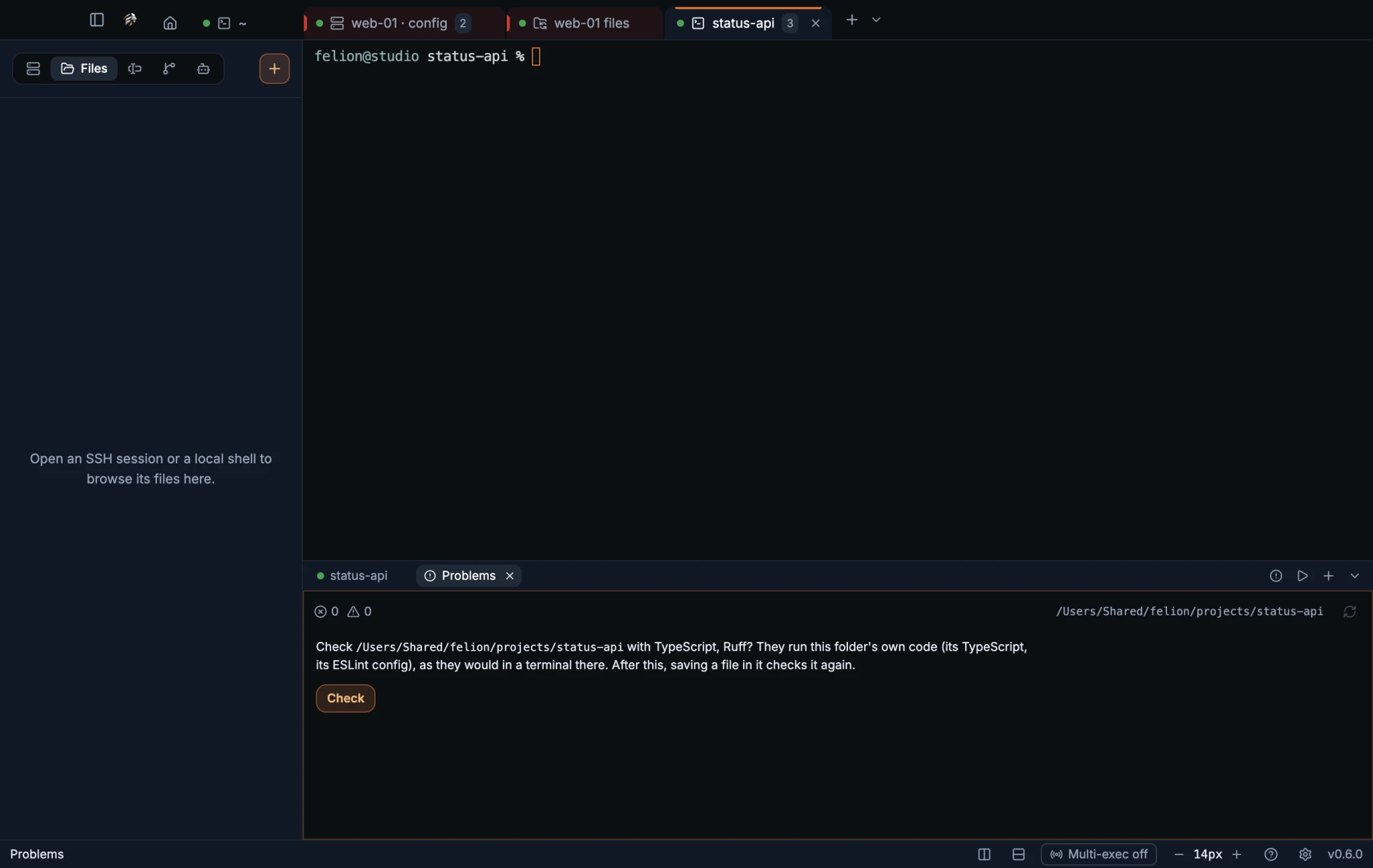
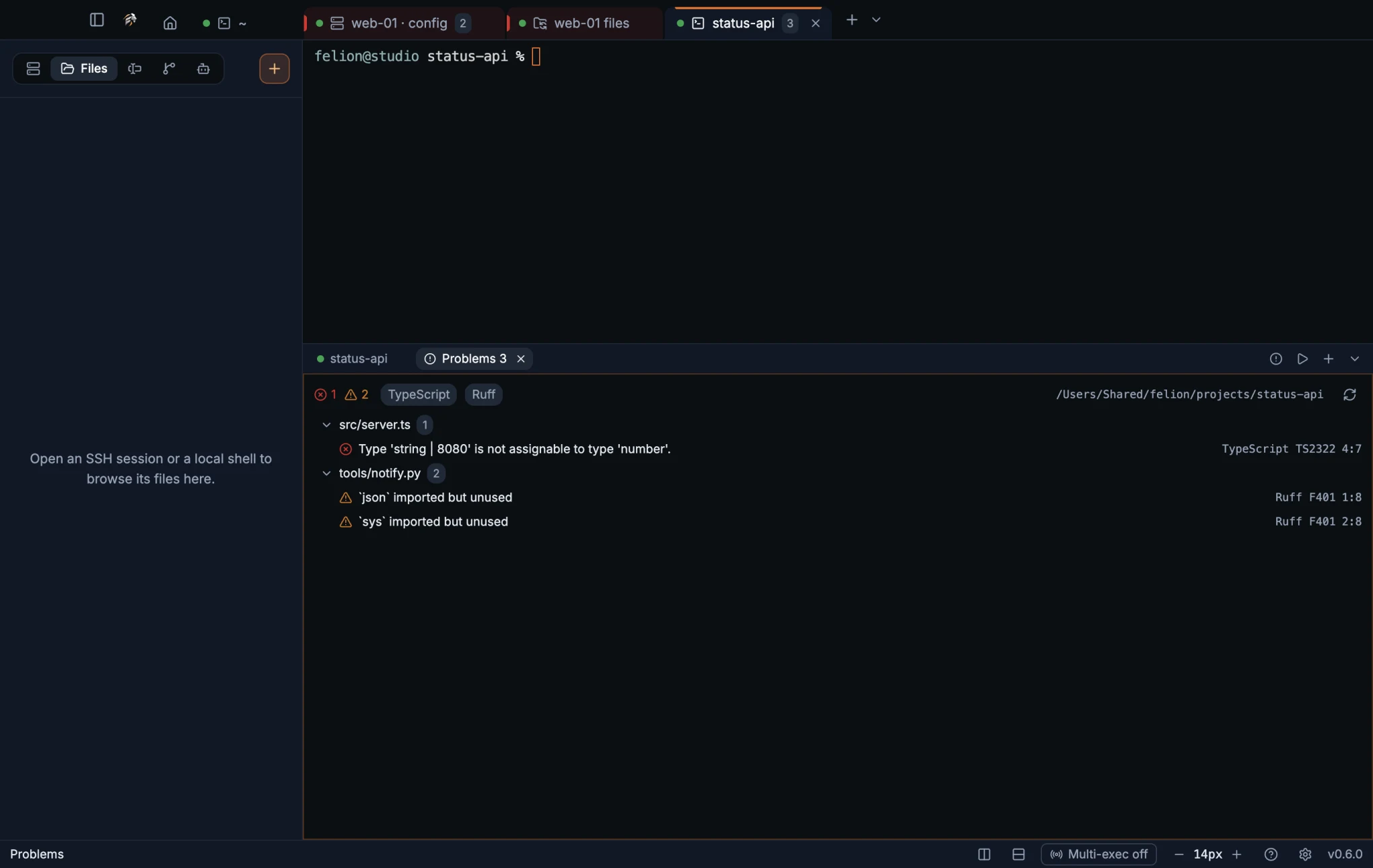
- The header shows the number of errors and warnings, a chip per checker (hover it for the time it took, or why it failed) and Check again.
- Findings are grouped by file, errors first. Click a file's name to fold it.
- Click a finding to open the file in the Editor tab at that line and column.
- Open files in the editor get squiggles under each finding, with the message on hover. They go when the finding is fixed, and all of them go when the Problems tab closes.
- Each checker may run 3 minutes. At most 2000 findings are listed.
| Message | Meaning |
|---|---|
| No project here: none of tsconfig.json, package.json, … in <folder> or the folders above it. | No project file from the panel's folder up to your home folder. |
| No checker set up in <folder>. … | The project has none of the checkers above. |
| A checker failed; hover its name above to see why. | A checker could not run, for example TypeScript missing from node_modules. |
| No problems. | Every checker ran and found nothing. |
Which folders tasks and checks use#
Tasks, Problems and the debugger run code from the project: its scripts, its TypeScript, its ESLint config, its .venv. The folder comes from the shell, and any program can tell the terminal a folder. So before using a project, Felion Terminal checks the folders:
- Every folder it looks in, and every folder above the project up to the top of the disk, must belong to you or to the system, and must not be writable by other users. A folder like
/tmpthat everyone can write to but nobody can rename in is fine above a project. - Links are not followed: the real folder is checked once and used from then on.
- A folder that fails says why: Not used: <folder> belongs to another user. or Not used: <folder> can be changed by other users.
Debug a Python, JavaScript or TypeScript file#
Open a .py, .js, .mjs, .cjs, .ts, .mts or .cts file from this computer in the editor. Click beside a line number to set a breakpoint (or press F9 on the line), then click the bug button Debug this file in the editor's tab bar or press F5. The file is saved first, and the Debug tab opens in the terminal panel under the editor.
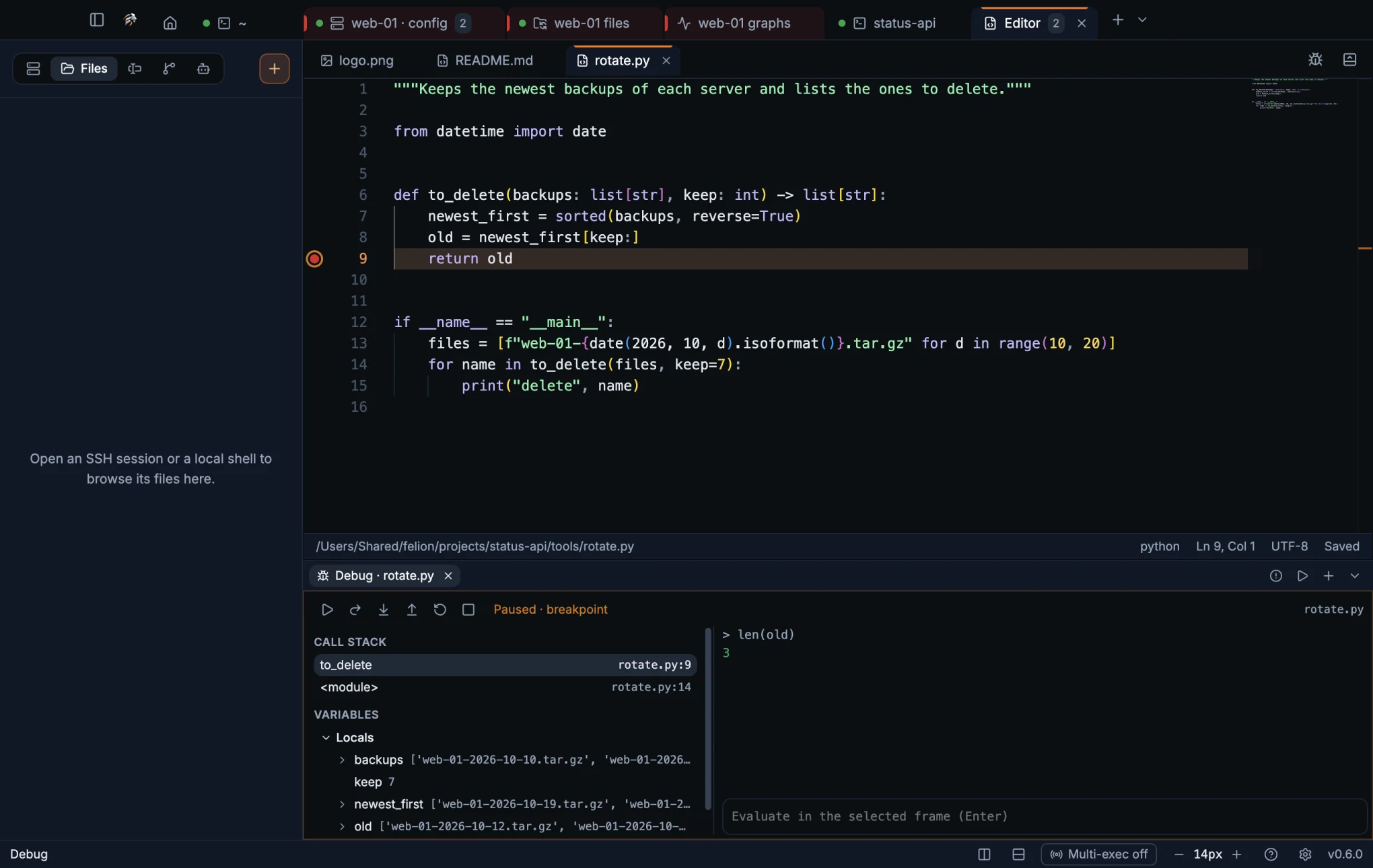
| Action | Key |
|---|---|
| Start debugging the file, or continue | F5 |
| Pause | F6 |
| Step over | F10 |
| Step into | F11 |
| Step out | Shift+F11 |
| Stop | Shift+F5 |
| Set or remove a breakpoint on the cursor's line | F9 |
The Debug tab has the same actions as buttons, plus Restart. On the left it shows the call stack: click a frame to see its line and its values. Below are the variables of the selected frame, with the locals open and the rest a click away. On the right is the program's output, and a field that evaluates what you type in the selected frame when you press Enter.
- The program stops at breakpoints, at an uncaught error, and when you press Pause. The editor highlights the line it stopped on.
- A breakpoint the debugger hasn't placed yet is drawn hollow. Breakpoints move with your edits, and stay for as long as the app runs.
- One program is debugged at a time: starting another stops the first. Every debugged program ends when you quit the app.
- The program runs in the nearest project folder above the file (one with
package.json,tsconfig.json,pyproject.toml,setup.py,requirements.txt, a.venvor.git), else in the file's own folder.
Python runs with the project's .venv (or venv), else with python3 from your PATH, and needs debugpy. If it is missing, the Debug tab says “debugpy isn't installed for …” and offers a button that types the pip install debugpy command into a panel shell for you to run.
JavaScript and TypeScript run with node from your PATH. TypeScript runs as it is, without a build, which needs Node 22.6 or later. Code that needs a compiler to run, such as an enum, doesn't work this way.
Tasks, Problems and the debugger were tested on macOS. Windows and Linux are new ground for them.
09
Source Control
See and commit your changes, switch branches, sync, read the history and follow GitHub Actions, for the repository your terminal is in, on this computer or on a server.
The Git panel#
Open Git in the sidebar to see the Git repository of the focused terminal. It lists your changes, the branch you are on, and the history. For a repository on GitHub, it also shows pull requests and Actions runs. The panel reads the repository with git, so it shows what git status and git log would show in the terminal.
The panel follows the folder the terminal is in, and moves with each cd. It can only do this when the shell reports its folder. That happens with shell integration, or in a tab opened with Open folder… on the start page. A shell without integration, such as fish, shows the empty state even inside a repository. So does an SSH server whose login shell is not bash or zsh. Telnet, serial, SFTP and FTP panes have no folder to follow.
No command in the command palette opens the Git tab. Click Git in the sidebar.
Source Control needs git installed on this computer. For an SSH terminal, git must also be installed on the server, and the server needs sh and base64. The commands run on the server over the terminal's own SSH connection, so no second login is needed. If git is missing, see When a tool isn't installed. The Tools page checks for git and shows the install command for your system.
On Windows, a repository inside WSL (a folder under \\wsl.localhost\<distro>\… or \\wsl$\<distro>\…) is read with the distribution's own git, not the Windows one. If git is not installed there, the panel says “Git is not installed in <distro>.”
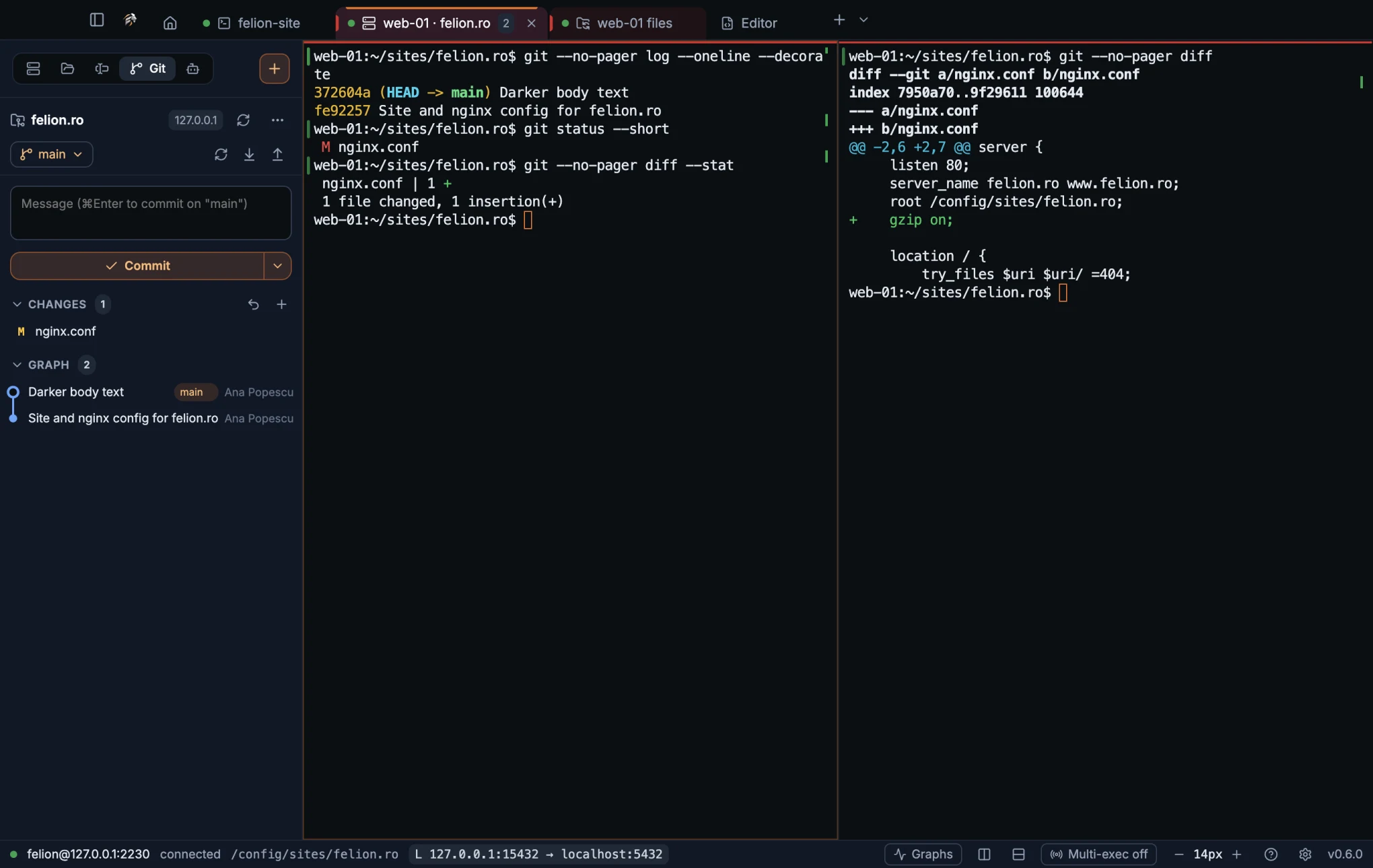
While the Editor tab, server graphs, a chat, or a Problems or Debug tab is in front, the panel keeps showing the repository of the last terminal you used.
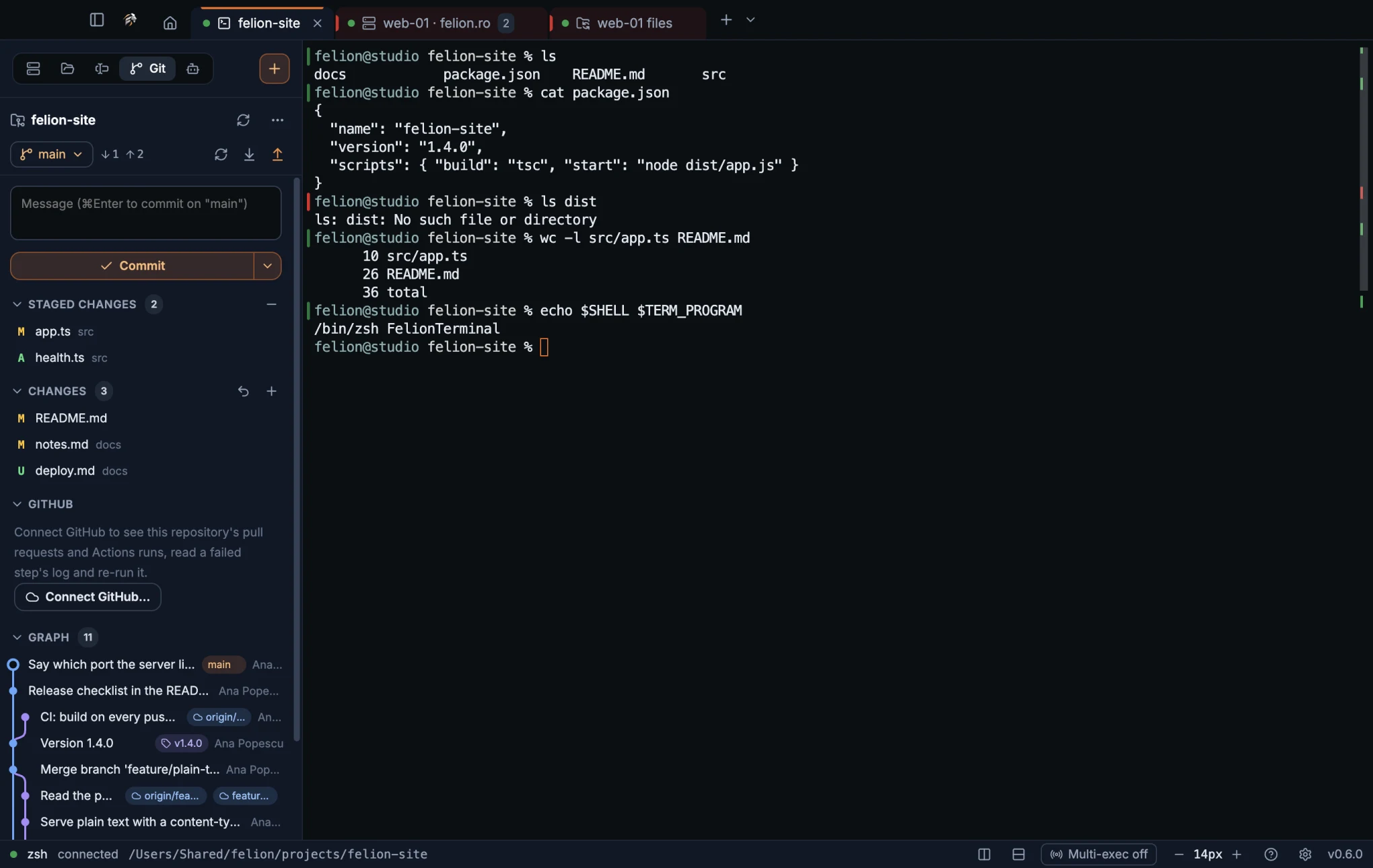
| Control | What it does |
|---|---|
| Refresh | Reads the repository again. |
| More | Opens a menu with the items below. Each item shows only when it applies. |
- New release…: shown when the repository has a commit. See Make a release.
- Copy branch name
- Open on GitHub: shown once the GitHub data has loaded.
- Open in a new terminal: local repositories only. Opens a local terminal tab in the repository root.
- Clone a repository…: see Clone a repository.
- Connect GitHub…, or Disconnect GitHub with your account name, once connected. See Connect GitHub.
The header shows the repository's folder name, with the full path in its tooltip. Over SSH, it also shows the server's host name. Click the branch name to open the branch menu.
When the panel has nothing to show, it says why. The empty state reads “Open a terminal in a repository and its changes, branches and history show here. It follows cd, on this computer and over SSH.” It has a Clone a repository… button and, below it, the recent repositories.
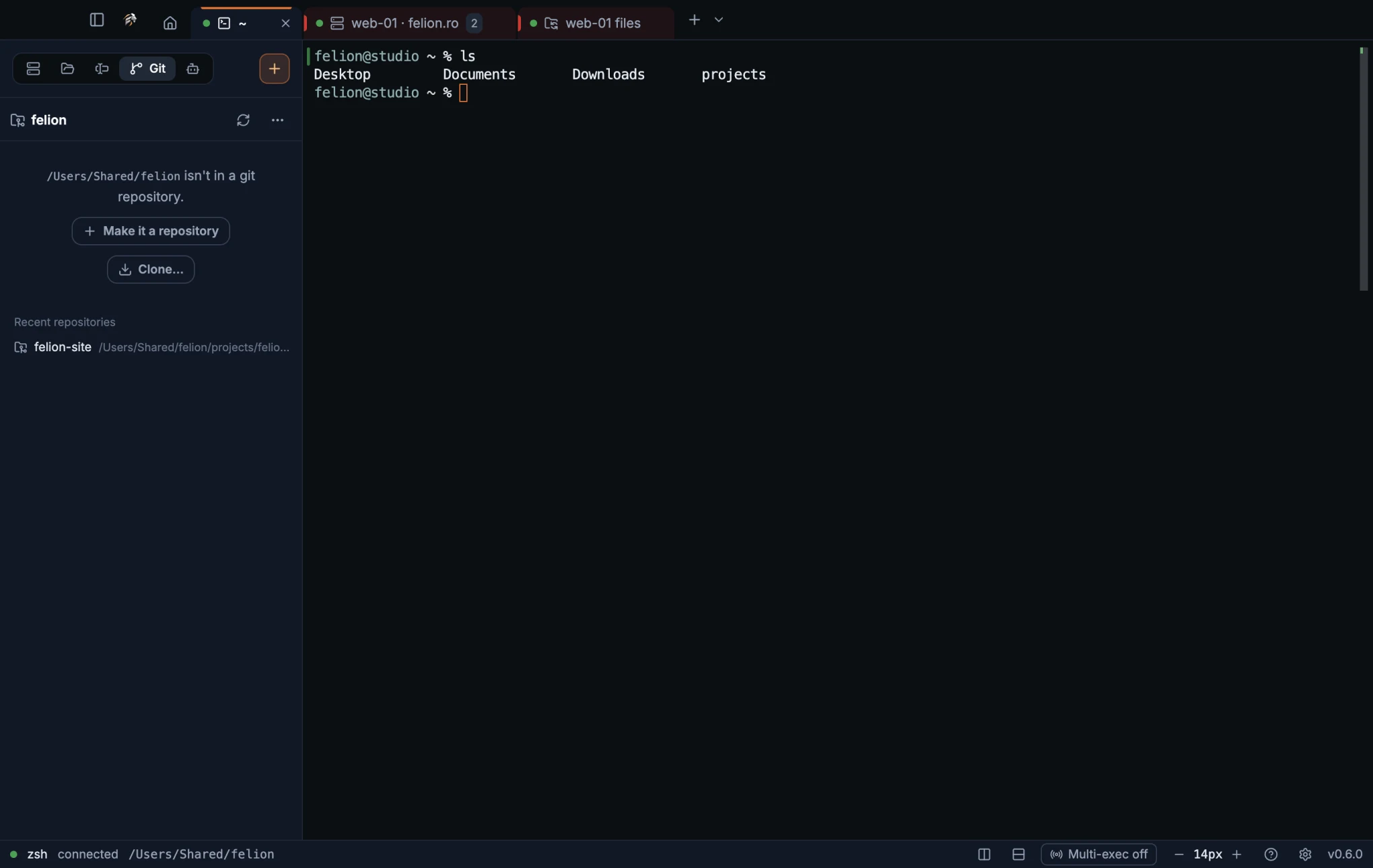
- A folder that is not a repository gets the message “
<folder>isn't in a git repository.” with Make it a repository (runsgit init) and Clone…. - A repository whose files belong to another user gets “Git won't open this repository: its files belong to another user. If you trust it, run git config --global --add safe.directory '<path>' in a terminal.” The panel only explains it. Whether to trust the repository is your call.
- A merge, rebase, cherry-pick or revert in progress is named at the top of the panel, with the git command that ends it, such as
git merge --abort.
Local repositories the panel has shown are remembered, up to 12. They are listed under Recent repositories. Click one to read it on this computer. Click follow terminal to go back to following the terminal.
When the panel updates#
You seldom need to refresh by hand. The panel reads the repository again when:
- the focused terminal moves to another folder. The old repository is cleared first.
- the Git tab becomes visible.
- a command finishes in the followed terminal, for example after
git pullor a deploy script. This needs shell integration. - the window gets focus back.
- every 15 seconds at most, while the panel is shown and the window has focus. A new look never starts while the last one is still running. In a slow repository the looks are spaced out to five times the time the last one took, so a status that takes 20 seconds is read every 100 seconds.
- after an action in the panel. The Refresh button in the header does the same on demand.
GitHub data reloads at most every 30 seconds when the status changes, and right after a sync.
Fetch in the background keeps the ahead and behind counts current. While the Git tab is shown, the panel runs git fetch --prune every three minutes. It does this only for repositories you have already fetched, pulled, pushed, committed in or tagged from the panel. Turn it off under Source Control settings.
Stage, unstage and discard#
The panel lists your changes in two groups. Staged changes holds what the next commit will include, and it appears only when it has files in it. Changes holds everything else. Each heading shows a count and can be collapsed.
| Letter | Meaning |
|---|---|
M | Modified |
A | Added |
D | Deleted |
R | Renamed |
C | Copied |
T | Type changed |
U | Untracked: a new file that git does not track yet |
! | Conflict |
Added files show in green, modified files in amber and deleted files in red. The row's tooltip shows the full path, or old → new for a renamed file.
| Button | What it does |
|---|---|
| Open file | Opens the file in the editor, on this computer or on the server. Not shown for deleted files. |
| Stage (+) | On a row in Changes: adds the file to the next commit. |
| Unstage (−) | On a row in Staged changes: takes the file out of the next commit. |
| Discard changes (undo arrow) | On a row in Changes, except for conflicts. Throws away the unstaged changes of the file. |
| Stage all, Unstage all, Discard all | Act on every file in the group. |
Discard asks first. The dialog is titled “Discard changes to app.ts?” (or “Discard changes to 3 files?”) and says the unstaged changes are lost. Tracked files go back to their last commit.
A new file that git does not track yet has no last commit to go back to, so it is handled differently:
- On this computer, the file is moved to the Trash. The dialog says so, and you can get it back from there.
- In a repository inside WSL, there is no Trash, so the file is deleted for good. The dialog says “deleted (WSL has no Trash)”.
- On a server, the file is deleted for good. The dialog says it is deleted on the server.
A file with a conflict (marked !) has no Discard button. Fix the conflicting parts, stage the file, then commit. The panel names the operation in progress at the top. If you have stashes, the panel shows the stash count with the hint git stash list below the lists. The panel shows at most 5000 changed files.
Compare a change#
Click a file row, or select it and press Enter, to see what changed. The diff opens read-only. For a file in Changes, the left side is the staged version, or the last commit when nothing is staged. The right side is the file on disk. For a file in Staged changes, the left side is the last commit and the right side is what is staged.
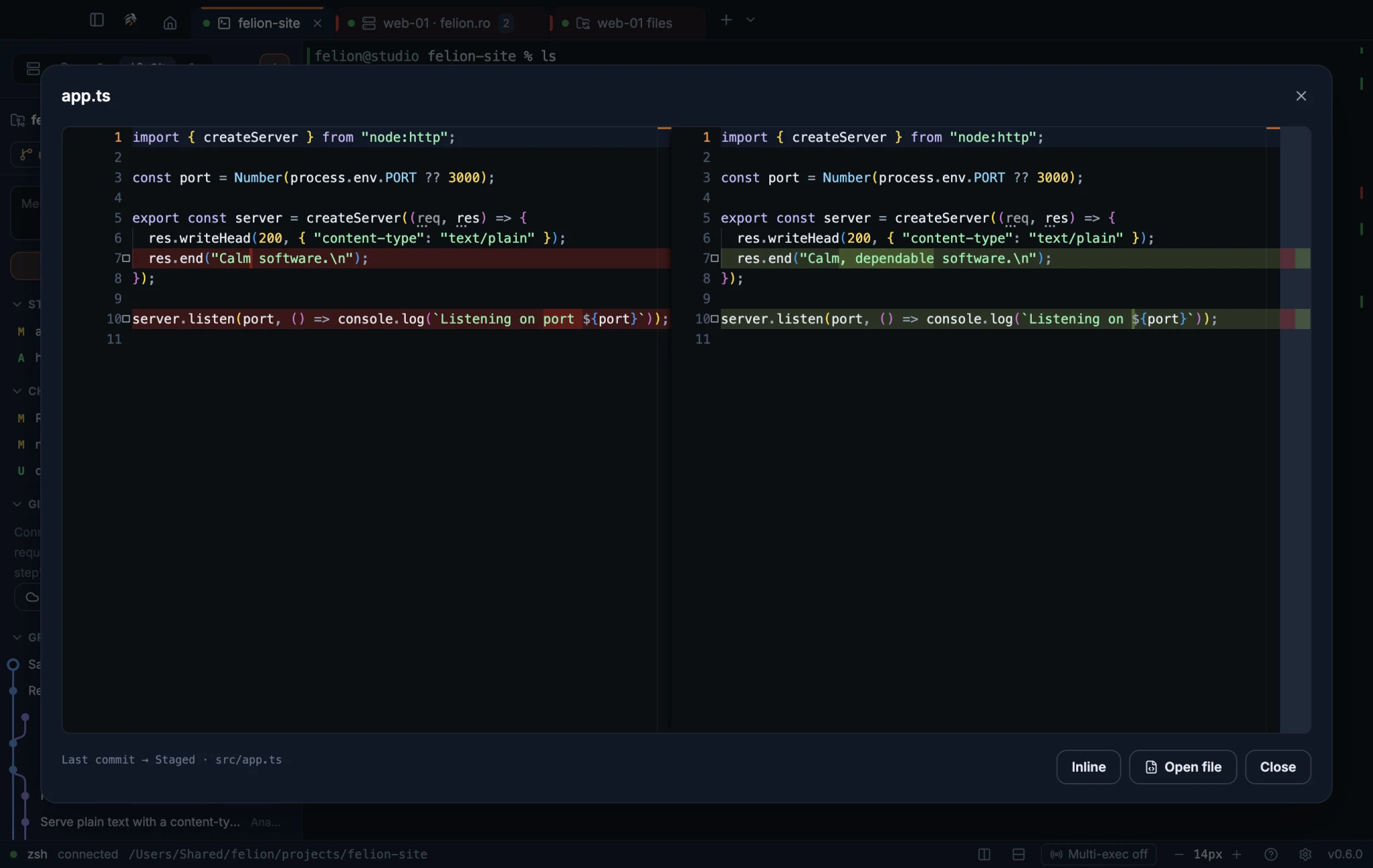
Unchanged parts are folded, with four lines of context around each change. In a window at least 1100 px wide, the two versions sit side by side. In a narrower window they show inline. The footer button switches between Side by side and Inline.
The footer names both sides, such as “Last commit → Staged”, and the file path. It also has Open file, which is not shown for deleted files, and Close.
- A binary file has no text to compare. The dialog says so.
- A file larger than 5 MB is not compared. Open it in the editor or in the terminal instead.
Commit, commit and push, amend#
Write a message in the box above the Commit button, then commit the staged changes. The box's placeholder names the branch the commit goes to. Press ⌘Enter on macOS, or Ctrl+Enter on Windows and Linux, to commit from the box.
The arrow next to Commit opens the rest of the menu:
- Commit records the staged changes.
- Commit and push records the commit, then pushes the branch as described in Fetch, pull and push.
- Amend the last commit folds the staged changes into the last commit. Leave the message empty to keep the old message.
A commit needs a message, except when you amend. Without one, the panel says “Write a commit message first.” If nothing has changed, it says “Nothing to commit.”
If you have changes but nothing is staged, the panel asks “Nothing is staged”, with the number of changes, and offers Stage all and commit. Choosing it stages every change and commits them.
The message goes to git with its whitespace cleaned up. Lines that start with # are kept. Repository hooks run as they do in the terminal. Before any commit, the secrets check searches the staged changes, when that setting is on.
Check for secrets before committing#
Before each commit from the panel, Felion checks the staged changes for things that look like credentials. The check runs for Commit, Commit and push and Amend the last commit. It runs at commit time, not when you push. Commits you make in the terminal are not checked.
The check is on by default. Turn it off with Check for secrets before committing in Source Control settings.
The check looks at two things. It reads the lines the staged changes add, so removing a secret is not flagged. It also reads the names of new files. It flags one finding per line.
- Private key headers (PEM), AWS access and secret keys, GitHub tokens (
ghp_,gho_,ghu_,ghs_,ghr_andgithub_pat_), GitLab and Slack tokens, Slack webhooks, Google API keys, Stripe live keys, npm tokens, Anthropic and OpenAI keys, Azure storage keys and JSON Web Tokens. - A password in a URL.
- A quoted value for a name such as
password,secret,api_keyoraccess_token, when the value has at least 8 characters. Placeholders such aschangeme,example,xxxandyour_…are ignored.
| Kind | Matches |
|---|---|
| Environment file | .env and .env.*, except .example, .sample, .template and .dist |
| SSH private key | id_rsa, id_dsa, id_ecdsa and id_ed25519 |
| Key or certificate bundle | .pem, .key, .p12, .pfx, .jks, .keystore and .ppk |
| Password database | .kdbx and .kdb |
| Credentials file | .netrc, .pgpass, .htpasswd, credentials and credentials.json, .git-credentials, .npmrc and .pypirc |
| Terraform state | .tfstate and .tfstate.backup |
The check ignores .pub files and anything under fixture, fixtures, __fixtures__ and testdata folders. It shows each finding masked. A value longer than 8 characters shows its first four and last four characters, with “…” between them. A shorter value shows dots. A file finding shows the file name.
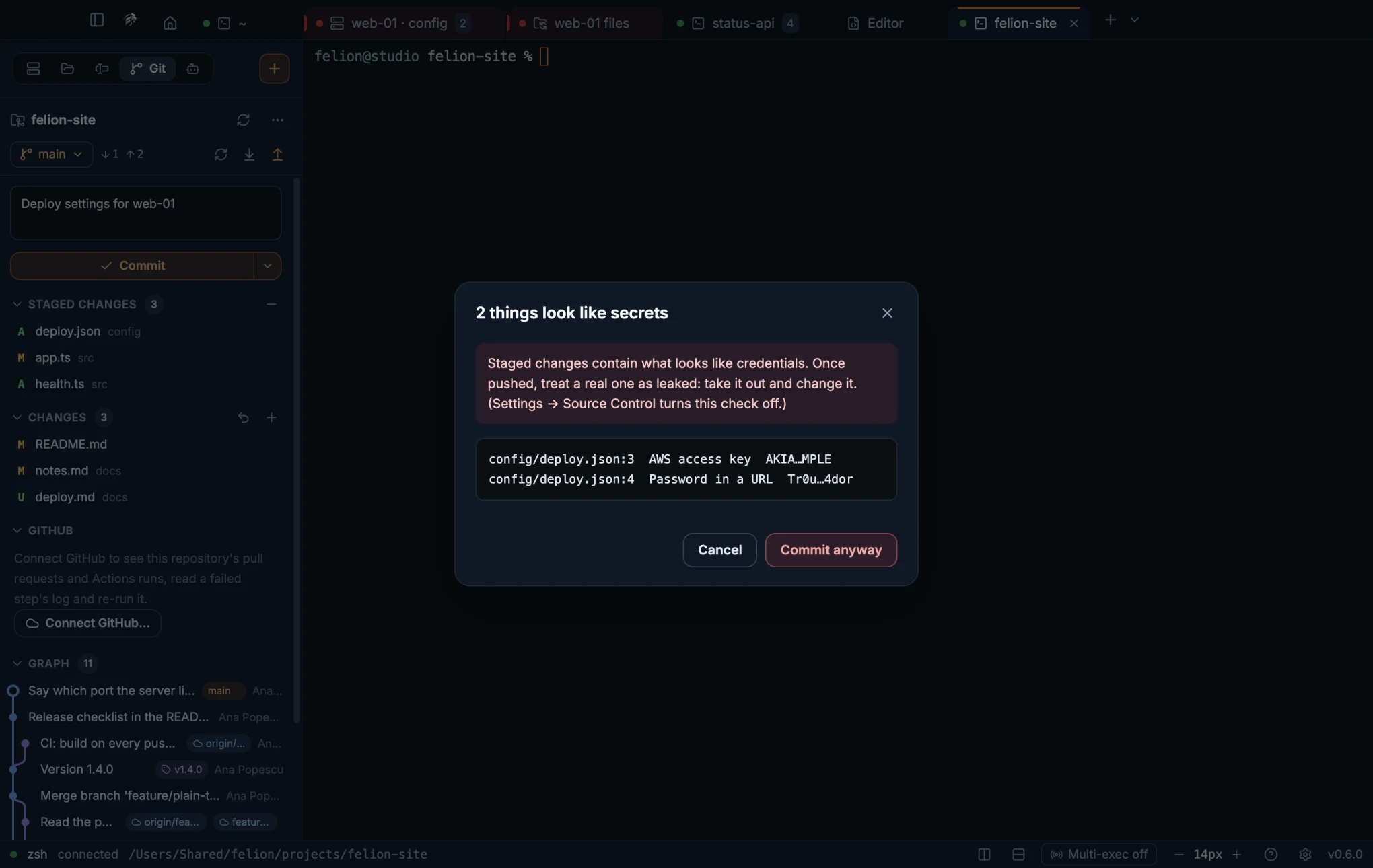
The dialog is titled “This looks like a secret” or “N things look like secrets”. It lists up to 12 findings, each with its file and line, the rule, and the masked value. Choose Commit anyway to commit, or cancel and fix the change first.
With the check on and nothing staged, Stage all and commit stages everything first, so the check sees every change.
If the check cannot run, for example because the staged diff is too large or cannot be read, the dialog “Couldn't check for secrets” gives the reason and asks whether to commit without the check. Commit anyway does that.
Branches#
Click the branch name in the header to open the branch menu. Choosing a branch switches to it with git switch.
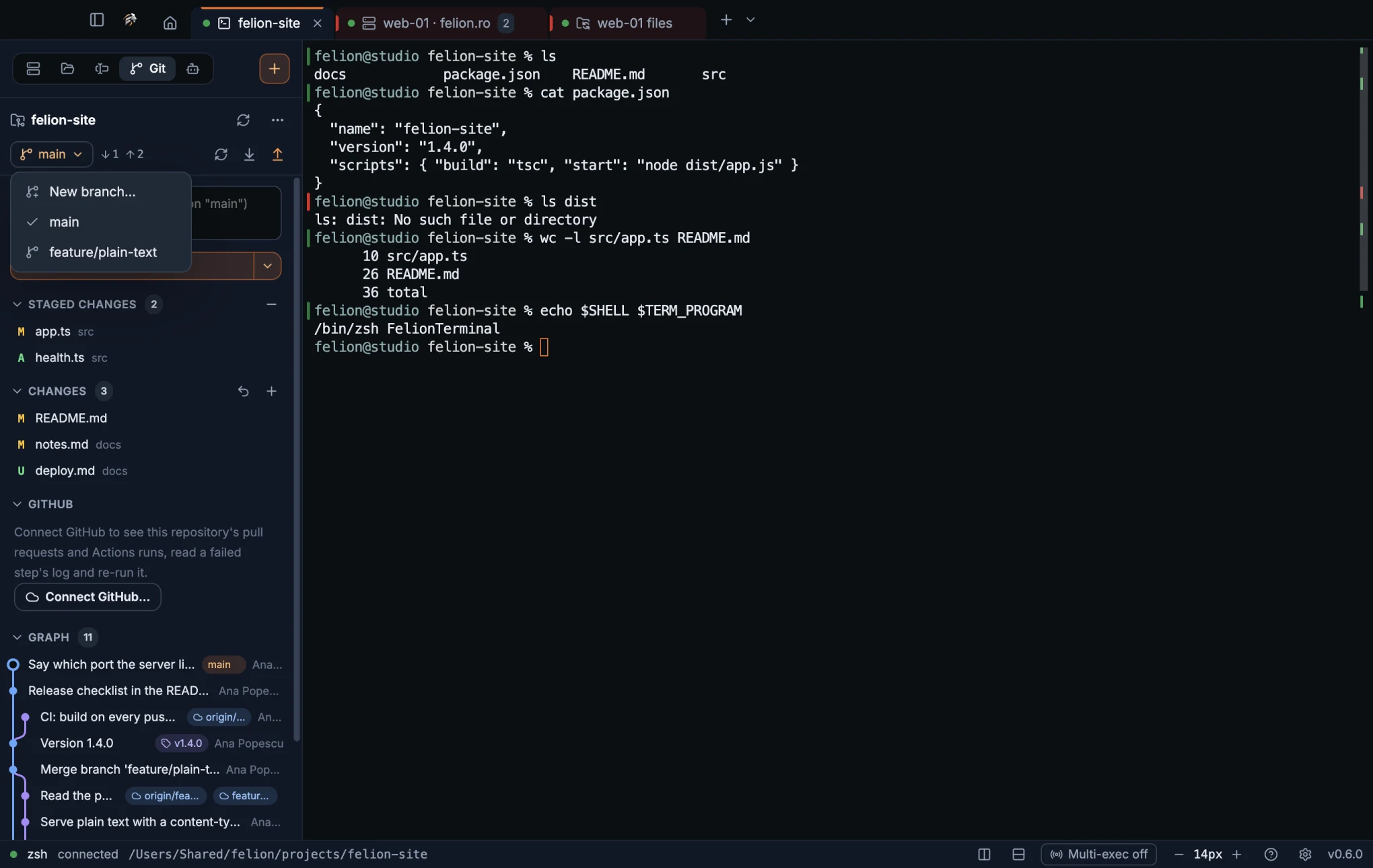
- New branch… asks for a name, creates the branch and switches to it. A name git does not accept is refused with a message.
- The 15 most recent local branches. The current one comes first, with a check mark.
- Up to 10 branches that exist only on the remote, marked with a cloud icon. Choosing one creates a local branch that tracks it.
When HEAD is not on a branch, the header shows “detached at” and the first seven characters of the commit. In a repository with no commits yet, it shows “no commits yet”.
Fetch, pull and push#
The buttons beside the branch name sync it with its remote. The ↓ and ↑ counts show how many commits the branch is behind and ahead of its upstream. Push is highlighted when you are ahead. A branch with no upstream yet shows “not pushed yet” in place of the counts.
| Button | What it runs |
|---|---|
| Fetch | git fetch --prune. Downloads new commits and removes remote-tracking branches that no longer exist on the remote. |
| Pull | git pull --no-edit. Merges, unless your git configuration sets pull.rebase or pull.ff. In that case, the panel follows that setting. |
| Push | git push. On a branch with no upstream, the button reads Publish the branch and runs git push -u to origin, or to the only remote. |
When a button works, the panel says “Fetched.”, “Pulled.” or “Pushed main to origin/main.” The note goes away after six seconds.
When git stops with an error, the panel shows the last lines of git's output. It also shows a button such as Run “git push” in the terminal. The button types that command into the terminal you are following, where you can answer a password or passphrase prompt. The panel never asks for one itself.
The error stays until your next action, so a refresh doesn't wipe the reason a commit was refused. The line-ending warnings of Git for Windows (“LF will be replaced by CRLF…”) are left out of the output.
- Time limits: 20 seconds for most commands, 120 seconds for a commit, 180 seconds for fetch, pull, push and pushing a tag, and 10 minutes for a clone. Over SSH, a command that runs out of time is also stopped on the server (OpenSSH 7.9 or later there).
- A repository with no remote says “This repository has no remote to push to.”
The graph and commit details#
The Graph section shows the history of HEAD and its upstream as coloured lanes. Each row is a commit, with its subject, its badges, its author and, when GitHub is connected, a dot for its Actions status. The first 120 commits show. Show more adds 200 at a time, up to 1000. Branches that are not in the history of HEAD or its upstream do not appear.
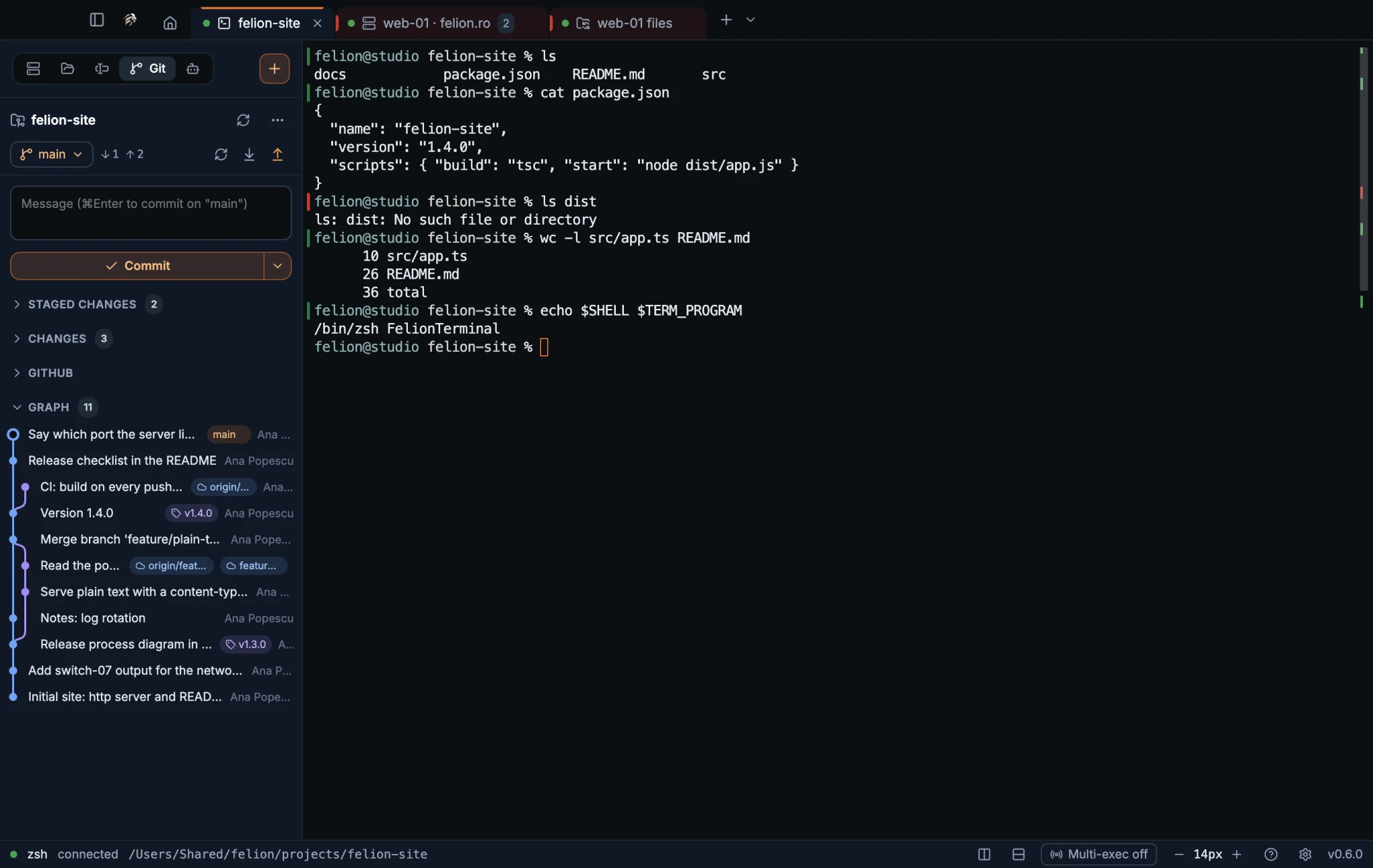
| Badge | Meaning |
|---|---|
| Tag | A tag, with a tag icon. A version tag such as v1.4.0 always shows whole. |
| Current branch | The branch you are on, highlighted. |
| Remote branch | A branch on the remote, with a cloud icon, such as origin/main. origin/HEAD is hidden. |
main with a cloud | A local branch whose remote copy is on the same commit. It is shown once. |
When a row is short of room, the subject gives way before the badges. A very long branch or tag name ends in “…”. Hover over the badge for the whole name.
| Colour | Meaning |
|---|---|
| Green | The Actions run passed. |
| Red | The run failed, timed out or needs approval. |
| Amber, pulsing | The run is queued or running. |
| Grey | The run was skipped or cancelled. |
Hover over the dot to see the workflow and its state. Click a commit to open its details. The dialog shows the subject, the author, the date with how long ago it was, the body and the files it changed. For a merge, it also names the two branches that met. Click a file to see its diff.
The footer has a button to copy the commit's hash. With GitHub connected, it also has On GitHub, which opens the commit in the browser. Tag this commit… tags it, as described in Make a release.
Connect GitHub#
Connecting GitHub adds pull requests, Actions runs with their logs, releases and your repositories to Source Control. git itself works without it. The GitHub section appears for a repository whose remote is on github.com. Felion uses the origin remote, or the first remote when there is no origin. GitHub Enterprise servers are not recognised.
Choose More → Connect GitHub…, or use the GitHub section. The Connect GitHub dialog offers two ways to sign in.
- The GitHub CLI's sign-in uses the
ghcommand. Rungh auth loginin a terminal first. The dialog says whetherghis signed in, and Use gh takes its token. Felion asksghfor the token when it needs one, and keeps the answer for five minutes. Signing out ofghsigns you out here too. - Or a token takes a personal access token. It starts with
ghp_orgithub_pat_. Paste it and choose Connect with the token. The Create a token link opens GitHub's token page with therepoandworkflowscopes selected.
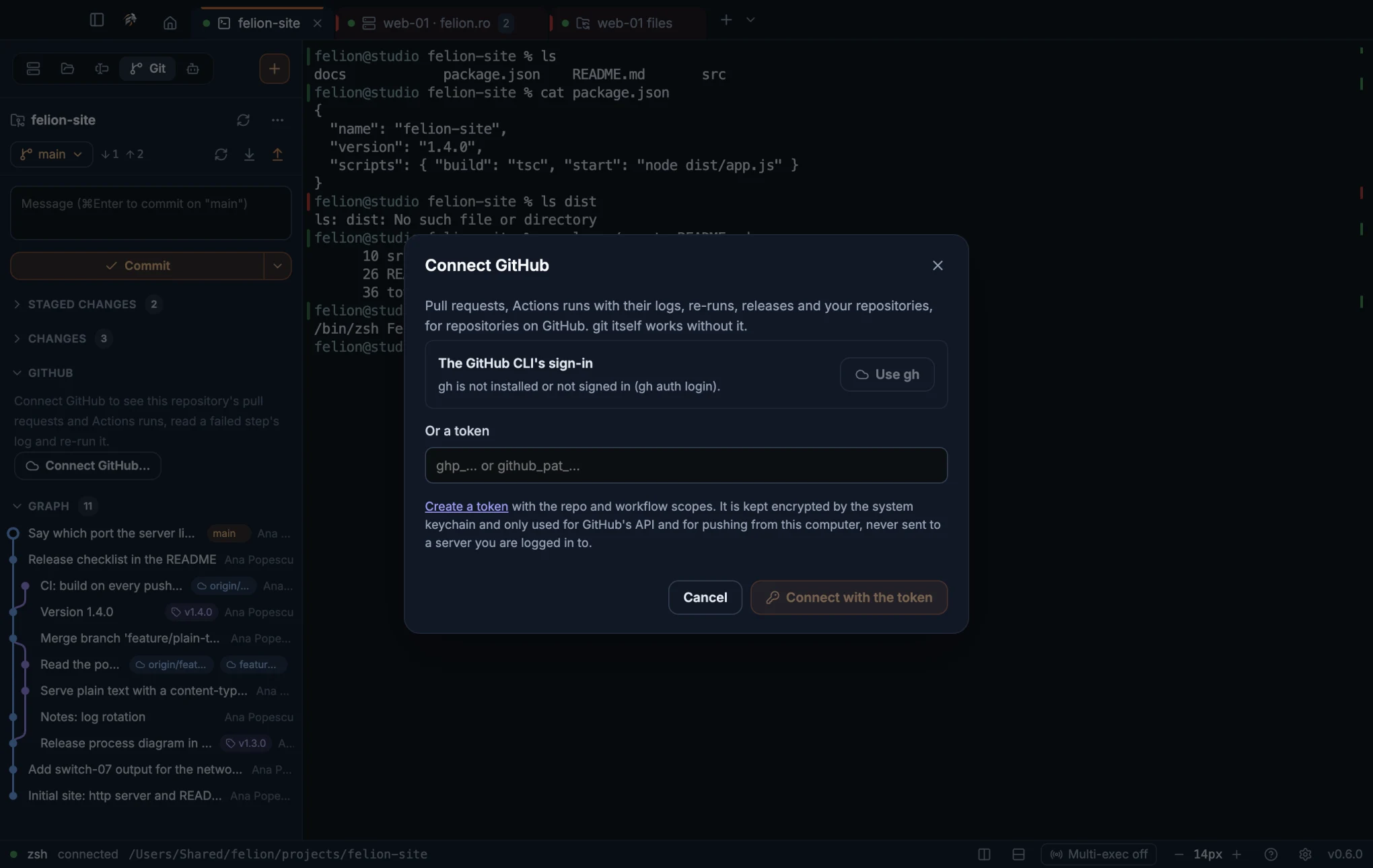
If gh is not signed in, the dialog says so and names gh auth login. If this computer has no keychain to store the token, the dialog says that instead. When the connection works, the panel says “Connected to GitHub as” followed by your login.
The token is kept encrypted by the system keychain, on this computer. Felion uses it only for GitHub's API, and for pushes and fetches over https to github.com from this computer. It is never sent to a server you are logged in to.
To sign out, choose Disconnect GitHub with your login in the More menu. This removes the saved token and the saved account.
Pull requests and Actions runs#
With GitHub connected, the GitHub section of the Git tab shows the pull request for the current branch, its recent Actions runs, the open pull requests and the latest release.
- Pull request: for the current branch, the number and title of its pull request. Click it to open it in the browser. With no pull request, Open a pull request for <branch> opens GitHub's compare page. On the default branch, the panel says so.
- Actions runs: up to three recent runs of the current branch, with the workflow name, the run number, its state and its age. The latest run of a version tag, such as
v1.2.0, is listed too. With no runs, the panel says “No Actions runs for <branch> yet.” - Open pull requests: up to eight, with their author. Hover over one to see its
head → basebranches. Click one to open it in the browser. - Latest release: the name or tag of the latest release that is not a draft, and how long ago it came out. Click it to open it in the browser.
Click a run to open its dialog. The dialog lists the jobs and opens the log of the first failed job at once. Under the selected job, the failed or unfinished steps are listed. The log has its timestamps and colour codes removed. For a failed step, the log starts at that step and ends 40 lines after the first error. Otherwise, you see the last 400 lines. Errors and warnings are marked, and the log scrolls to the first error.
- On GitHub opens the run in the browser.
- Re-run failed jobs appears for a finished run that did not succeed. It runs the failed jobs again.
- Run again appears for a finished run that succeeded. It runs the whole workflow again.
When a run that the panel shows is still going, Felion follows it. When the run ends, a system notification says “<workflow> passed”, “<workflow> failed” or “<workflow> was cancelled”, with the repository and the run title. A passed run makes no sound. Clicking the notification brings the window forward.
- Felion follows at most 10 runs at once, each for up to three hours.
- It checks a followed run every 10 seconds for the first 10 minutes, then every minute. After 30 failed checks, it stops following the run.
Clone a repository#
Clone copies a remote repository to this computer. Start it from the empty state, from Clone… in the message for a folder that is not a repository, or from More → Clone a repository….
Paste the address into Address. Felion accepts https://, git@ and ssh:// addresses. Any other address is refused.
With GitHub connected, the dialog also lists your repositories, the most recently pushed first. It shows up to 50 of the 100 it fetches. Type in Your GitHub repositories to filter the list. Click a repository to fill in its https address. Private repositories are marked.
Choose the folder with Folder…. The repository is cloned into a new folder named after it, inside the folder you chose, as <folder>/<repo name>. The clone always runs on this computer, even when the panel follows an SSH terminal. A large repository takes a while.
When the clone finishes, Felion opens a new local terminal tab in the new folder, and the repository goes on the recent list.
Make a release#
Making a release puts a version tag on a commit and pushes the tag. A release workflow on GitHub can start from the pushed tag. Choose New release… in the More menu to tag the latest commit. To tag a particular commit, choose Tag this commit… in its details.
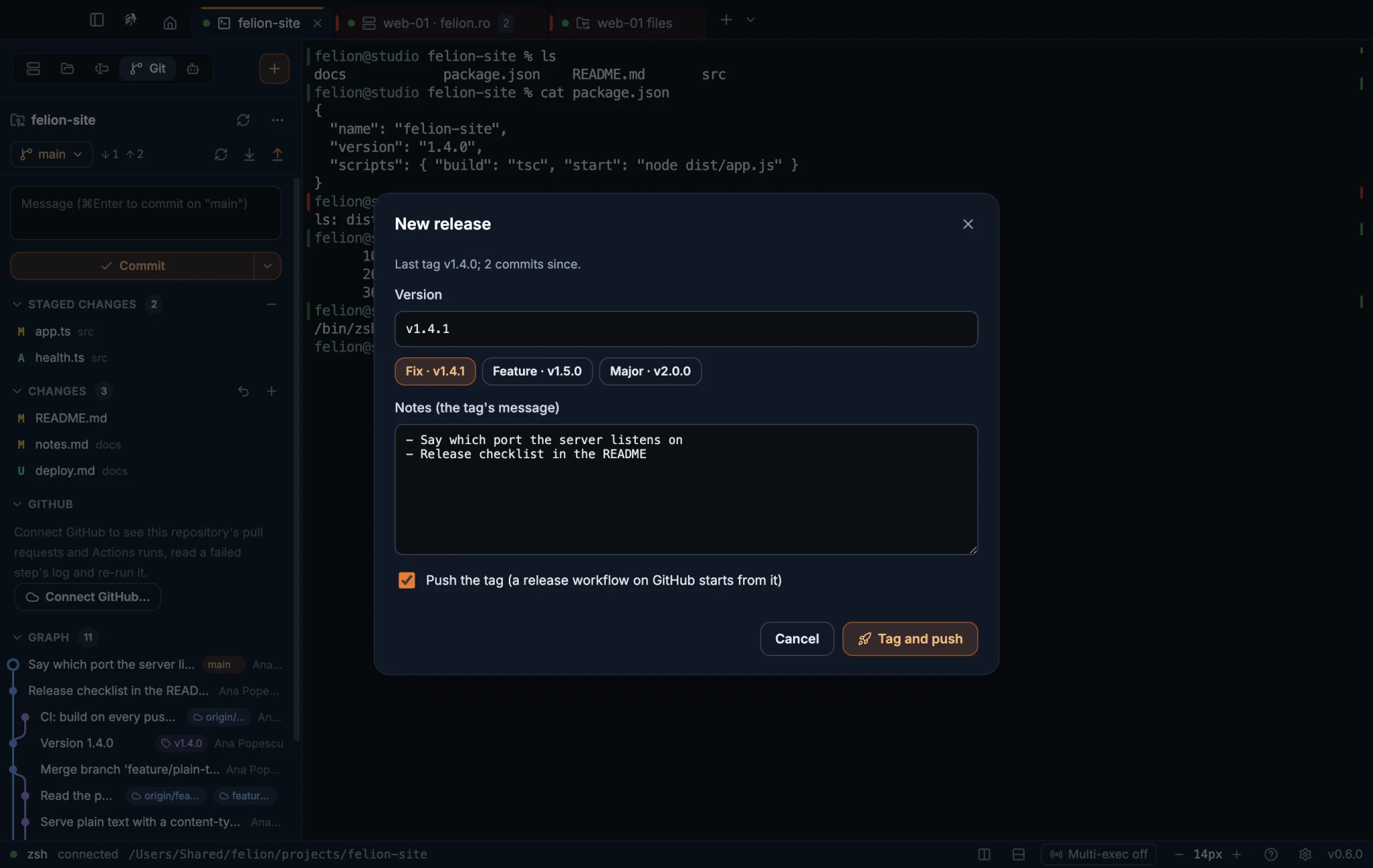
The dialog names the last tag and how many commits came after it, for example “Last tag v1.2.0; 3 commits since.” With no tag yet, it says “No tag yet.”
Version is filled in with the next patch version. When the last tag has the form X.Y.Z or vX.Y.Z, three buttons offer the next version for each kind of change:
- Fix adds one to the patch number.
- Feature adds one to the minor number and sets the patch number to 0.
- Major adds one to the major number and sets the minor and patch numbers to 0.
With no tag yet, the buttons offer v0.1.0 and v1.0.0. If the last tag has another form, no button is offered and the version field is empty.
Notes (the tag's message) starts with a line for each commit since the last tag, merges excluded. Edit the notes as you like. The tag is annotated, and its message holds the version and these notes.
Push the tag (a release workflow on GitHub starts from it) is on by default when the repository has a remote. Without a remote, the checkbox is greyed out.
Click Tag and push, or Tag when there is no remote. A version name that git does not accept is refused with a message. The tag is pushed to origin, or to the only remote.
With GitHub connected, the panel then waits up to a minute for the run that the tag starts. When it finds the run, it says “<workflow> #<n> started for <tag>.” and follows the run.
Blame in the editor#
The editor can show who last changed the line your cursor is on, when, and in which commit. It is on by default. Turn it off with Blame in the editor in Source Control settings.
At the end of the cursor's line, dimmed text shows the author, how long ago the change was made, and the commit subject. A line you have not committed yet shows Not committed yet. The status line also shows the author and age of the current line, with the commit's hash and subject in its tooltip. Click either one for the blame card.
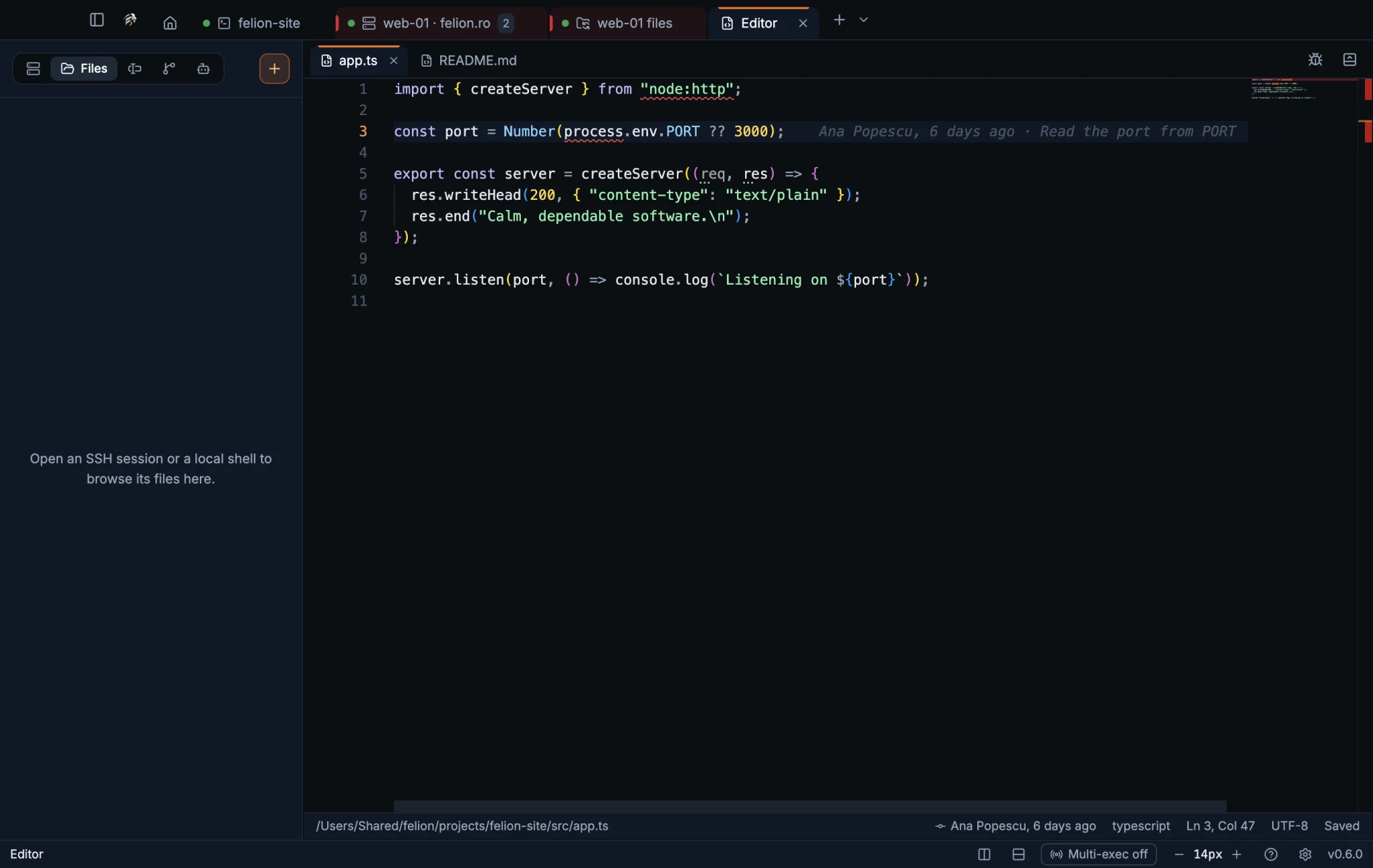
Blame uses the editor's current text, so unsaved edits count. It updates 1.5 seconds after you stop typing.
Blame works for files on this computer, and for files on a server opened through an SSH terminal. Files from FTP, and files from SFTP sessions without a terminal, show no blame.
The age reads “N min ago”, “N h ago”, “yesterday” or “N days ago”. Older changes show a date.
Who changed this line: the blame card#
Click the dimmed blame text at the end of the cursor's line, or the blame entry in the status line, and a card opens under it (above it when there is no room below). It shows the whole commit that last changed the line.
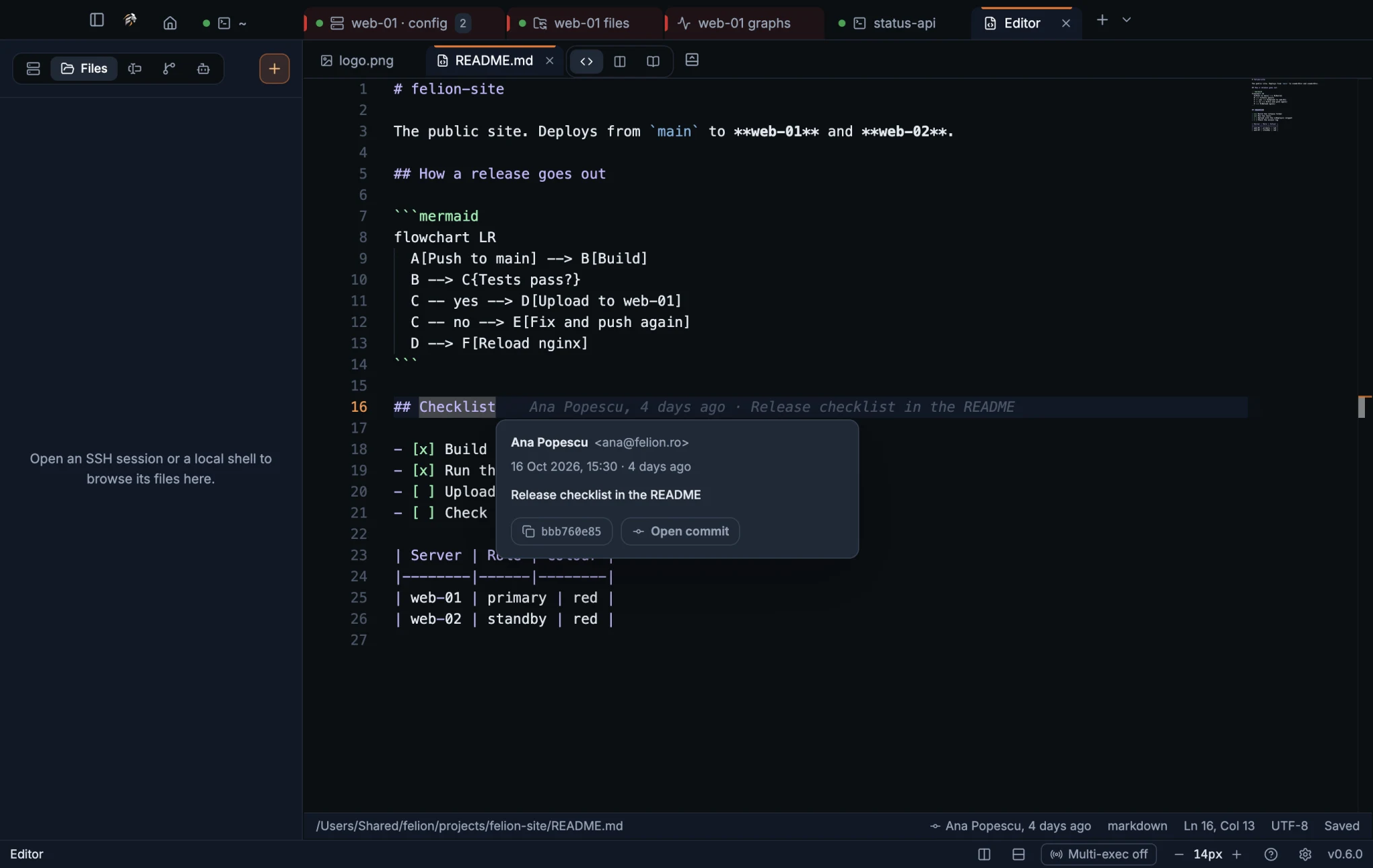
- The author's name and email address.
- The exact date and time, in this computer's time zone, and how long ago that was.
- The commit's subject and its full message.
- A button with the first 9 characters of the hash. Click it to copy the full hash.
- Open commit opens the commit details, with the files it changed. From here the dialog has no Tag this commit….
A line you have not committed yet has no card. The card closes with Esc, a click outside it, scrolling, switching to another file or app, or turning blame off. If the folder is no longer a repository when you click Open commit, the status line says “Not in a git repository any more”.
The card works wherever blame does: for files on this computer, and for files on a server opened through an SSH terminal.
Safe by default#
A repository can set git options that run programs or change what git shows. The panel turns those off for the commands it runs on its own, so that looking at a repository does not run anything from it.
- Every git command the panel runs turns off the filesystem monitor (
core.fsmonitor) and signature display. It never opens a pager, an editor or a prompt for a password. - For status and blame, which the panel runs by itself, the repository's own filter drivers are switched off. Git LFS's standard commands and your global filters keep working.
- Status ignores changes inside submodules.
- Blame runs without text conversion. The contents of a diff come from
git cat-file. - If a repository's filter setup cannot be switched off safely, the panel stops and does not run git there. Run the command in the terminal instead.
- A file or branch name is never read as a git option.
Commit and the other actions you start still run the repository's hooks, as they do in the terminal. Over SSH, git runs on the server with the same settings.
Background fetch runs only for repositories you have synced from the panel. See When the panel updates. The GitHub token stays inside the app and is never sent to an SSH server. See Connect GitHub.
10
Agents
Find your Claude Code and Codex conversations by project, chat with Claude Code in a pane, and keep an eye on your plan's usage.
The Agents tab#
The Agents tab, the last icon in the sidebar, lists the conversations you had with Claude Code and Codex on this computer. Show agent conversations in the command palette opens it too.
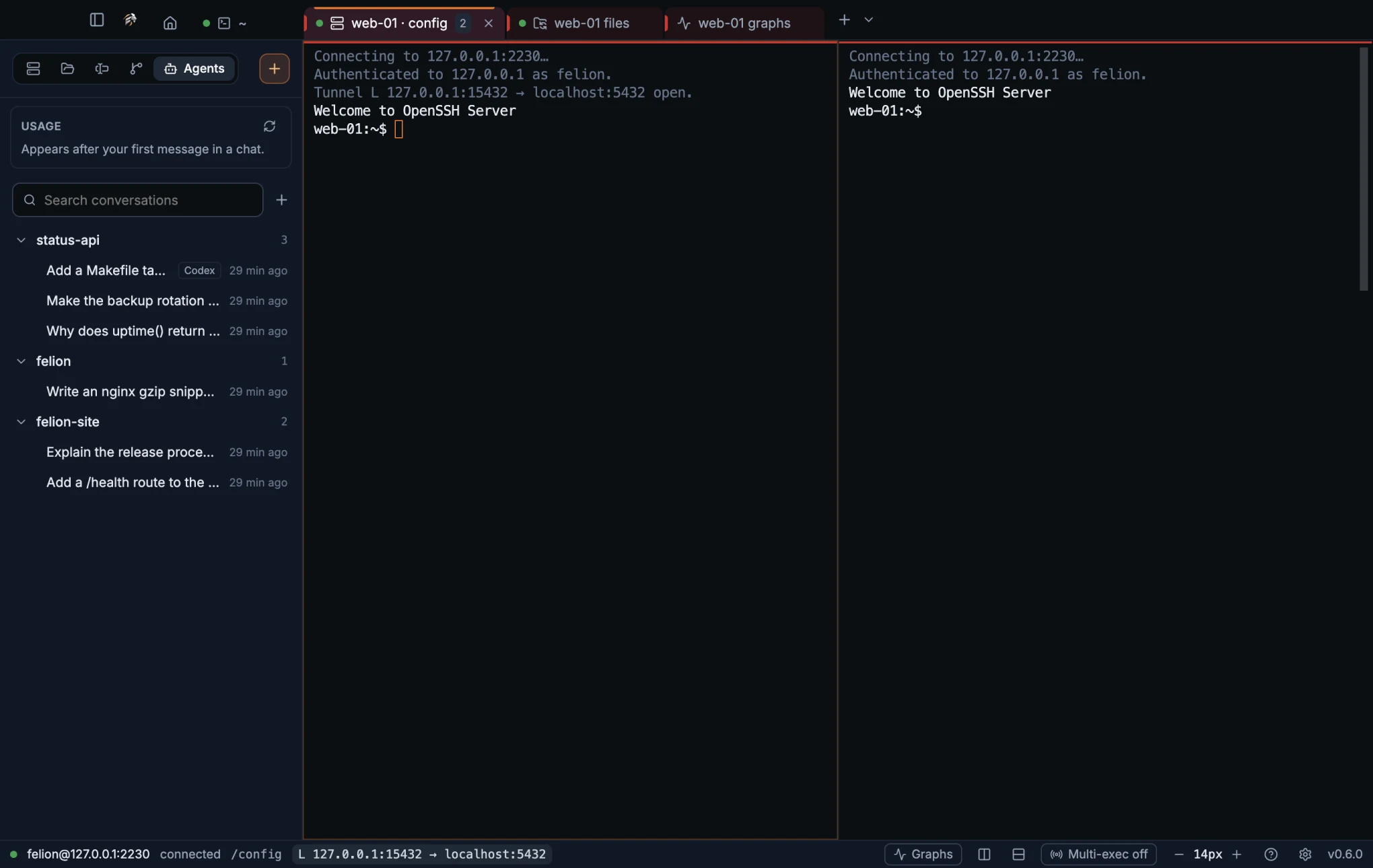
- Conversations are grouped by the folder they ran in, labelled with the folder's name and a count. The project with the latest activity comes first, and so does the newest conversation inside it.
- The three most recent projects start open. Click a project's name to fold or unfold it.
- Each row shows the conversation's title, how long ago it last changed and, for Codex, a Codex tag.
- Type in Search conversations to filter by title, folder or branch. A search opens every project with a match.
- A green dot marks a conversation that is running now, or whose file changed in the last two minutes.
- At most 300 conversations are listed.
Conversations that programs started on their own, such as a tool that runs Claude Code in the background, are hidden. When some are hidden, a box at the bottom reads Show N background conversations (started by programs). Tick it to list them too. A chat you start in Felion Terminal is never counted as background.
Open, resume and stop conversations#
Click a Claude Code conversation to open it in a chat pane, with its history. Click a Codex conversation to resume it in a terminal. If the conversation looks open somewhere else, Felion Terminal asks Open a second copy? first.
Right-click a conversation for more:
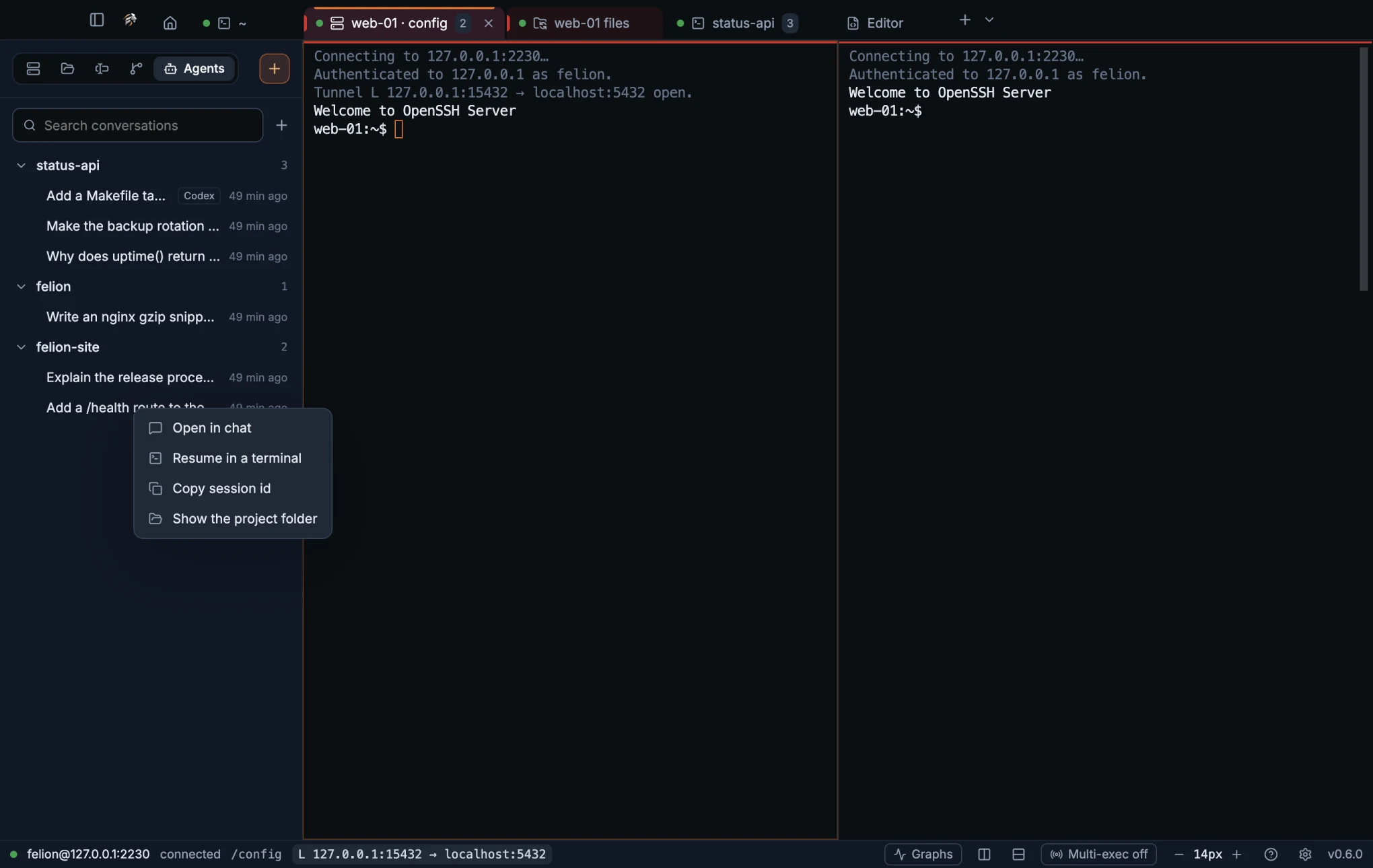
| Item | What it does |
|---|---|
| Open in chat | Opens a Claude Code conversation in a chat pane. Shown when Claude Code is installed. |
| Resume in a terminal | Opens a new local tab in the conversation's folder and runs claude --resume <id>, or codex resume <id> for Codex. |
| Copy session id | Copies the conversation's id. |
| Show the project folder | Shows the folder in the Finder, Explorer or file manager. |
| Stop this session | Only while its Claude Code is running in another terminal. Asks first, then ends that claude. |
A running conversation also has a small stop button in its row. Stopping ends the claude process, not the conversation: it stays saved and can be resumed, and the terminal tab it ran in stays open.
The + button next to the search box starts something new. Chat with Claude in <folder> and Chat with Claude in a folder… start a chat pane. Claude in <folder>, Claude in a folder…, Codex in <folder> and Codex in a folder… open a terminal tab there and start the tool. The items with a folder name use the folder of the local terminal in front. Items for a tool that isn't installed are left out.
- If the conversation's folder is gone, it can't be resumed there, and Felion Terminal says so.
- Stopping a conversation from the list works on macOS and Linux. On Windows it is not available yet.
Chat with Claude Code#
A chat pane talks to the Claude Code installed on your computer, signed in as you and with your own settings, hooks and MCP servers. Open one by clicking a conversation, from the + menu, or with New Claude chat in this folder in the command palette, which uses the folder of the local terminal in front or asks for one.
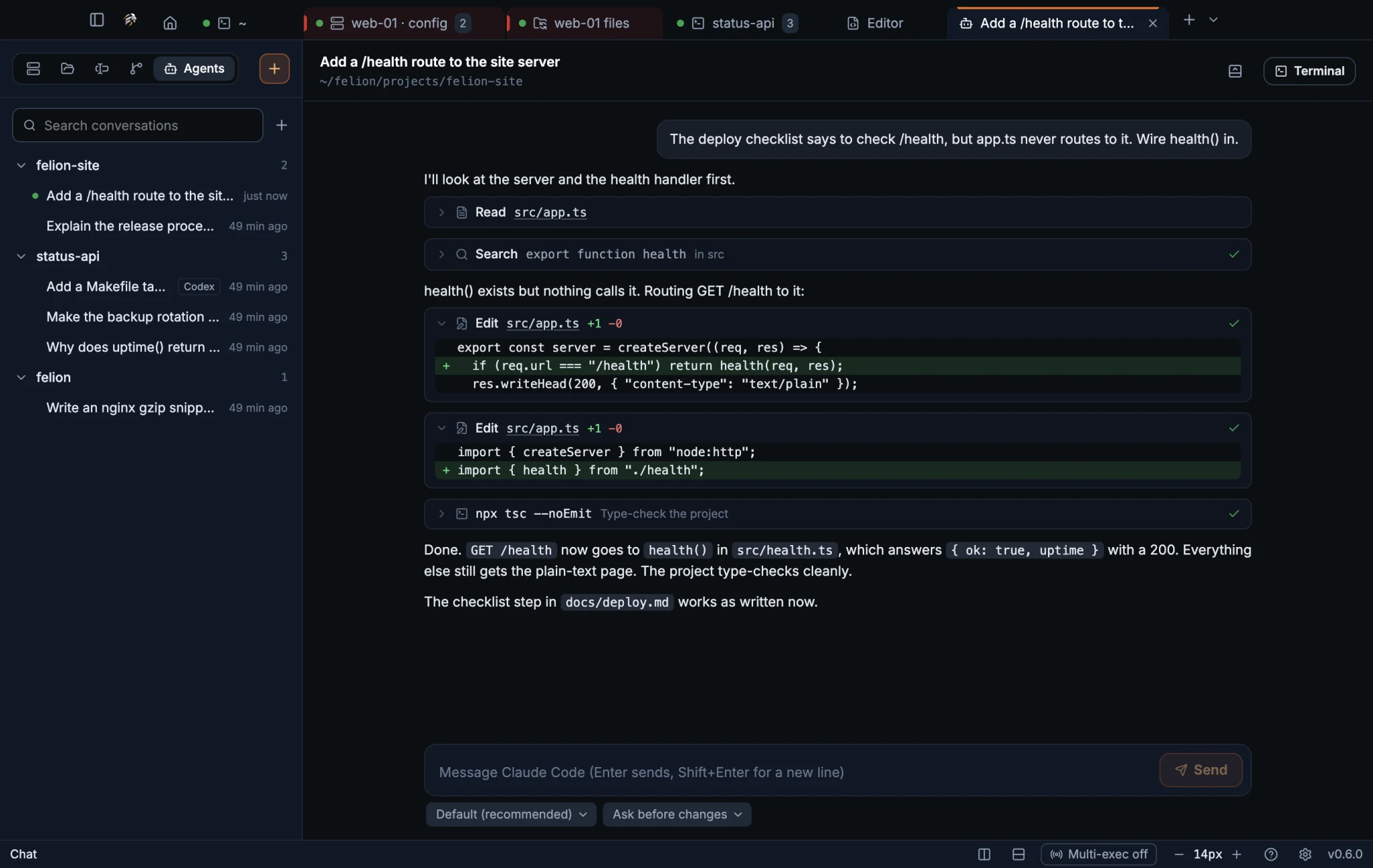
- Type in the box at the bottom. Enter sends, Shift+Enter starts a new line.
- Replies stream in. Commands, file reads and searches show as compact cards, and edits as diffs.
- While Claude works, the Send button turns into a red Stop that ends the turn. A message you type meanwhile waits until the turn is over.
- Under the box, pick the model and the permission mode: Ask before changes (the default), Accept edits, Plan only, Auto or Bypass permissions. Bypass asks first, because Claude Code then runs commands and edits files without asking.
- The header shows the conversation's title and folder. Terminal closes the chat and continues the same conversation with
claude --resumein a terminal tab. - The header's panel button opens a shell in the terminal panel under the chat, in the conversation's folder. Split right opens a shell beside the chat instead.
- A long conversation shows its last 1,500 messages. Open it in a terminal to see all of it.
- Closing the chat pane ends its Claude Code. The conversation stays saved.
When Claude Code asks before acting, a card shows what it wants to do: the command, the diff, the file or the plan. Choose Allow, Allow for this session (when Claude Code offers it) or Deny. Before Deny you can type a note for Claude in the field on the card. Enter allows and Esc denies. Enter is ignored for a moment after a card appears, so a key press meant for something else doesn't allow it.
- The chat needs Claude Code installed and signed in. If it isn't installed, the chat says so. Tools… in the command palette shows how to install it (see Tools page).
- Codex conversations can be listed and resumed in a terminal, but not chatted with in a pane.
- The chat pane is not reopened after a restart.
- The chat was tested on macOS. The Windows and Linux builds include it untested.
Plan usage#
The top of the Agents tab shows the usage of your Claude plan as Claude Code reports it: a 5 hours bar and a 7 days bar, and a bar per model where the plan has one. Each bar shows the percentage used and when the window resets.
- A bar is green below 50 %, amber from 50 % and red from 80 %.
- A white mark shows how much of the window has passed. A bar past its mark means you are using the limit faster than time goes by; the bar then adds when you would reach the limit at this pace. Hover over a bar for the details, for example “At this pace you'll reach the limit in about 14 h 18 min, 2 d before it resets.”
- The block refreshes every minute while the window has the focus, and when you come back to it. The refresh button asks at once.
- The usage appears after your first message in a chat. It isn't shown for API-key logins.
- Under the chat's message box, a short line shows the 5-hour usage too.
11
A browser for tests and agents
Let Playwright, Puppeteer and coding agents drive a browser inside Felion Terminal, and watch every page they open in the Browser tab.
Connect a test or an agent#
Felion Terminal has a browser inside it for tests and coding agents. Every local shell you open in Felion Terminal gets its address in the environment variable FELION_BROWSER_CDP, in the form ws://127.0.0.1:<port>/devtools/browser/<token>. Anything that speaks the DevTools Protocol can connect to it, and every page it opens shows up in the Browser tab. Shells in SSH sessions don't get the address.
| Tool | How to connect |
|---|---|
| Playwright | chromium.connectOverCDP(process.env.FELION_BROWSER_CDP) |
| Puppeteer | puppeteer.connect({ browserWSEndpoint: process.env.FELION_BROWSER_CDP }) |
| Other tools and agents | Give them the address in FELION_BROWSER_CDP wherever they ask for a DevTools Protocol (CDP) address. |
A Playwright script, run with node check.mjs from a shell opened in Felion Terminal:
check.mjsimport { chromium } from "playwright";
const browser = await chromium.connectOverCDP(process.env.FELION_BROWSER_CDP);
const page = await browser.contexts()[0].newPage();
await page.goto("http://localhost:3000");
await page.screenshot({ path: "home.png" });
await browser.close();browser.contexts()[0] is the browser's own context, the one Tests start signed in applies to. Playwright's browser.newPage() makes a new context for its page instead, so that page starts signed out.
With @playwright/test, replace the browser fixture, so that each worker connects to Felion Terminal instead of starting a browser of its own:
fixtures.tsimport { test as base, chromium } from "@playwright/test";
export const test = base.extend({
browser: [
async ({}, use) => {
const browser = await chromium.connectOverCDP(process.env.FELION_BROWSER_CDP!);
await use(browser);
await browser.close();
},
{ scope: "worker" },
],
});
export { expect } from "@playwright/test";In your tests, import test and expect from this file instead of from @playwright/test, and run them from a shell opened in Felion Terminal. The runner gives each test a new context, so its pages start signed out. A test that needs a sign-in can add cookies with context.addCookies.
The Browser tab#
Every page a test or agent opens shows up as a page tab in the Browser tab. The first page opens the Browser tab, a tab of its own, and brings it to the front. Later pages join it without switching tabs, so you can carry on where you are. A popup joins the pane of the page that opened it.
To open the Browser tab yourself, choose Browser for tests in the command palette. While no page is open, it shows how to connect with Playwright, with a Copy button for the line. When the browser is turned off, it says so instead.
| Control | What it does |
|---|---|
| Back and Forward | Go back and forward in the page's history. |
| Reload | Loads the page again. While the page loads, the button is Stop. |
| The address | Shows where the page is. You can't type in it: tests decide where their pages go. |
| Page width | Fit (the width of the pane), Phone · 390, Tablet · 768, Laptop · 1024 or Desktop · 1280. The page gets that width, centred in the pane. A width wider than the pane fits the pane. |
| DevTools | Opens the developer tools for this page, in a window of their own. |
| Open in the system browser | Opens the page's address in your usual browser. Only for http and https addresses. |
- Each page tab shows the page's title, or its address until it has one, and a dot that shows whether it is still loading.
- Click a page tab to show that page. Close it with its × or a middle-click, and the test sees its page close.
- Closing the Browser tab closes all its pages.
How the pages behave#
- A context a test creates, for example with
browser.newContext(), is kept apart from the others and lives in memory only. browser.close()in a test ends that test's connection. Felion Terminal stays open, and pages in the browser's own context stay in the Browser tab.- Pages get no camera, location or notifications, and downloads are cancelled.
- While a menu, a dialog or the command palette is over the page, the pane shows a still image of the page. The live page comes back when it closes.
- Clicking into a page gives it the keyboard. Felion Terminal's shortcuts work again once you click the app around the page.
- It is not a browser for browsing: there is no address to type, and Browser tabs aren't reopened after a restart.
Start tests signed in (macOS)#
A test that needs a real sign-in can use the cookies of a browser you already sign in with. On macOS:
- Open Settings → Browser. Import from lists your Chrome, Brave, Edge and Chromium profiles.
- Choose a profile and click Import. macOS asks you to allow access to that browser's key in the Keychain. Allow it.
- Felion Terminal imports the profile's cookies and says how many. Expired or unreadable ones are left out.
- Turn on Tests start signed in.
With Tests start signed in on, the pages tests open have the imported sign-ins. It is off by default, and then pages start signed out on every launch. A context the test creates itself always starts signed out.
The sign-ins are stored encrypted with the system keychain, like your saved passwords, and held in memory only while tests use them. Forget, beside Imported sign-ins, removes them all. The browser you imported from keeps its own.
What tests and agents can reach#
- The browser listens on this computer only, at an address with a random token. Only shells opened in Felion Terminal are given it.
- A test sees only the pages tests open: never Felion Terminal's own window, and never the browser-wide parts of the DevTools Protocol.
- The address changes each time Felion Terminal starts.
To turn the browser off, switch off Let tests and agents use the browser in Settings → Browser. New shells then get no address, and connecting is refused. Shells that were already open keep the address they started with. Turned back on, the browser uses the same address as before.
12
Tunnels
Forward ports through an SSH session, so programs on your computer can reach services on the server, and the other way round.
Tunnel types and how to add one#
A tunnel belongs to an SSH session. Add tunnels in the session form, in the Tunnels list, which is in the lower part of the SSH fields. Add tunnel adds a row, set to 127.0.0.1:8080 → localhost:80, which you can change.
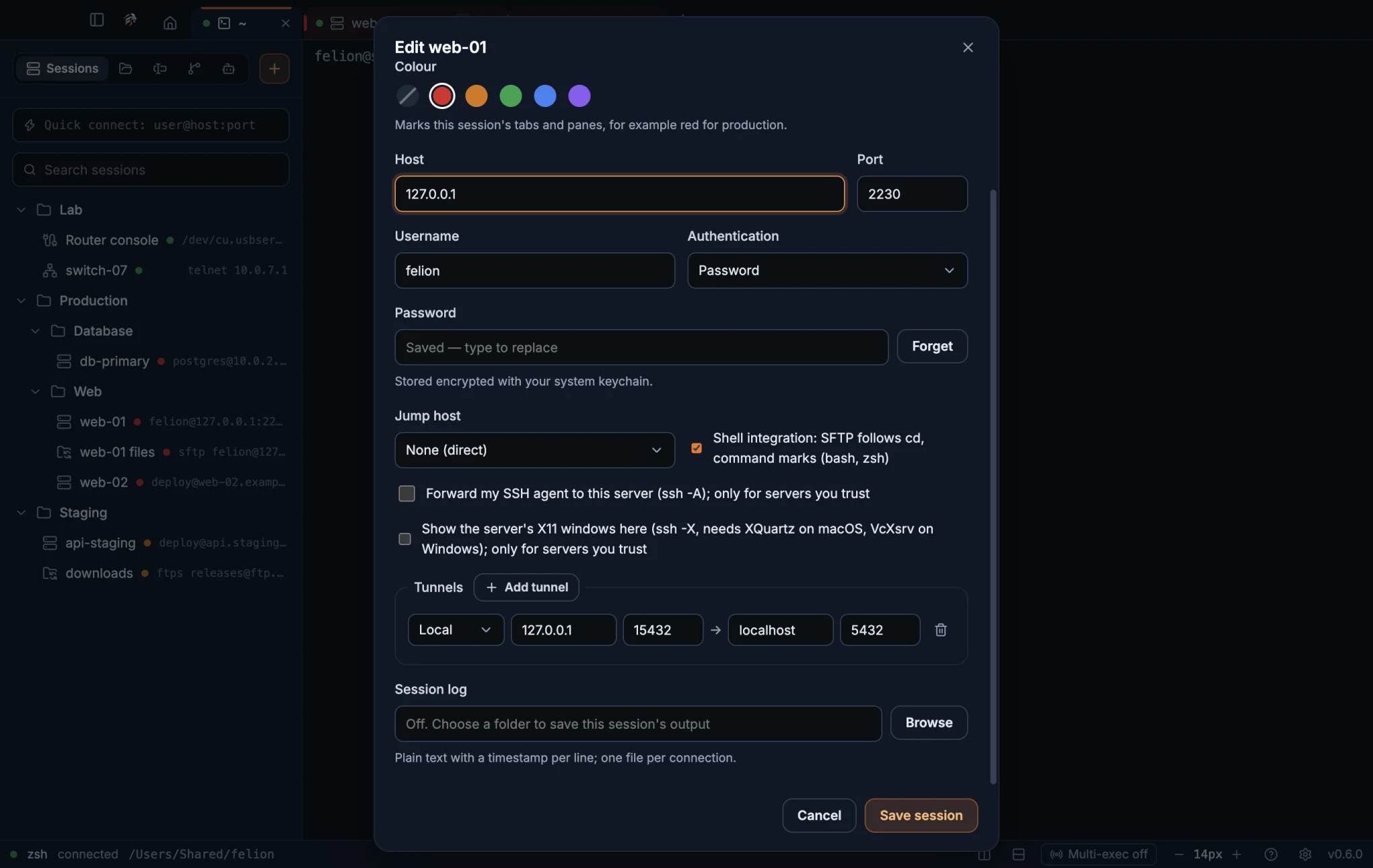
| Type | Listens on | Traffic goes to |
|---|---|---|
Local (-L) | Your computer | A host and port that the server can reach |
Remote (-R) | The server | A host and port that your computer can reach |
SOCKS (-D) | Your computer, as a SOCKS5 proxy | Wherever each program asks to connect |
Each row of the Tunnels list has a type, a listen host, a listen port, an arrow, a destination host and a destination port, and a trash button that removes the row. For a SOCKS tunnel, the destination fields are replaced by the words “SOCKS5 proxy”. An empty listen host means 127.0.0.1.
For example, a Local tunnel from 127.0.0.1:15432 to localhost:5432 lets a client on your computer reach port 5432 on the server by connecting to localhost:15432.
Tunnels while you work#
Tunnels open when the session connects. The terminal prints a line for each tunnel that opens, and an error line for a tunnel that does not. Tunnels run over the session's connection, so they stop when it closes.
Each open tunnel also shows a chip in the status bar: L 127.0.0.1:8080 → localhost:80 for a local tunnel, R followed by the addresses for a remote tunnel, and SOCKS 127.0.0.1:1080 for a SOCKS proxy.
- A session's tunnels open once, even when the session has several panes. If you open a tunnel's session in another pane, the message says “Tunnels for this session are already open in another pane.”
- A split does not copy the tunnels. The first pane owns the ports.
- The SOCKS5 proxy needs no login. It accepts only the CONNECT command, for IPv4, IPv6 and domain names. Browsers and
curl --socks5hwork with it. - A connection that one side has closed keeps working, as it does with
ssh -L.
13
Server graphs
See the CPU, memory, disk and network of a Linux server, live and over the past days, read over the SSH connection you already have open.
Open a server's graphs#
Server graphs show how busy a server is: CPU, Memory, Disk throughput, Disk IOPS and Network traffic. Felion Terminal reads them from the server's /proc over an SSH connection that is already open, so nothing is installed on the server.
- With an SSH terminal in front, click Graphs in the status bar.
- Run Show server graphs from the command palette while an SSH terminal has the focus.
- Right-click a saved SSH session in the Sessions tab and choose Server graphs. This works without a connection too, to look at the recorded history.
- Right-click inside an SSH terminal and choose Server graphs, when Settings → Mouse & clipboard → Right click is set to Show a menu.
The graphs open in a tab of their own, named after the session, for example web-01 graphs. Each server has one graphs tab: asking again brings it to the front. A server is told apart by its user, host, port and jump host, so two sessions to the same account share one tab and one history.
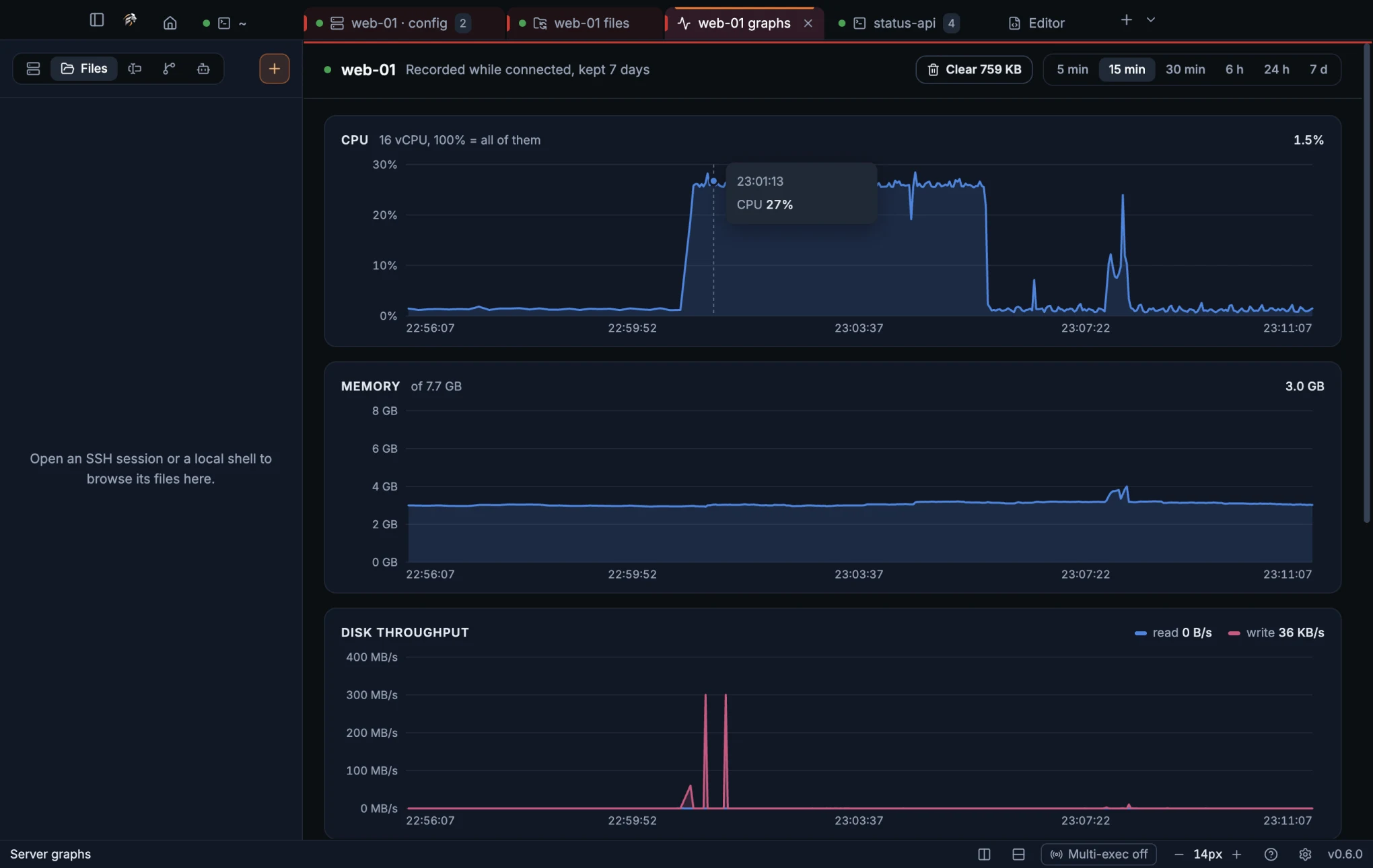
| Chart | What it shows |
|---|---|
| CPU | The share of all processors that was busy. The note gives the number of vCPUs: 100 % means all of them. |
| Memory | Memory in use, out of the total in the note. |
| Disk throughput | Bytes read and written per second. |
| Disk IOPS | Read and write requests per second. |
| Network traffic | Bytes in and out per second. |
Hover over a chart to read the values at that moment. Disks and network cards are counted once: partitions, loop devices, Docker bridges and virtual network cards are left out, so a container's download isn't counted three times.
Pick a time range at the top right. 5 min, 15 min and 30 min are live: the graphs tab reads the server every 2 seconds. 6 h, 24 h, 7 d, 30 d and 90 d come from the recorded history. Only the ranges that recording keeps are offered, so with the default of 7 days the buttons end at 7 d.
| Message | Meaning |
|---|---|
| Reading the server… | The first reading is on its way. |
| Not connected. Graphs are recorded while a terminal to this server is connected. | No SSH terminal to this server is open. The recorded history still shows. A graphs tab opened this way starts on 24 h. |
| Nothing recorded for this range yet. | Recording is on, but nothing was recorded in the chosen range. |
| Graphs need a Linux server: this one has no /proc to read. | The server is not Linux, for example a BSD or a network device. |
- Graphs need a Linux server. The computer you run Felion Terminal on doesn't matter.
- Only SSH sessions have graphs. A connection used only for files (SFTP) doesn't count as a terminal to the server.
- The readings ride on one of your SSH terminals to that server. If you close it, they move to another terminal on the same server.
- The graphs tab is not reopened after a restart, and it can't be split.
Recording and history#
While an SSH terminal to a server is connected, Felion Terminal also reads the server every 10 seconds in the background and keeps a one-minute average. That way the graphs can show what happened before you opened them, such as last night's backup.
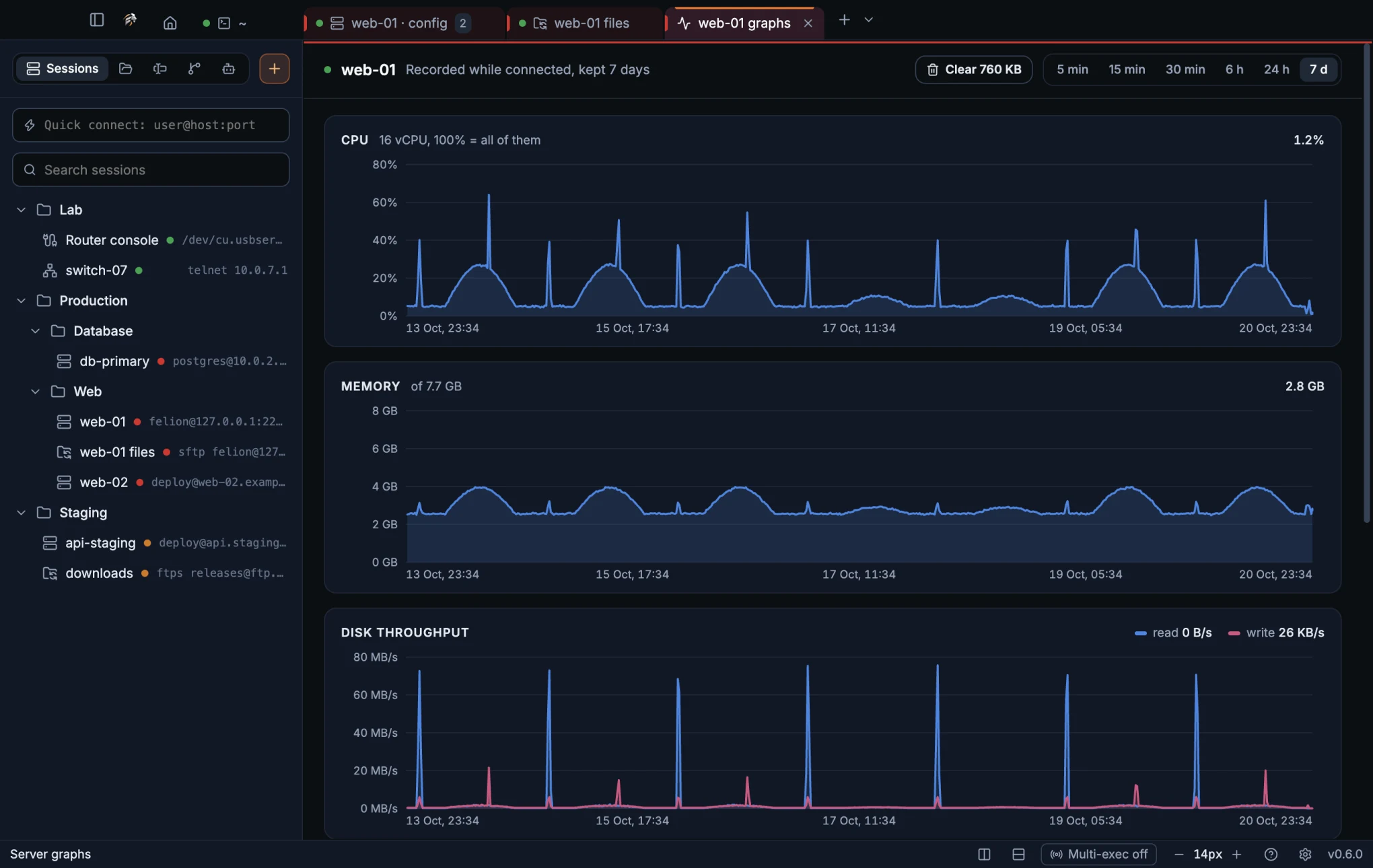
Set it up in Settings → SSH → Server graphs:
| Setting | Choices | Default |
|---|---|---|
| Record in the background | On or off | On |
| Keep for | 1 day, 7 days, 30 days, 90 days | 7 days |
| Stored | How much is recorded and for how many servers, with a Clear all button | — |
- Points older than Keep for are deleted at start and every hour.
- A week of one server takes about 1 MB.
- Clear all asks once in place: click it, then click Delete all graphs history.
- To clear one server, click Clear with the stored size in the header of its graphs tab, then Clear history. Recording carries on while a terminal to it is connected.
- With recording off, the graphs are live only while a graphs tab is open, and the header says “Live, while this tab is open”.
- There is no switch per session: recording is on or off for every server.
14
Command palette and snippets
Run almost any action, open any session or setting from one search box, and send saved commands to a terminal with one click.
The command palette#
The command palette runs most actions in the app from one search box: a new shell, a saved session, a setting, a snippet, a task. Type a few letters, then choose the item.
| Action | macOS | Windows and Linux |
|---|---|---|
| Open or close the palette | ⇧⌘P | Ctrl+Shift+P |
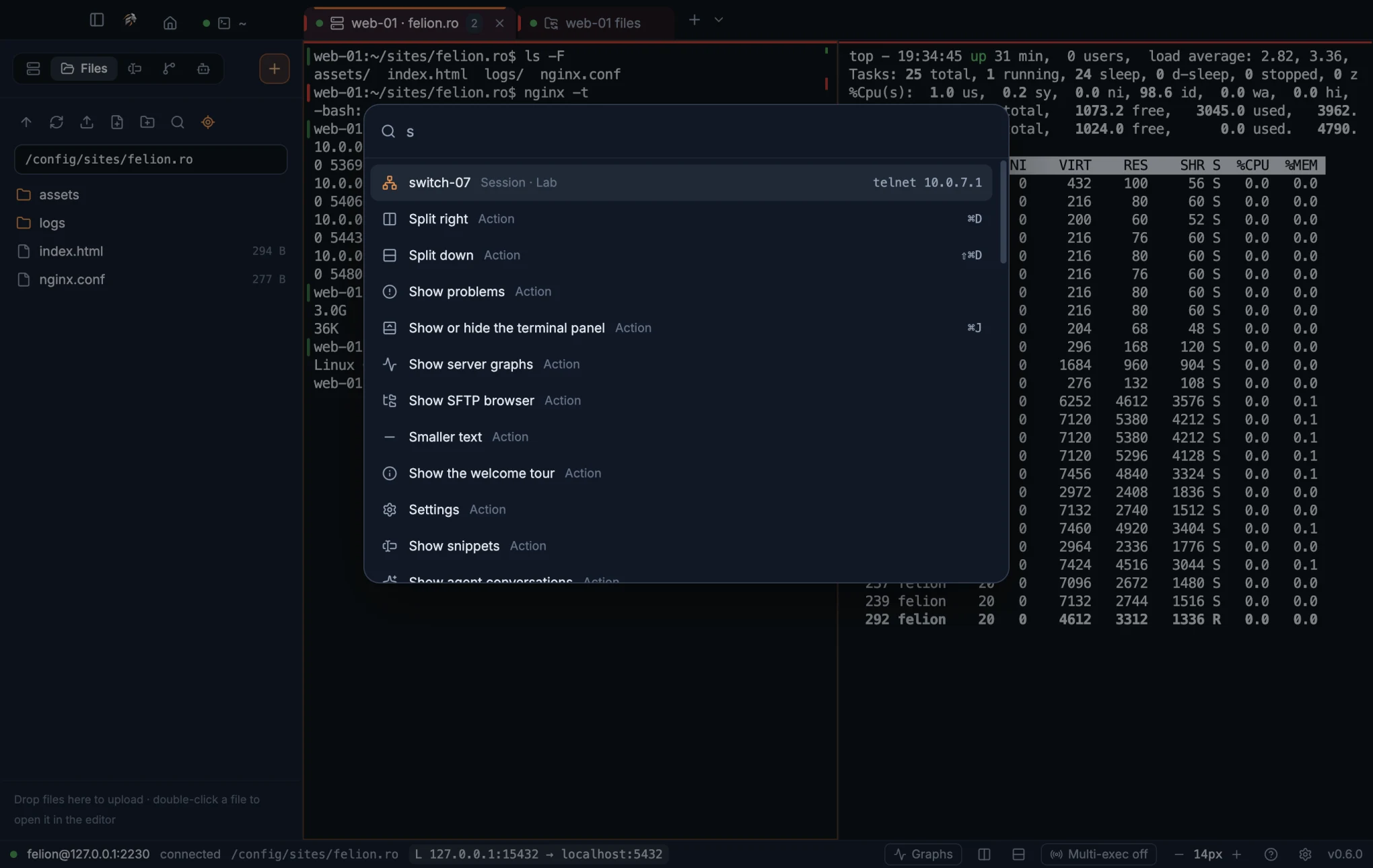
Type to filter the list. Use ↑ and ↓ to move, Enter to run the highlighted item, and Esc to close the palette. Each row shows its name, its group, and a hint: the shortcut for an action, the host for a session, or for a task the tool that runs it, such as npm or make.
The search box reads “Type a command, a session or a shell”. Type a session's name to connect to it without opening the sidebar. The full list of items is in What the palette offers.
What the palette offers#
| Group | Items |
|---|---|
| Shell | New followed by the name of each detected shell, for example New zsh. See Local shells. |
| Session | Every saved session. Choose one to connect to it. Each row shows the session's folder. |
| Action, with a pane focused | Explain the selection, Find in terminal, Split right, Split down, Show problems, Show or hide the terminal panel, Close pane, Rename tab, Show server graphs, Reconnect and Turn multi-exec on/off. Show server graphs appears only when the focused pane is an SSH terminal, and Reconnect only when it is closed. |
| Action, always | Go to the start page, New session…, Hide sidebar or Show sidebar, Show SFTP browser, Browser for tests, Open folder in terminal…, Larger text, Smaller text, Lock screen, Check for updates, Open the manual, Tools…, Show the welcome tour, Open file…, Export sessions and snippets…, Import sessions and snippets…, Settings, About Felion Terminal, Show snippets, Show agent conversations and New Claude chat in this folder. |
| Snippet | Every snippet. These items appear only when the focused pane is connected. |
| Task | Run <name> for each package.json script and Makefile target of the tab's folder, with the tool that runs it (npm, pnpm, yarn, bun or make) as the hint. The list is read each time the palette opens, and only when the tab has a folder on this computer. See Run a task. |
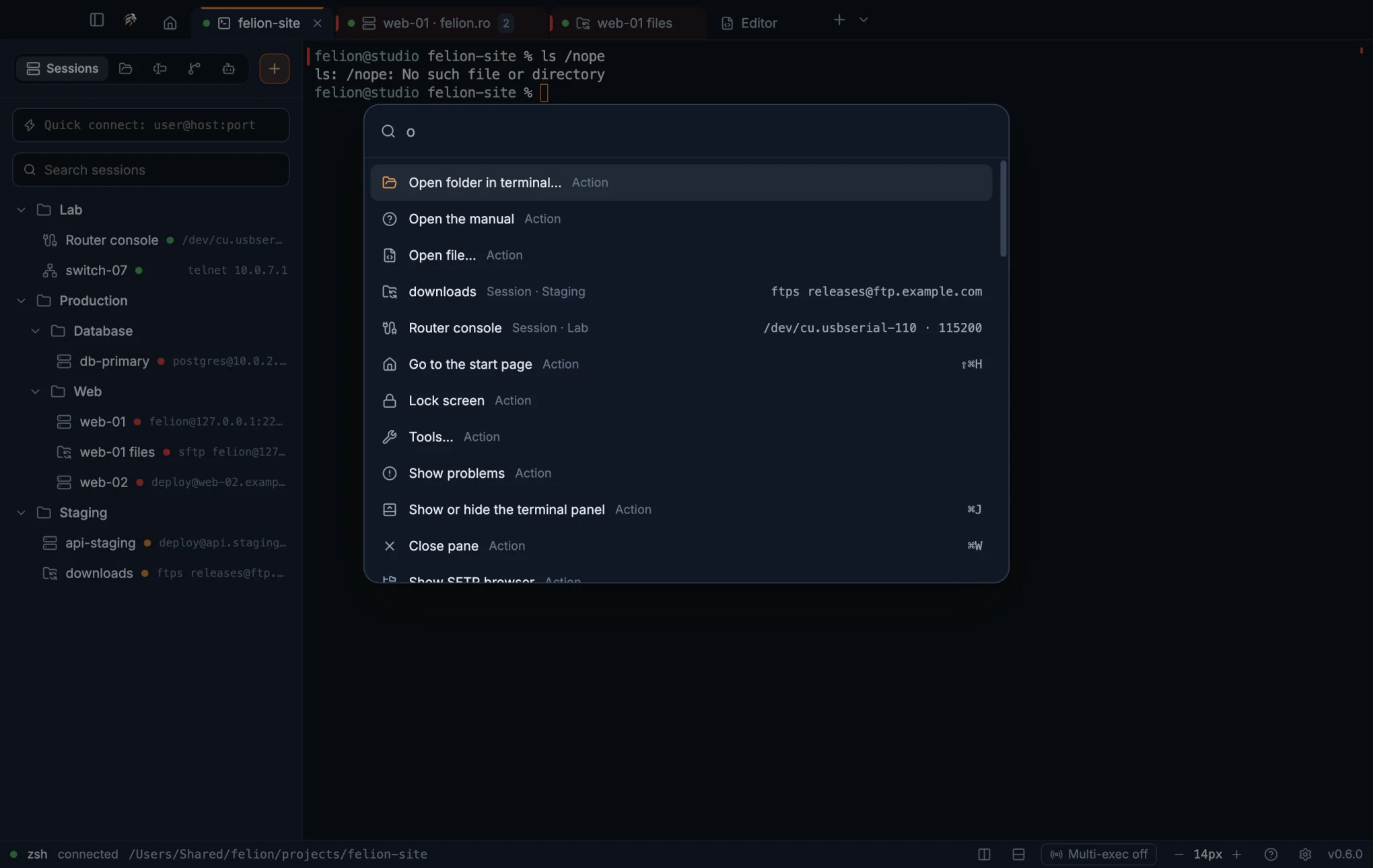
- Explain the selection explains the selected text, or with nothing selected the last command and its output. See Explain.
- Show problems opens the Problems tab in the terminal panel of the tab.
- Show or hide the terminal panel does what ⌘J (Ctrl+Shift+J) does. See The terminal panel.
- Show server graphs opens the graphs of the focused SSH server. See Server graphs.
- Show agent conversations opens the Agents tab of the sidebar.
- New Claude chat in this folder starts a chat with Claude Code in the folder of the focused local terminal. Without one, it asks for a folder.
- Browser for tests opens the Browser tab, where the pages tests and agents open show up, and shows how to connect.
- Open folder in terminal… opens a shell in a folder you pick. See Open a folder in a terminal.
- Check for updates opens Settings → About. See Update checks.
- Open the manual opens this manual in your browser.
- Tools… opens the Tools page.
- Lock screen covers the window with the idle screen straight away. It is not a password lock.
- Show the welcome tour runs the welcome tour again.
Snippets#
A snippet is a saved command. One click sends it to the focused terminal. With multi-exec on, one click sends it to every pane of the tab.
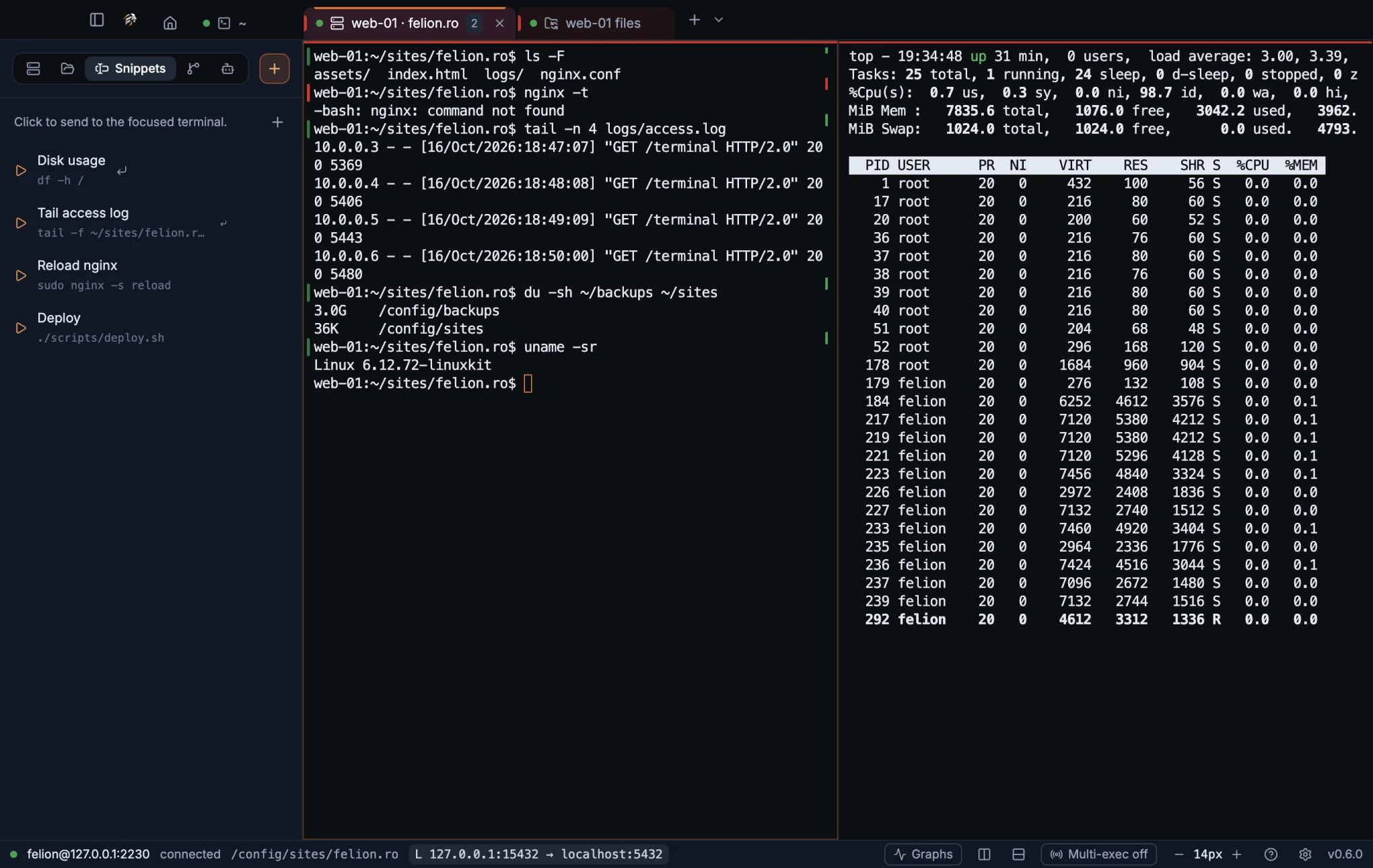
Open the Snippets tab in the sidebar, or choose Show snippets in the command palette. The panel's hint tells you where a click goes: to the focused terminal, or to every pane of the tab when multi-exec is on.
To create a snippet, choose + (New snippet) and fill in the form:
- Type a Name, such as “Tail nginx errors”. If you leave it empty, the name is the first 40 characters of the command.
- Type the Command. It can span several lines.
- Decide whether it presses Enter. Press Enter after sending (otherwise it waits for you to review it) is on by default for new snippets. Turn it off to send the command without running it.
- Save the snippet.
Each row in the panel shows the name, the command, and an Enter symbol when the snippet runs at once. Choose Edit to change a snippet, or Delete to remove it.
- Delete does not ask for confirmation.
- A snippet is sent only when a connected pane is focused. Otherwise the snippet buttons are disabled.
- Snippets are kept in
snippets.jsonin your data folder. Export and import include them.
15
Settings
Every option in Felion Terminal, tab by tab, with what each one does and its default.
Open Settings and change an option#
Settings holds every option in Felion Terminal. The tabs run down the left side. Changes apply at once: there is no Save button. Where an option only affects terminals you open after the change, its row says so.
- Select the gear at the right end of the status bar.
- Open the command palette and run Settings.
- Open the palette and run About Felion Terminal or Check for updates. Both open the About tab.
Press Esc or select × to close Settings. Your choices are stored in settings.json in the data folder. Options added in later versions take their default until you change them.
General#
Startup, the welcome tour, the shell for new tabs, the quick terminal, the idle screen and long-command notifications.
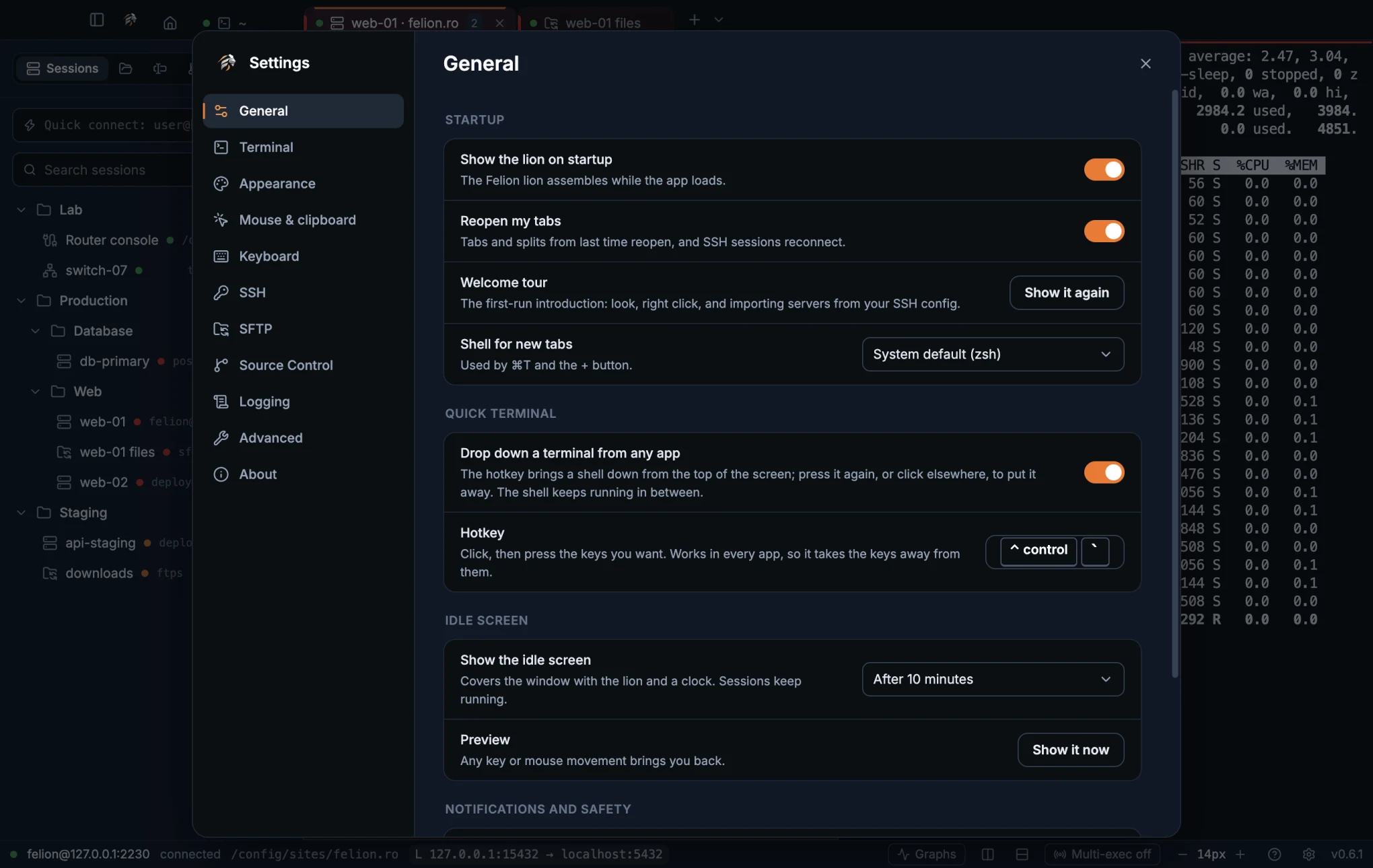
| Setting | Options or range | Default | What it does |
|---|---|---|---|
| Show the lion on startup | On or off | On | Plays the lion animation while the app loads. See The startup lion. |
| Reopen my tabs | On or off | On | Reopens your tabs, splits, terminal panels, tab groups and remote connections at the next start. See Workspace restore. |
| Welcome tour | Show it again button | n/a | Opens the welcome tour again. See The welcome tour. |
| Shell for new tabs | System default, or any shell that was detected | System default | The shell that + and the new-terminal shortcut open. See Local shells. |
| Drop down a terminal from any app | On or off | On | Turns the quick terminal on. See Quick terminal. |
| Hotkey | Key recorder, shown while the quick terminal is on | ⌃` on macOS, Ctrl+` on Windows and Linux | The keys that show and hide the quick terminal. Click the field and press the keys you want. Press Esc to cancel. If another app already uses the keys, Settings shows “Another app already uses …”. |
| Show the idle screen | Never, or after 2, 5, 10, 15, 30 or 60 minutes | After 10 minutes | Covers the window with the lion and a clock after this long without input. Sessions keep running. See Idle screen. |
| Preview | Show it now button | n/a | Shows the idle screen straight away. |
| Notify when a long command finishes | On or off | On | Sends a system notification when a command runs longer than the time below and you are in another window or tab. Needs shell integration. See Long-command notifications. |
| Long means more than | 3–3600 seconds | 10 seconds | How long a command must run to count as a long command. |
| Confirm before disconnecting | On or off | On | Asks before a tab or the app closes while a remote connection is open. See Closing the app. |
Terminal#
Text, cursor and behaviour of the terminal. The preview at the top shows your choices as you make them.
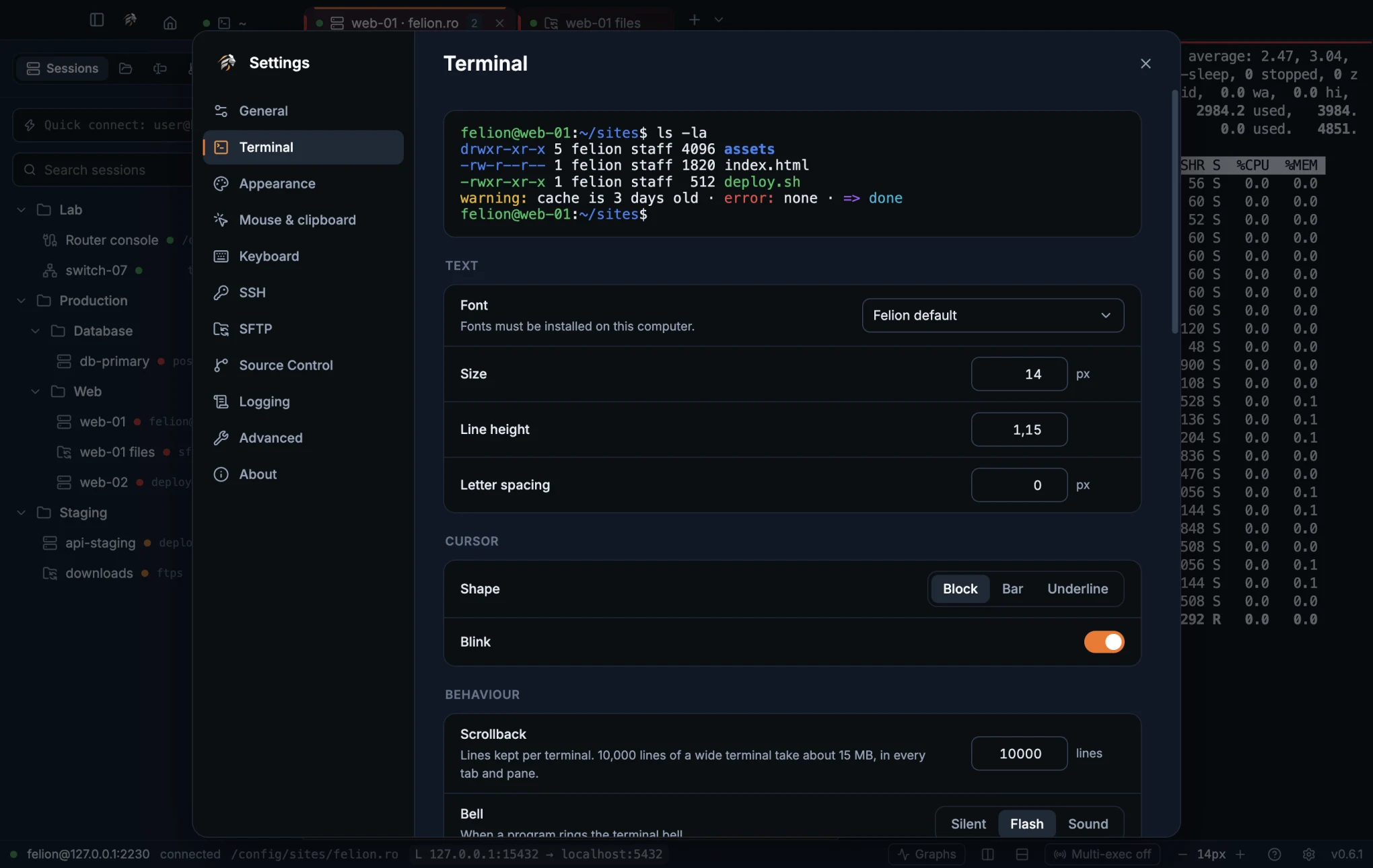
| Setting | Options or range | Default | What it does |
|---|---|---|---|
| Font | Felion default, Cascadia Code, Cascadia Mono, JetBrains Mono, Fira Code, Consolas, Menlo, SF Mono, DejaVu Sans Mono, Ubuntu Mono, or Custom… | Felion default | The font for terminal text. The font must be installed on this computer. Custom… shows a field for your own font list. |
| Size | 8–32 px | 14 px | The size of terminal text. The − and + buttons in the status bar stay within 9 to 28 px. See Text size. |
| Line height | 1–2, in steps of 0.05 | 1.15 | The space between lines. |
| Letter spacing | 0–4 px, in steps of 0.5 | 0 px | The space between characters. |
| Cursor shape | Block, Bar or Underline | Block | The shape of the cursor. |
| Blink | On or off | On | Whether the cursor blinks. |
| Scrollback | 500–100 000 lines, in steps of 1000 | 10 000 lines | How many lines each terminal keeps to scroll back through, and can search with Find in scrollback. 10 000 lines of a wide terminal take about 15 MB, in every tab and pane. A larger value from an older version is lowered to 100 000. |
| Bell | Silent, Flash or Sound | Flash | What happens when a program rings the bell. See Terminal bell. |
| Word separators | Any characters, typed into one field | A space, ()[]{}, ', ", |, ;, :, <, > and the backtick character | The characters that end a word when you double-click to select. See Double-click a word. |
| Shells report their folder and command results | On or off | On | Turns on shell integration for terminals you open after the change: folder tracking, command marks and long-command notifications. It is also the default for new SSH sessions. See Shell integration. |
| Help when a tool is missing | On or off | On | Shows a card with the install command when you run a known tool that isn't installed. See When a tool isn't installed. |
| Shift+Enter starts a new line | On or off | On | Sends Shift+Enter as a new line in the prompt of AI tools. In vim it leaves insert mode: turn this off if that gets in your way. See Shift+Enter for a new line. |
| Option key as Meta | On or off. macOS only; hidden on Windows and Linux | On | Option+B and Option+F move by word and Option+Backspace deletes one, in a prompt or the shell. Turn it off if your keyboard types characters such as @ { } | with Option. Option-drag still selects text either way. See Terminal shortcuts. |
| Notifications from programs | On or off | On | Sends a system notification when a program asks for attention while you are in another tab or app, or the idle screen is up. The bell on its tab, and the amber border on its pane in a split, show whether this is on or off. See Notifications from programs. |
| Open clicked file paths in | Felion editor, VS Code, Cursor or Zed | Felion editor | Where a clicked file path opens. Files on a server always open in the Felion editor. See Clickable file paths. |
| Send and receive files with rz and sz (ZMODEM) | On or off | On | Allows file transfers in SSH and serial terminals. Applies to terminals opened after the change. See File transfers with ZMODEM. |
| Colour keywords in the output | On or off | On | Colours status words such as down and up as they scroll past. See Coloured keywords in the output. |
| Rules | A list of words or regular expressions, each red, amber, green or blue | The rules for network gear | The words to colour. Shown while Colour keywords in the output is on. |
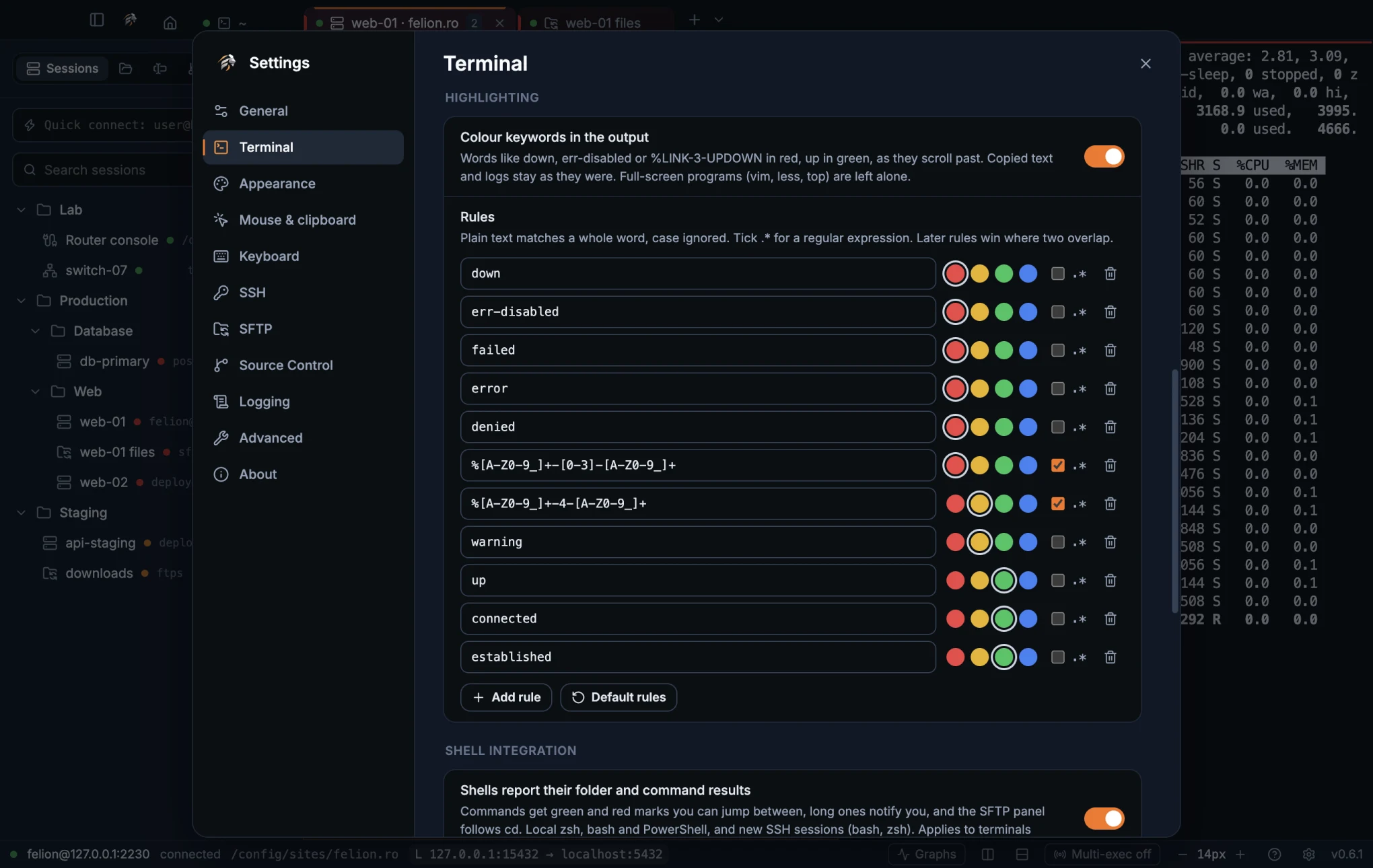
- A plain rule matches a whole word, with case ignored. Tick
.*to write a regular expression instead. A rule that isn't valid is marked in the list and colours nothing until you fix it. - Where two rules match the same text, the later rule wins.
- Press Add rule for a new rule, the bin button to remove one, and Default rules to go back to the list the app ships with.
Appearance#
Choose the colour scheme for terminal text. The preview under the schemes shows how the terminal looks with your choice. Only the terminal changes: the rest of the app stays dark, and the editor keeps its own dark theme.
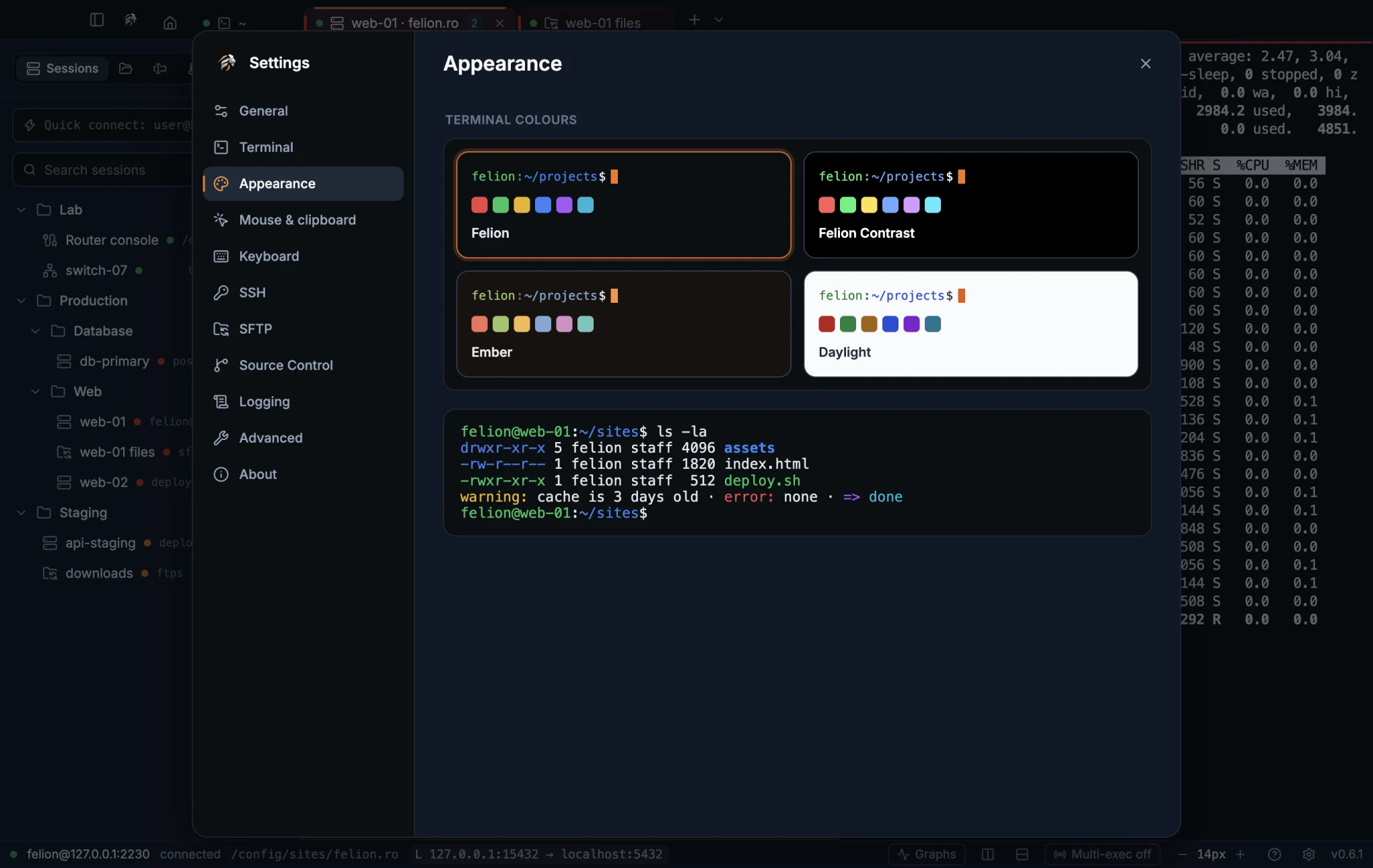
| Setting | Options or range | Default | What it does |
|---|---|---|---|
| Terminal colours | Felion, Felion Contrast, Ember or Daylight | Felion | The colour scheme of the terminal. The schemes are described below. |
| Scheme | Look |
|---|---|
| Felion | An obsidian background with an orange cursor. The default. |
| Felion Contrast | A pure black background with brighter colours. |
| Ember | A warm slate background with amber accents. |
| Daylight | A light background. |
GPU acceleration is under Settings → Advanced, not here. See Rendering.
Mouse and clipboard#
What the mouse buttons do in a terminal, and how copying and pasting behave.
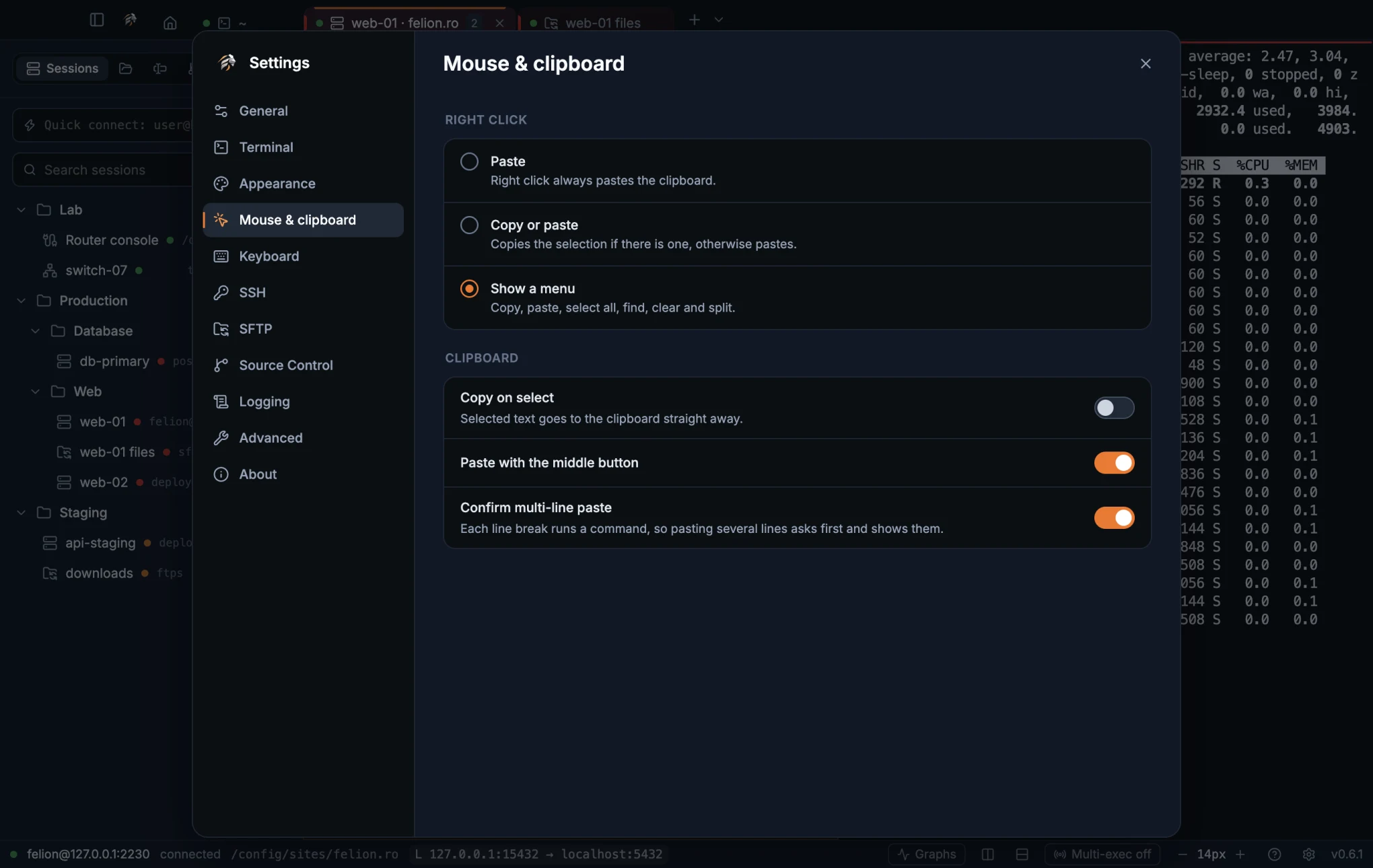
| Setting | Options or range | Default | What it does |
|---|---|---|---|
| Right click | Paste, Copy or paste, or Show a menu | Copy or paste | Paste always pastes the clipboard. Copy or paste copies the selection if there is one, and pastes otherwise. Show a menu opens a menu with Copy and Explain (with text selected), Paste, Select all, Find, Clear scrollback, Server graphs (in SSH terminals), Split right, Split down and Close pane. See Right-click behaviour. |
| Copy on select | On or off | Off | Copies selected text to the clipboard straight away. See Copy and paste. |
| Paste with the middle button | On or off | On | Middle-click pastes the clipboard. See Copy and paste. |
| Confirm multi-line paste | On or off | On | Asks before pasting text with line breaks, and shows the first lines. A program that takes a paste as a whole (bracketed paste), such as Claude Code, Codex, zsh or fish, gets the text without the question. See Copy and paste. |
Keyboard#
This tab shows the main shortcuts and one copy option. Felion Terminal does not let you remap keys.
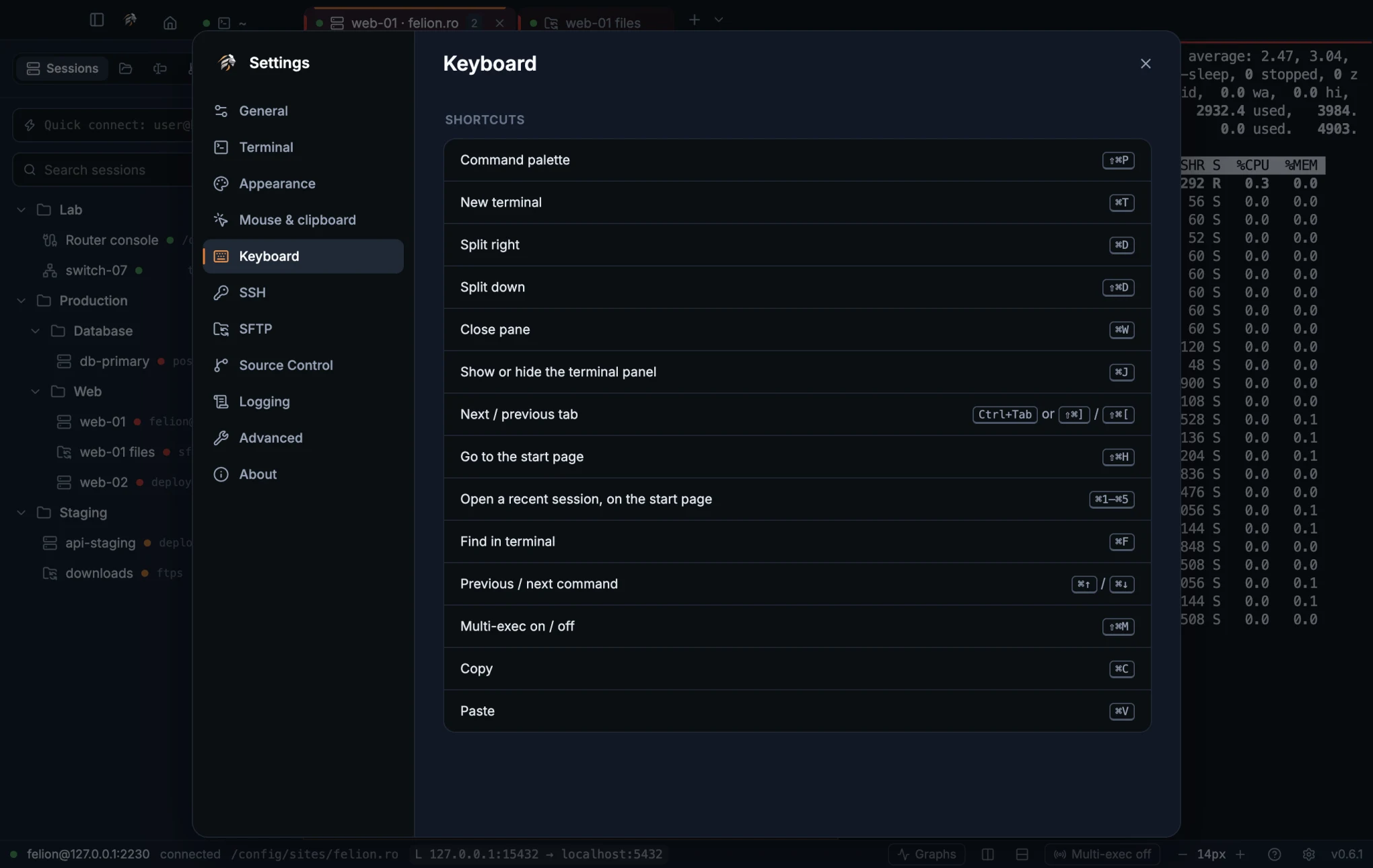
| Setting | Options or range | Default | What it does |
|---|---|---|---|
| Ctrl+C copies selected text | On or off. Windows and Linux only; hidden on macOS | On | With text selected, Ctrl+C copies it. With nothing selected, Ctrl+C still sends the interrupt. See Copy and paste. |
| Shortcuts | Read-only list | n/a | Lists the main shortcuts. The full list is in App shortcuts. |
SSH#
Connection timing, the default username, the recording of server graphs and the host keys you have trusted.
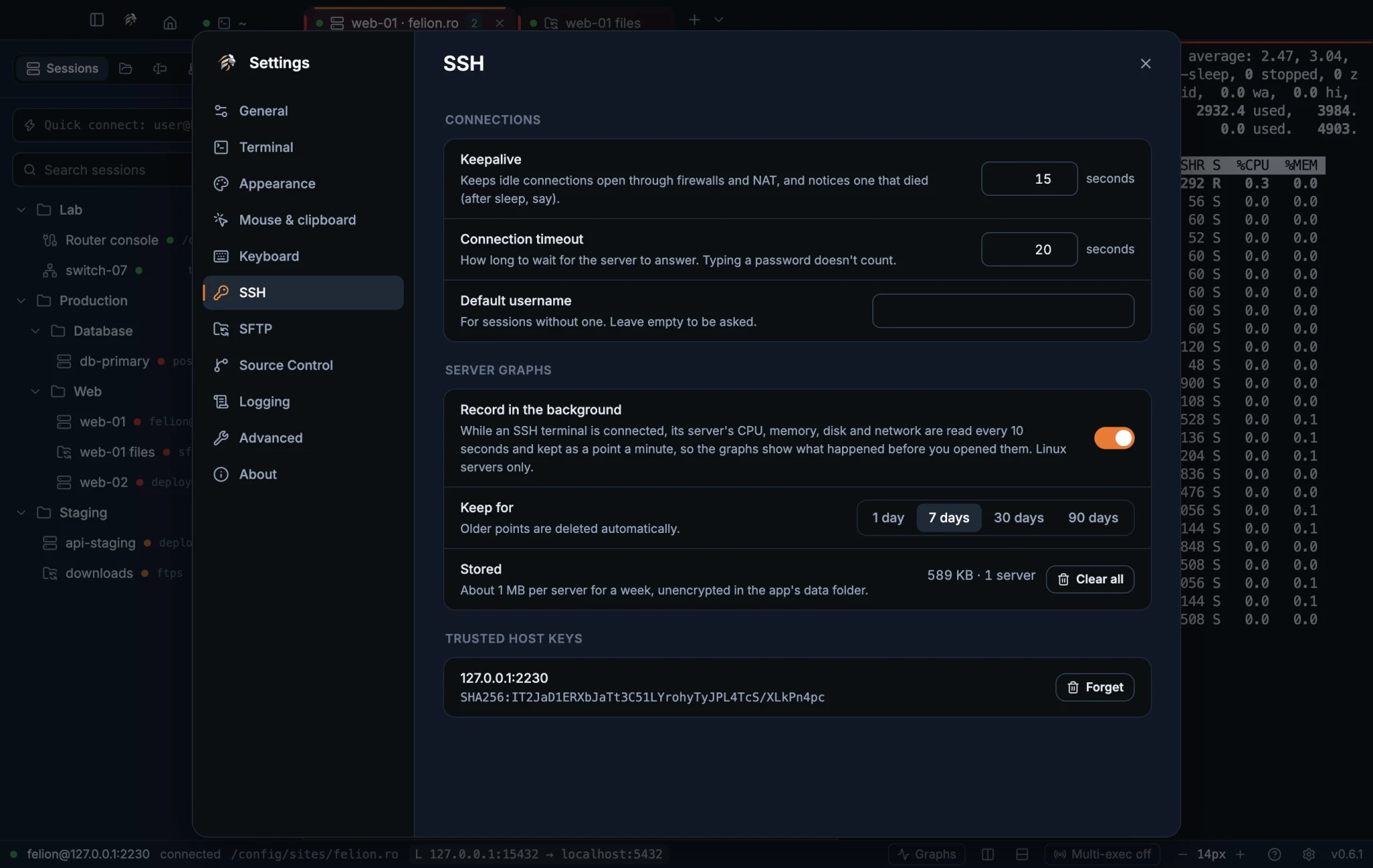
| Setting | Options or range | Default | What it does |
|---|---|---|---|
| Keepalive | 5–600 seconds | 15 seconds | How often Felion Terminal sends a keep-alive message on an idle SSH connection, so firewalls and NAT keep it open and a connection that died (after sleep, say) is noticed. Keep-alives can't be turned off: an older setting below 5 seconds counts as 5. See Connection timing. |
| Connection timeout | 3–300 seconds | 20 seconds | How long to wait for the server to answer. Typing a password or checking a fingerprint doesn't count. See Connection timing. |
| Default username | Text | Empty | The username for sessions that have none. When this is empty, Felion Terminal asks for it. See Log in to an SSH server. |
| Record in the background | On or off, in the Server graphs group | On | While an SSH terminal is connected, its server's CPU, memory, disk and network are read every 10 seconds and kept as a point a minute, so the graphs show what happened before you opened them. Linux servers only. See Recording and history. |
| Keep for | 1 day, 7 days, 30 days or 90 days | 7 days | How long recorded points are kept. Older points are deleted automatically. The graphs offer only the ranges this keeps. |
| Stored | The size and number of servers, with a Clear all button | n/a | About 1 MB per server for a week, unencrypted in the data folder. Clear all asks once in place: click it, then click Delete all graphs history. |
| Trusted host keys | A list, with Forget on each entry | n/a | Each server you have trusted, with its key fingerprint. Forget removes an entry, so you are asked to trust that server again. FTPS certificates appear here as ftps://host:port. See Host key checking and Certificates for FTPS. |
SFTP#
These options control the file browser. They apply to the Files panel and to the file manager of SFTP and FTP sessions.
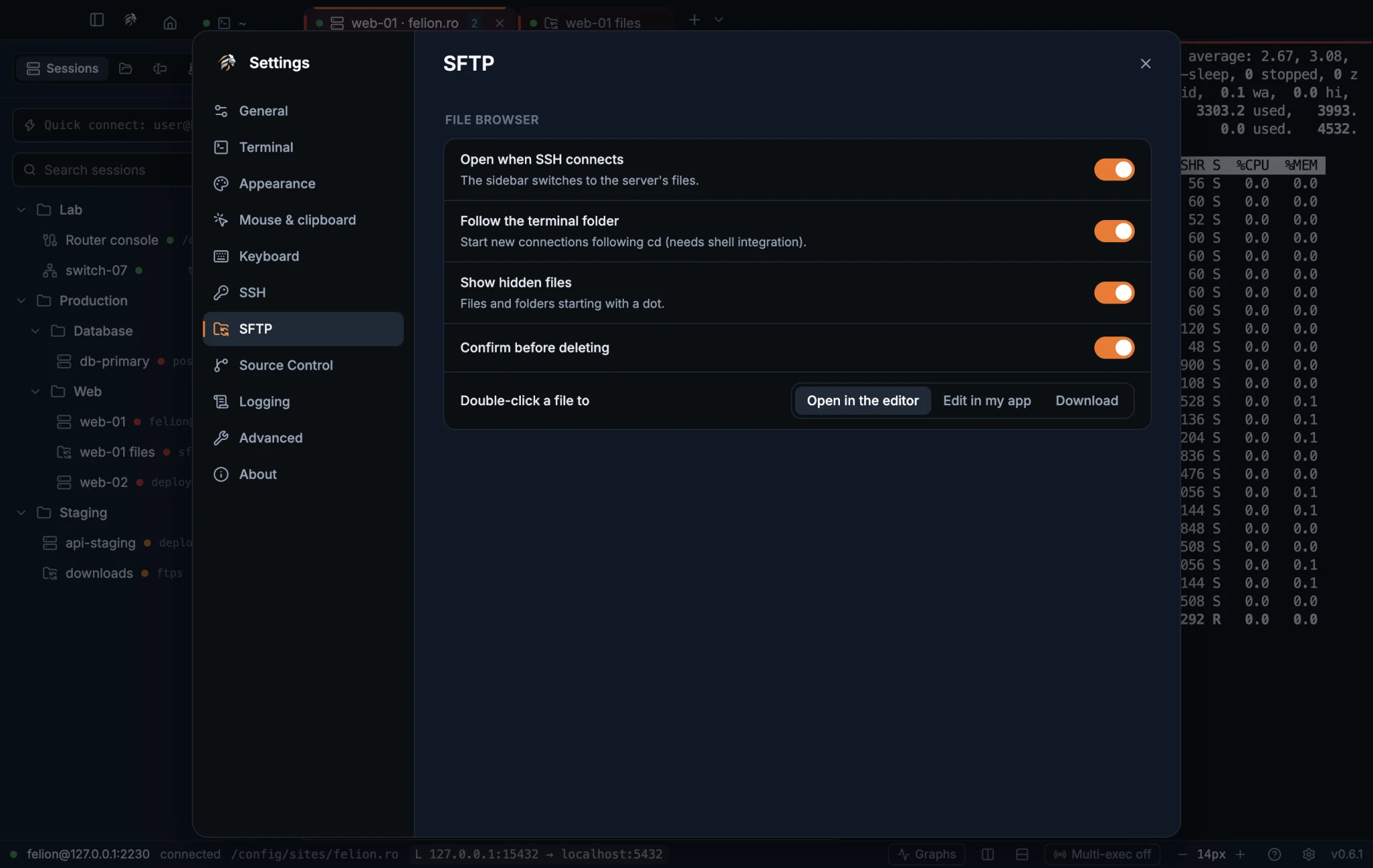
| Setting | Options or range | Default | What it does |
|---|---|---|---|
| Open when SSH connects | On or off | On | Switches the sidebar to Files when an SSH session connects. See The Files panel. |
| Follow the terminal folder | On or off | On | Sets the Follow the terminal folder switch for new connections, so the panel follows cd. Needs shell integration. See The Files panel. |
| Show hidden files | On or off | On | Shows files and folders whose names start with a dot. |
| Confirm before deleting | On or off | On | Asks before a file or folder is deleted on the server. Files on this computer go to the Trash without asking. |
| Double-click a file to | Open in the editor, Edit in my app or Download | Open in the editor | What a double-click on a file on the server does. See Edit in my app. |
Source Control#
These options control the Git panel and the editor's blame line.
| Setting | Options or range | Default | What it does |
|---|---|---|---|
| Check for secrets before committing | On or off | On | Searches the staged changes for keys, tokens, passwords and credential files (.env, id_rsa, .pem…) before each commit. What it finds is shown masked, and you decide. See Check for secrets before committing. |
| Fetch in the background | On or off | On | Fetches every three minutes while the panel is open, so ahead and behind stay current. Only for repositories you have already fetched, pulled, pushed or committed in from the panel. See Fetch, pull and push. |
| Blame in the editor | On or off | On | Shows who last changed the line the cursor is on, when, and in which commit. See Blame in the editor. |
Browser#
These options control the browser for tests and agents. The tab has two groups, Tests and agents and Sign-ins.
| Setting | Options or range | Default | What it does |
|---|---|---|---|
| Let tests and agents use the browser | On or off | On | Gives shells opened in Felion Terminal the browser's address in FELION_BROWSER_CDP. Pages they open show in the Browser tab. Shells already open keep what they started with. See What tests and agents can reach. |
| Tests start signed in | On or off | Off | Pages tests open get the sign-ins imported below. Off, they start signed out on every launch. See Start tests signed in. |
| Import from (macOS) | A browser profile, and an Import button | n/a | Imports the cookies of a Chrome, Brave, Edge or Chromium profile on this Mac. macOS asks before handing over the browser's key. |
| Imported sign-ins (macOS) | Forget button | n/a | Removes every sign-in imported into Felion Terminal. The browser you imported from keeps its own. |
On Windows and Linux, the Sign-ins group says that importing works on macOS. Tests can still sign in themselves, or set cookies with Playwright.
Logging#
Session logs save what a session prints to a text file. See Session logs for the file format and names.
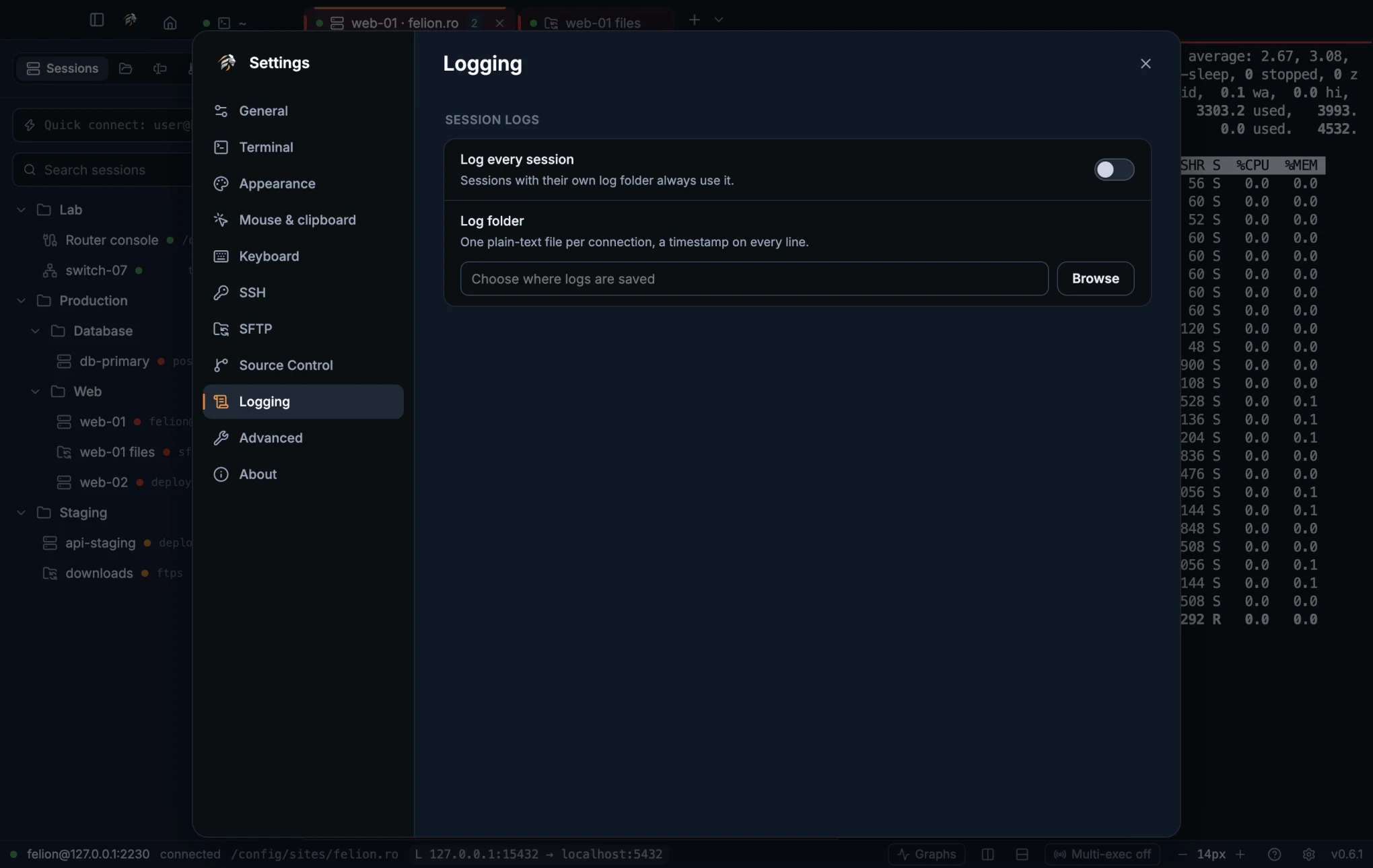
| Setting | Options or range | Default | What it does |
|---|---|---|---|
| Log every session | On or off | Off | Logs every session to the log folder below. A session with its own log folder always uses that folder. |
| Log folder | A folder, chosen with Browse | Empty | Where session logs are saved. While logging is on and this is empty, nothing is logged, and Settings says “Choose a folder, or nothing will be logged.” |
Advanced#
Graphics, the update source, your data folder, backups and resetting the settings.
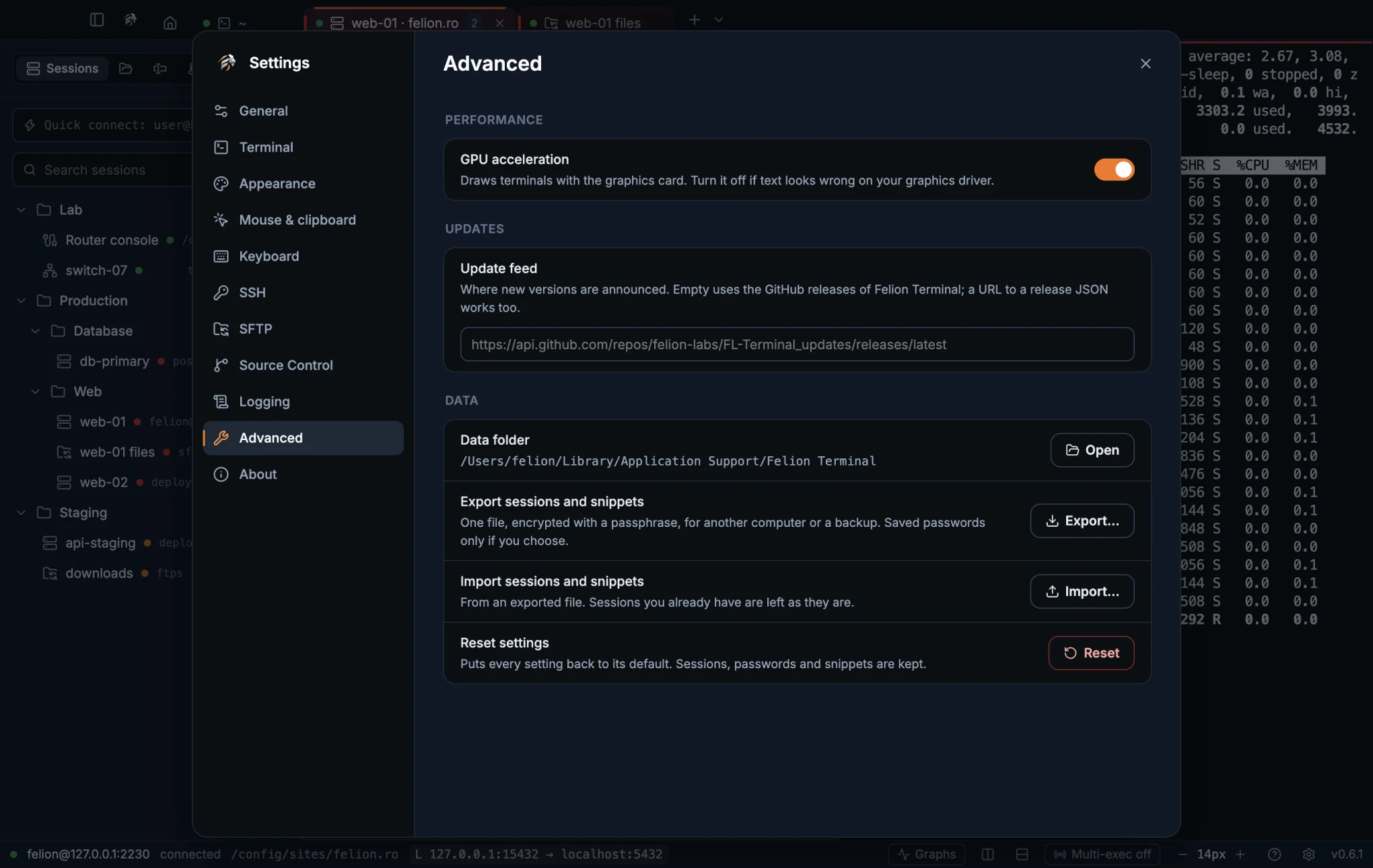
| Setting | Options or range | Default | What it does |
|---|---|---|---|
| GPU acceleration | On or off | On | Draws terminals with the graphics card. Turn it off if text looks wrong on your graphics driver. See Rendering. |
| Update feed | A web address, or empty | Empty: the Felion Terminal releases on GitHub | Where updates are checked. Enter another GitHub releases address, or the address of a release JSON file. See Custom update feed. |
| Skipped version | Offer it again button, shown only after you skip a version | n/a | Puts the skipped version back on offer. See Update checks. |
| Data folder | Open button | n/a | Opens the folder that holds your settings, sessions and snippets. See Where your data lives. |
| Export sessions and snippets | Export… button | n/a | Writes your sessions and snippets to one encrypted file. See Export. |
| Import sessions and snippets | Import… button | n/a | Reads a file made by Export. See Import. |
| Reset settings | Reset button | n/a | Puts every setting back to its default. Sessions, saved passwords and snippets are kept. A skipped version is cleared too. |
About#
The About tab shows the version you run, checks for updates and has the details a support request needs.
| Setting | Options or range | Default | What it does |
|---|---|---|---|
| Update status | Read-only line | n/a | Says “You're up to date”, “Version X is available” or “Couldn't check for updates”, with when the check last ran. See Update checks. |
| Download, Restart to update, Open the installer | Buttons, shown when a version is available | n/a | Install the version that is available. See Installing updates. |
| What's new | Button | n/a | Shows the release notes for the version that is available. See Installing updates. |
| Check now | Button | n/a | Checks for updates straight away. |
| Check automatically | On or off | On | Checks shortly after startup and every six hours. Nothing is downloaded until you choose to. |
| Version | Read-only | n/a | The version you are running, such as 0.7.0. |
| Operating system | Read-only | n/a | Your system and its version, such as macOS 26.6.0 (arm64). |
| Data folder | Open button | n/a | Opens the data folder. See Where your data lives. |
| Diagnostics | Copy button | n/a | Copies the app name, version, operating system, Electron, Chromium, Node.js and V8 versions, ready to paste into a support request. |
| Open-source licences | View button | n/a | Opens the third-party notices file, THIRD_PARTY_NOTICES.txt. |
16
Updates
Felion Terminal looks for new versions, tells you in a small card, and can install them for you.
Update checks#
Felion Terminal checks the public releases feed for a newer version shortly after startup and every six hours. It downloads nothing until you choose to. Drafts and pre-releases are ignored.
To stop the automatic checks, switch Check automatically off under Settings → About. To check now, select Check now on the same tab, or run Check for updates from the command palette, which opens Settings → About.
When a newer version is available, a small card appears in the corner of the window. It has these buttons:
- Download starts the download. See Installing updates.
- What's new shows the release notes.
- Skip this version hides that version. To bring it back, open Settings → Advanced and use Offer it again next to Skipped version.
- × hides the card until the next check (Remind me later).
The card stays hidden during the welcome tour, and while Settings or What's new is open.
If a check fails, the About tab says “Couldn't check for updates” and offers Try again. The reason is shown too, for example “The update server has no release to offer yet (404)” or a server that did not answer within 15 seconds.
Installing updates#
Download fetches the new version and shows its progress, for example “Downloading · 12 MB of 90 MB”. What happens next depends on the build you run and where its updates come from.
| Build | What you get |
|---|---|
| The Mac app, the Windows installer, or the Linux AppImage, using the default feed | Restart to update installs the new version in place. If you don't restart, it installs the next time you quit. |
The portable Windows .exe, the Linux .deb, a custom update feed, or a development build | Open the installer saves the installer to your Downloads folder, under a name that is not already taken. |
On a Mac, Felion Terminal only accepts an update signed with the same Developer ID as the app you run. Every download is checked against the release's checksum. An installer saved to Downloads is checked against SHA256SUMS.txt, and deleted if it doesn't match.
Once an update installed in place is running, the copy the updater downloaded is a spare. It is removed at the next start, so it doesn't take up disk space.
What's new shows the release notes in a dialog. Links in the notes open in your browser.
Custom update feed#
Settings → Advanced → Update feed points Felion Terminal at another source for updates. Leave the field empty to use the official releases. Enter either:
- a GitHub
releases/latestAPI address, or - the address of a JSON file in the format below.
| Field | Holds |
|---|---|
version | The version number of the release. |
url | The web address of the release. |
notes | The release notes shown under What's new. |
publishedAt | The date the release was published. |
downloads | The file for each system, keyed win, win-portable, mac-arm64, mac-x64, linux-appimage and linux-deb. |
An update from a custom feed always saves the installer to your Downloads folder. See Installing updates.
17
Export, import and logs
Move your sessions and snippets to another computer in one encrypted file, and keep a plain-text log of what a session prints.
Export sessions and snippets#
Export writes your sessions, folders and snippets to one .felion file. The file is encrypted with a passphrase you choose. Use it for a backup, or to move your setup to another computer.
- Open Settings → Advanced, then select Export… next to Export sessions and snippets. You can also run Export sessions and snippets… from the command palette.
- Type a Passphrase of at least 8 characters, then type it again under Passphrase again.
- Tick Include saved passwords only if you want the passwords in the file. It is off by default.
- Select Export, then choose where to save. The suggested name is
felion-sessions-YYYY-MM-DD.felion.
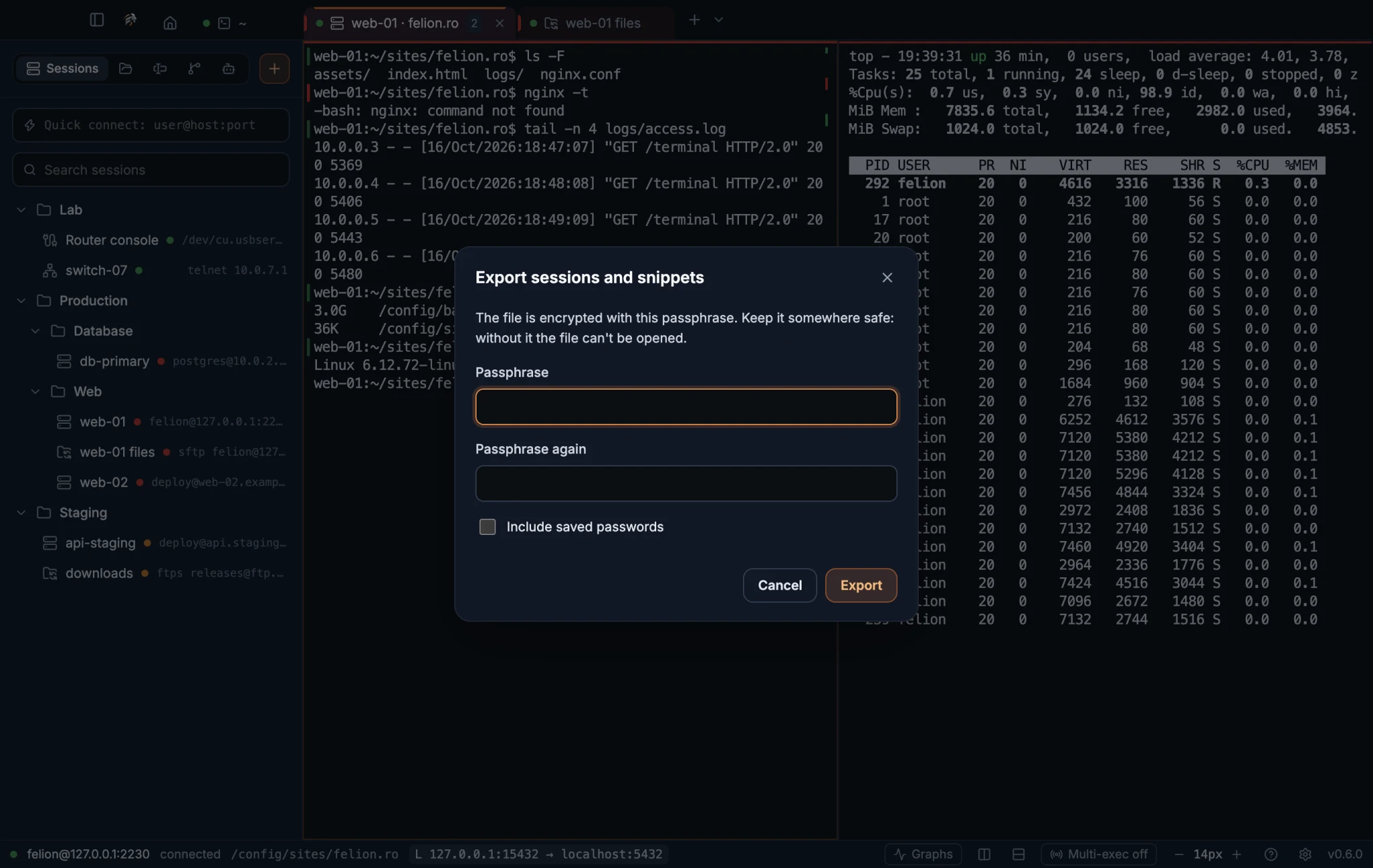
The file is encrypted with AES-256-GCM, using a key that scrypt derives from your passphrase. Felion Terminal saves it so that only your user account can read it. Without the passphrase the file cannot be opened.
When the export finishes, a notice reports the counts, for example “Exported N sessions and M snippets.” Your GitHub connection, the Git panel's list of recent repositories, the recorded server graphs and the list of chats started in the Agents tab are not exported.
Import sessions and snippets#
- Open Settings → Advanced, then select Import… next to Import sessions and snippets. You can also run Import sessions and snippets… from the command palette.
- Choose the
.felionfile. - Type its passphrase.
A notice reports what came in, for example “Imported N sessions, M snippets, K saved passwords; X already here; Y unreadable, skipped.”
- A session that is already here, with the same ID, is left as it is.
- Snippets are merged by ID.
- Saved passwords go into your system keychain, and only when a keychain is available.
- Files larger than 20 MB are refused.
- A wrong passphrase, or a damaged file, gives “Wrong passphrase, or the file is damaged.”
Felion Terminal treats every imported file as untrusted, including your own backups. It turns off agent and X11 forwarding, drops remote tunnels, limits local and SOCKS tunnels to this computer, clears log folders, and refuses network paths for key files and serial ports. A notice counts the sessions that lost any of these settings, and asks you to check them before you connect. See Safety checks.
Session logs#
A session log is a plain-text record of what a session prints, with one file for each connection. The first line is a header such as # Felion Terminal session log: web-01, started <date>. After it, every line starts with the time, in the form [HH:MM:SS]. Colours and control codes are removed. Progress bars and redrawn lines keep only their final state, and backspaces are applied.
- A program that redraws lines by moving the cursor up, such as Claude Code's status box or
docker pull, is logged in its final state instead of once per frame. The last 500 lines wait in memory for that. - A full-screen program, such as vim, htop or Codex, is logged as one note: “[a full-screen program is running; its screen is not logged (Codex logs inline with --no-alt-screen)]”.
- A program that places the cursor by row and column outside a full screen can still leave repeated lines.
- A very long line without a line break is written in pieces of 65 536 characters.
To log every session, switch on Log every session under Settings → Logging, and choose a Log folder. To log one session, choose a folder for it under Session log in its form, using Browse. A session's own folder takes priority over the global one. When logging starts, the terminal shows “Logging to” followed by the path.
Log files are named <session name>-YYYY-MM-DD-HHMMSS.log. Characters that are unsafe in a file name are replaced with _.
- When a log passes 100 MB, it goes on in a new part:
…-2.log, then…-3.log. Each part starts with its own header, which names the part. - A log folder keeps at most 1 GB of Felion Terminal's logs. When it holds more, the oldest logs are deleted first.
- Only files named like these logs and starting with the header are ever deleted, and never a log that is being written. Logs from before 0.4.3, which have no header, and any other files in the folder are left alone.
18
Security and privacy
Where Felion Terminal keeps your secrets, what it trusts, and the checks it runs before it acts on anything.
Secrets and keys#
Passwords and key passphrases are encrypted with your operating system's keychain: Windows DPAPI, the macOS Keychain, or libsecret on Linux. They are stored in secrets.json, never as plain text. To save one, see Saved passwords.
Without a usable keychain, Felion Terminal stores no secrets. It asks for the password or passphrase on every connection.
| Item | How it is protected |
|---|---|
| SSH host keys | Each key is trusted the first time you accept it, and kept in known_hosts.json. Felion Terminal warns you when a key changes. See Host key checking. |
| FTPS certificates | A certificate is checked before your password is sent. Once you trust it, it is pinned, and a change is shown as a warning. See Certificates for FTPS. |
| Agent forwarding | Off by default. Turn it on for one session, and only for a server you trust. It applies to the final hop only. See SSH agent forwarding. |
| X11 forwarding | Off by default. Turn it on for one session, and only for a server you trust. The server gets a random stand-in cookie, so your real X cookie never leaves this computer. See X11 forwarding. |
| GitHub token | A token you paste is encrypted with the keychain like a password. It stays in the app, is used only to talk to GitHub, and is never sent to a server you are logged in to. With the GitHub CLI's sign-in, Felion Terminal stores no token. See Connect GitHub. |
| Claude Code sign-in | Felion Terminal never reads, stores or passes on your Claude sign-in. The Agents chat runs your own installed claude, signed in as you, with your settings and hooks. Account, plan and usage come from Claude Code itself. |
| Claude Code and Codex conversations | The Agents tab reads them from ~/.claude/projects and ~/.codex/sessions and never writes there. The .key files in ~/.claude/sessions are never opened. |
| Browser for tests | Listens on this computer only, at an address with a random token that only shells opened in Felion Terminal are given. Tests see only the pages they open. Imported sign-ins are encrypted with the keychain like a password. See What tests and agents can reach. |
| Server graph history | Kept unencrypted in the graphs folder of the data folder. It holds numbers only, no commands or output. See Recording and history. |
| Backups | Encrypted with the passphrase you choose. See Export. |
When you Forget a password in the session form, or delete a session, its saved secret is removed too.
The app's window runs in a sandbox, and it reaches the system only through a small, typed bridge.
Safety checks#
Felion Terminal runs these checks as part of normal use. A few of them have a setting, which the item names.
- Remote programs cannot read your clipboard. They can write to it, but they can never read it. See Copy and paste.
- Multi-line paste asks first where lines would run. Pasting text with line breaks shows the lines and waits for Paste. A program that takes a paste as a whole (bracketed paste), such as Claude Code, Codex, zsh or fish, gets the text without the question. Setting: Confirm multi-line paste. See Copy and paste.
- Pasted text can't carry control sequences. Escape characters are removed before a paste is sent, so a crafted clipboard can't end a paste early and run commands.
- Links say where they go. A link a program puts in its output shows its real address when you hover over it. Only web links and files are opened. In a local tab where you typed
sshyourself, paths are not opened on this computer, and pasted images and dropped files are refused. See Clickable file paths. - Shell integration never edits your dotfiles. Your own startup files load first, and the integration files sit in the data folder. See Shell integration.
- Imported files are untrusted. A session from an import loses agent and X11 forwarding, remote tunnels and other risky settings. See Import sessions and snippets.
- The Files panel never launches a file on this computer. Local files open only in the built-in editor, and network paths are refused (WSL folders on Windows count as this computer). New file and Duplicate never overwrite a name that is taken. See The Files panel.
- Commits are checked for secrets. Before a commit, the staged changes are searched for keys, tokens, passwords and credential files, and anything found is shown masked. Setting: Check for secrets before committing. See Check for secrets before committing.
- A repository can't run programs through the Git panel. When the panel runs git by itself, a repository's filter drivers and fsmonitor are switched off, and git-lfs keeps working. Background fetch runs only for repositories you have already synced from the panel. See Safe by default.
- Explain sends nothing on its own. The built-in explanation stays in the app. Text goes to an AI assistant only when you choose one, the assistant runs nothing, and it keeps no record of the conversation. See Explain.
- Problems, tasks and the debugger run the project's own code: its TypeScript and ESLint config, its scripts and Makefile, or the program you debug. Nothing runs when a folder opens. Problems asks before the first check of a project, a task only types the command you picked into a visible shell, and the debugger starts only from its button or F5. See Problems.
- Project folders must be yours. On macOS and Linux, a project folder is used only when it, and every folder above it, belongs to you or root and can't be changed by other users.
go vetcan't fetch and run another Go version, and task names with characters a shell would act on are not offered. See Which folders tasks and checks use. - The Agents chat asks before risky modes. Bypass permissions asks first. A permission card shows the exact command or change before you allow it, and Enter is ignored for 0.6 seconds after a card appears, so a key you were already pressing doesn't allow it. See Chat with Claude Code.
- ZMODEM asks before it saves. A file sent with
szwaits for your Save, and it is marked as downloaded. See File transfers with ZMODEM. - Markdown preview runs nothing. Scripts, event handlers, forms and buttons are removed, and images are not loaded from the internet. See Markdown preview.
- Updates are checked. A download is checked against the release's checksum, and an installer saved to Downloads is checked against
SHA256SUMS.txt. See Installing updates. - Telnet and plain FTP are not encrypted. The forms warn you when you pick either one. See Telnet and Certificates for FTPS.
19
Keyboard and mouse
Every keyboard shortcut and mouse gesture, with the macOS keys and the Windows and Linux keys side by side.
App shortcuts#
These shortcuts work wherever the focus is, except inside dialogs and text fields that take the keys for themselves. Holding ⌥ (Option) or Alt turns them off.
| Action | macOS | Windows and Linux |
|---|---|---|
| Command palette (show or hide) | ⇧⌘P | Ctrl+Shift+P |
| New terminal, in the default shell | ⌘T | Ctrl+Shift+T |
| Split right | ⌘D | Ctrl+Shift+D |
| Split down | ⇧⌘D | Ctrl+Shift+E |
| Terminal panel: show, fold or hide | ⌘J | Ctrl+Shift+J |
| Close pane | ⌘W | Ctrl+Shift+W |
| Multi-exec on or off | ⇧⌘M | Ctrl+Shift+M |
| Next tab | Ctrl+Tab or ⇧⌘] | Ctrl+Tab |
| Previous tab | Ctrl+Shift+Tab or ⇧⌘[ | Ctrl+Shift+Tab |
| Go to the start page | ⇧⌘H | Ctrl+Shift+H |
| Open recent session 1 to 5, on the start page | ⌘1 to ⌘5 | Ctrl+Shift+1 to Ctrl+Shift+5 |
With only one tab open, Ctrl+Tab goes to the terminal instead. From the start page it goes to your first tab. Close pane asks first if an editor tab in that pane has unsaved changes. Split down on a chat or the editor opens a shell in the terminal panel, and Split right on a chat opens a shell beside it. See Splitting the window and Multi-exec.
Terminal shortcuts#
These shortcuts work when the terminal has the focus.
| Action | macOS | Windows and Linux |
|---|---|---|
| Copy | ⌘C | Ctrl+Shift+C, or Ctrl+C with text selected (setting) |
| Paste, with the multi-line check and image paste | ⌘V | Ctrl+Shift+V or Ctrl+V |
| Find in scrollback | ⌘F | Ctrl+Shift+F |
| Previous or next command | ⌘↑ or ⌘↓ | Ctrl+Shift+↑ or Ctrl+Shift+↓ |
| Interrupt a program | Ctrl+C | Ctrl+C, unless text is selected and the copy setting is on |
| Cancel a ZMODEM transfer | Ctrl+C | Ctrl+C |
| New line in an AI tool's prompt | Shift+Enter | Shift+Enter |
On macOS, Ctrl+C always goes to the shell, and Option acts as Meta unless you turn off Settings → Terminal → Option key as Meta. Turn it off if your keyboard types characters such as @ { } | with Option. Hold Option while you drag to select text even when a program has taken the mouse, such as tmux or a full-screen program. On Windows and Linux, Alt is the Meta key. See Shift+Enter for a new line and Copy and paste.
Other keys#
These keys work in one place each.
| Where | macOS | Windows and Linux |
|---|---|---|
| Quick terminal: show or hide (default, can be changed) | ⌃` | Ctrl+` |
| Quick terminal: hide | ⌘W | Ctrl+Shift+W |
| Editor: save the file | ⌘S | Ctrl+S |
| Editor: breakpoint on the cursor line, on or off | F9 | F9 |
| Editor: start debugging the file, or continue | F5 | F5 |
| Editor: pause the program | F6 | F6 |
| Editor: step over, step into, step out | F10, F11, Shift+F11 | F10, F11, Shift+F11 |
| Editor: stop debugging | Shift+F5 | Shift+F5 |
| Debug console: evaluate | Enter | Enter |
| Blame card: close | Esc | Esc |
| Find bar: next match, previous match | Enter, Shift+Enter | Enter, Shift+Enter |
| Find bar: close | Esc | Esc |
| Command palette: move, run, close | ↑ and ↓, Enter, Esc | ↑ and ↓, Enter, Esc |
| Files panel: select all | ⌘A | Ctrl+A |
| Files panel: clear the selection | Esc | Esc |
| Files panel: delete the selection | Delete or ⌘⌫ | Delete or Ctrl+Backspace |
| Files panel: filter the folder, with the list focused | ⌘F | Ctrl+F |
| Files panel filter: open the first match, close the filter | Enter, Esc | Enter, Esc |
| File manager: move the selection | ↑ and ↓ | ↑ and ↓ |
| File manager: open, or transfer | Enter | Enter |
| File manager: up one folder | Backspace | Backspace |
| File manager: delete | Delete or ⌘⌫ | Delete |
| Tab rename: save or cancel | Enter saves, Esc cancels | Enter saves, Esc cancels |
| Session list: connect to the focused session | Enter | Enter |
| Git panel: commit | ⌘Enter | Ctrl+Enter |
| Git panel: show the diff of the focused file | Enter | Enter |
| Agents chat: send, new line | Enter, Shift+Enter | Enter, Shift+Enter |
| Agents permission card: allow, deny | Enter, Esc | Enter, Esc |
| Sidebar edge, focused: narrower, wider | ←, → | ←, → |
| Dropdown: open, move, pick | ↑ and ↓, Enter or Space | ↑ and ↓, Enter or Space |
| Dropdown: close the list only | Esc | Esc |
| Dialogs: close the topmost | Esc | Esc |
| Welcome tour: skip | Esc | Esc |
The debugger keys work while the editor has the focus, and they are the same on every system. Restart has no key: use its button in the Debug tab. See Debug a file. Each press of an arrow key on the sidebar's edge moves it by 16 px. See Sidebar.
Any key or click skips the startup lion, and wakes the idle screen. The key that does so is not passed on to the terminal. See The startup lion and Idle screen.
Mouse gestures#
| Gesture | Effect |
|---|---|
| Right-click in a terminal | Pastes, copies or pastes, or opens a menu, as set under Right click. |
| Middle-click in a terminal | Pastes the clipboard, when Paste with the middle button is on. See Mouse and clipboard. |
| Middle-click a tab, an editor file tab, a terminal panel tab or a page tab in the Browser tab | Closes it. |
| Double-click a tab | Renames it. |
| Drag a tab | Moves it to another place in the tab bar. Dropped between two tabs of a group, it joins the group. See Tabs and the title bar. |
| Right-click a tab | Opens the tab menu: rename, tab groups and close. See Tab groups. |
| Click a group chip | Folds or unfolds the group's tabs. Right-click it for the group menu. |
| Drag the sidebar's right edge | Resizes the sidebar. Double-click the edge to go back to 300 px. See Sidebar. |
| Double-click the terminal panel's strip | Folds or opens the panel. See The terminal panel. |
| Double-click a word | Selects it. The characters that end a word are set under Word separators. |
| Double-click a session | Connects to it. |
| Double-click a file | Opens, edits or downloads it, as set under SFTP. |
| Click, Cmd or Ctrl+click, or Shift+click in a file list | Selects one item, adds an item to the selection, or selects a range. See Selecting files. |
| Drag a divider | Resizes the panes, or the terminal panel. |
| Click the × of a split pane | Closes that pane. The × shows while the pointer is over the pane. See Split panes. |
| Option-drag in a terminal (macOS) | Selects text even when a program has taken the mouse, such as tmux or a full-screen program. |
| Option+Shift-click a file path (Alt+Shift-click on Windows and Linux) | Shows the file selected in the Finder or Explorer. See Clickable file paths. |
| Drop files on a terminal | Pastes their paths. Over SSH, the files upload first. See Paste images and drop files. |
| Drop files on the Files panel or the server side of the file manager | Uploads them. |
| Click a file path in output | Opens the file at that line. See Clickable file paths. |
| Hover a link a program put in its output | Shows the address it opens. See Clickable file paths. |
| Click beside a line number in the editor | Sets or removes a breakpoint. See Debug a file. |
| Click the blame text at the end of a line, or the blame in the status line | Opens the blame card for that line. See The blame card. |
| Click a problem in the Problems tab | Opens the file in the editor at that place. See Problems. |
| Click a picture in the editor | Shows it at actual size. Click again to fit it to the pane. See Pictures and SVG files. |
20
Platform notes
What differs between macOS, Windows and Linux: builds, shortcuts, shells and how updates install.
macOS#
On every system the window opens at 1360×860 and cannot be made smaller than 760×480. On macOS, Felion Terminal runs natively on Apple Silicon and on Intel. Since 0.3.3 the app is signed with a Developer ID and notarized by Apple, so it opens without a warning. Permissions you grant to it carry over to each update from 0.3.3 on. From 0.3.2 or older, see Install.
- Shortcuts use ⌘ and ⇧. Ctrl+C and Ctrl+V always go to the shell, so the Ctrl+C copies setting is hidden.
- Option acts as Meta by default. If your keyboard types characters such as
@ { } |with Option, turn off Option key as Meta under Settings → Terminal. Option-drag selects text even under a program that has taken the mouse. See Terminal shortcuts. - The menu bar has the standard App, Edit and Window menus, and a Help menu with Felion Terminal Manual. ⌘W closes a pane, not the window.
- Updates install in place with Restart to update. See Installing updates.
- X11 forwarding needs XQuartz. See X11 forwarding.
- Local shells start as login shells, so your login profile runs.
- Tools you add to
PATHin.zshrc, such as~/.local/binor nvm, are found by the Tools page, Explain, the Git panel, the Agents chat (claude), Problems (node,ruff,go) and the debugger (python3,node) too, as in a terminal tab. - The Agents chat, tasks, Problems and the debugger were tested on macOS.
- Server graphs work only with a Linux server, also from a Mac.
- Serial ports are listed as
/dev/tty.*and/dev/cu.*. Use the/dev/cu.*name, the usual choice for a serial console. See Serial consoles. - A system shortcut such as ⌘Space can register for the quick terminal and then never fire, with no warning. If the hotkey does nothing, pick another one. See Quick terminal.
- When you put the quick terminal away over another app, the main window also hides, until you activate Felion Terminal again.
- The data folder is
~/Library/Application Support/Felion Terminal. The labels say Finder and Trash.
Windows#
Felion Terminal runs on Windows 10 and 11 (x64). The app is not code-signed yet, so SmartScreen shows “Windows protected your PC”. Choose More info, then Run anyway. See Install.
- Shells. PowerShell 7, Windows PowerShell, Command Prompt, Git Bash and WSL are offered when they are installed. See Local shells.
- Shell integration. PowerShell starts without the “running scripts is disabled” error. PowerShell, Git Bash and WSL (with bash or zsh) report their folder and commands; Command Prompt reports its folder. PowerShell reports the full computer name, so clickable paths work on names longer than 15 characters. See Shell integration.
- New tools. Each new tab starts with the current system and user
Path, so a tool installed while the app is open works in the next tab. - WSL folders open as
\\wsl.localhost\<distribution>\…in the Files panel and the editor. For a repository there, the Git panel runs the distribution's own git. Discarding new files in it deletes them, as WSL has no Recycle Bin. - Agents. Stopping a running conversation from the list is not available yet: the app says “Stopping a session from here is not available on Windows yet.” A conversation counts as running only when it changed in the last 2 minutes. See Open, resume and stop conversations.
- Tasks and Problems. Windows has no owner bits on folders, so only the other parts of the folder check apply. Ruff for Problems and Python for the debugger come from a project's
.venv\Scriptsfolder when it has one. - Server graphs work only with a Linux server, also from Windows. See Server graphs.
- Not yet tested on Windows: the Agents chat, tasks, Problems and the debugger are in the Windows build, but have not been tried there.
- Quick terminal. Putting it away with the hotkey hands the keyboard back. See Quick terminal.
- Shortcuts. Most shortcuts use Ctrl+Shift. Plain Ctrl+V pastes, and Ctrl+C copies a selection when the setting is on.
- SSH agent. Felion Terminal uses the built-in OpenSSH agent service. See SSH authentication.
- X11 forwarding needs VcXsrv or Xming. See X11 forwarding.
- File names. A pasted or dropped file whose name contains $, %, ! or a backtick is refused. See Paste images and drop files.
- Updates. The installer build installs updates in place with Restart to update. The portable
.exesaves the new installer to Downloads. See Installing updates. - Window. The title bar keeps the native caption buttons. Closing the main window quits the app, quick terminal included.
- Labels say Explorer and Recycle Bin.
- Data folder is
%APPDATA%\Felion Terminal.
Linux#
Felion Terminal runs on Linux (x64), as an AppImage or as a .deb package. See Install.
- Updates. The AppImage installs updates in place with Restart to update. The
.debupdater saves the new package to your Downloads folder, and you install it the same way as the first time. See Installing updates. - Shells are the ones listed in
/etc/shells. Your login shell comes first. See Local shells. - Secrets are stored with libsecret. Without a working keyring, Felion Terminal asks for each password every time. See Secrets and keys.
- X11 forwarding needs the X server of your desktop. See X11 forwarding.
- Labels say “file manager” and “Recycle Bin”.
- Window. Closing the main window quits the app, quick terminal included.
- Tasks and Problems refuse a folder that your group can write to. With a umask of 002, your own folders are group-writable, and the panel says “Not used: <folder> can be changed by other users.” See Which folders tasks and checks use.
- Agents. Stopping a running conversation from the list works, as on macOS.
- Not yet tested on Linux: the Agents chat, tasks, Problems and the debugger are in the Linux builds, but have not been tried there.